EasyManua.ls Logo

Veho VFS-004 deluxe - User Manual

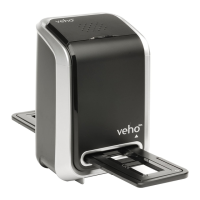
Veho VFS-004 deluxe
37 pages
Print Icon
To Next Page IconTo Next Page
Loading...
-0-

Questions and Answers

  • M
    Melissa RichmondAug 3, 2025
    Why Veho VFS-004 deluxe scanner is not recognized even with USB 2.0?
    • J
      Jeffrey JensenAug 3, 2025
      Even if you have USB 2.0 installed on your computer, it's possible that not all of your USB ports are USB 2.0 compatible. Check all your USB ports to locate the ones that are 2.0 compatible for your Veho Digital Imaging Accessories scanner.
  • A
    Alexander PenaAug 9, 2025
    What to do if Windows cannot load Omni SuperCam for Veho Digital Imaging Accessories?
    • K
      kylespearsAug 9, 2025
      If you receive a Windows message stating 'Windows cannot load Omni SuperCam' when using Veho Digital Imaging Accessories, it's likely due to incorrect installation order. To resolve this, disconnect the scanner, uninstall the driver and PhotoImpression6, then restart your computer. Reinstall following the manual's order: install the driver, restart the computer, and then reinstall the PhotoImpression6 software.
  • D
    David CookeAug 18, 2025
    What to do if Veho VFS-004 deluxe Digital Imaging Accessories installation disc will not auto start?
    • D
      Dr. Jenny JimenezAug 18, 2025
      If your installation disc for Veho Digital Imaging Accessories doesn't auto-start, the problem may be with the install CD or your CD drive itself. Verify that your CD drive is functioning correctly. If you can, test the disc on another computer to see if it's recognized.
  • S
    sheryl00Aug 25, 2025
    Why Veho VFS-004 deluxe scanner makes overexposed slides?
    • G
      Geoffrey SchmittAug 25, 2025
      If your Veho Digital Imaging Accessories scanner is working but slides or negatives appear overexposed, it's because the auto exposure time varies based on your computer's configuration. Allow the live view window to finish adjusting the exposure before clicking 'snap shot' or pressing the copy button. Also, check if the original slides or negatives were overexposed during development. Photo editing software can help clean up digitized pictures.

Summary

Safety Precautions and Warnings

FCC Compliance Information

Scanner Preparation and Accessories

Standard Accessories List

Lists the standard accessories included with the VFS-004 scanner.

Scanner Part Identification

Driver and Software Installation

Installing the Scanner Driver

Instructions for installing the scanner driver on your computer.

Installing the Photo Editing Software

Steps for installing the ArcSoft PhotoImpression 6 software.

Loading Film and Slides

Connecting the Scanner to PC

Editing Digital Pictures

Adjusting Photo Settings

Fine-tune brightness, contrast, color, red-eye, and crop images.

Photo Retouching Tools

Fix blemishes, scratches, and unwanted elements using retouching tools.

Image Clipboard Functionality

Clip pictures using various selection tools for editing.

Product Specifications and System Requirements

Scanner Specifications

Technical details of the VFS-004 scanner, including sensor, resolution, and interfaces.

System Requirements for Software

Minimum hardware and software requirements for running the scanner software.

Troubleshooting Common Scanner Issues

Windows 7 Driver Installation Troubleshooting

Veho VFS-004 deluxe Specifications

General IconGeneral
TypeFilm Scanner
Image SensorCMOS
Focus RangeFixed Focus
File FormatJPEG
InterfaceUSB 2.0
Power SourceUSB Powered
USB PortYes
Display2.4" LCD
Memory Card SlotsSD
Built-in MemoryNo
Supported Film Types35mm film strips and slides