14
8.FAQ
1.The stylus can’t control the cursor.
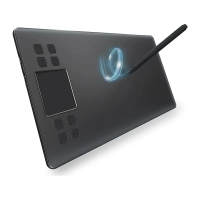
2.How do I know that the A15 Pro driver installed successfully?
A. Whether the tablet’s status indicator light turn on when the stylus is in contact with
the working area? If yes, uninstall the A15 Pro driver and reboot, then connect the tablet
to your computer and test your stylus.If the cursor responses to your pen input, the
tablet’s hardware is functional.Go to our official website
http://www.veikk.com download the latest driver and re-install.
B. Connect the tablet then run the driver installation,complete the installation, then
reboot.
3.How do I determine if a problem is software or hardware related?
A. Connect and install the A15 Pro on a different computer. If the tablet functions properly
on the new computer, you are experiencing a software problem.Please uninstall all
tablet drivers(including A15 Pro driver)from your computer, download the latest driver
from our official website
http://www.veikk.com and then re-install.
B. The A15 Pro indicator lights will help you determine if an issue is hardware related.
When functioning properly,the blue status indicator light will light up when the stylus
pen is in range of or touching the tablet’s working area.
4.There is no pressure in the graphics software, but the cursor moves.
You may have installed other tablet drivers or opened the drawing software when
installing the driver. Please uninstall all drivers and close the drawing software, then
re-install A15 Pro driver.Then restart your computer after completing the installation.
A. After installing the driver,the A15 Pro driver icon would be visible in your system
tray on the bottom-right corner of your screen(Windows OS) and desktop.
B. Or open the driver interface, the upper left corner shows the A15 Pro, indicating that
the tablet has been successfully mounted to the driver, you can start using your tablet
now.


 To Next Page