pg
21
THE BASICS
Messages appear on both your smartphone and on your computer indicating that
synchronization is in progress.
3:
Wait until you see the message on your smartphone that the HotSync operation is
complete; then disconnect the sync cable.
Contacts—Adding a contact
NOTE: If you have several contacts to enter, it’s more efficient to use the included Palm
®
Desktop software or Microsoft
Outlook
®
(sold separately) on your computer and then synchronize your Palm
®
Centro™ smartphone with your computer. For
more information, see “Synchronizing information—basics” on page 19.
1:
Press
Phone
.
2:
Select the
Contacts
favorite button.
3:
Select
New Contact
.
4:
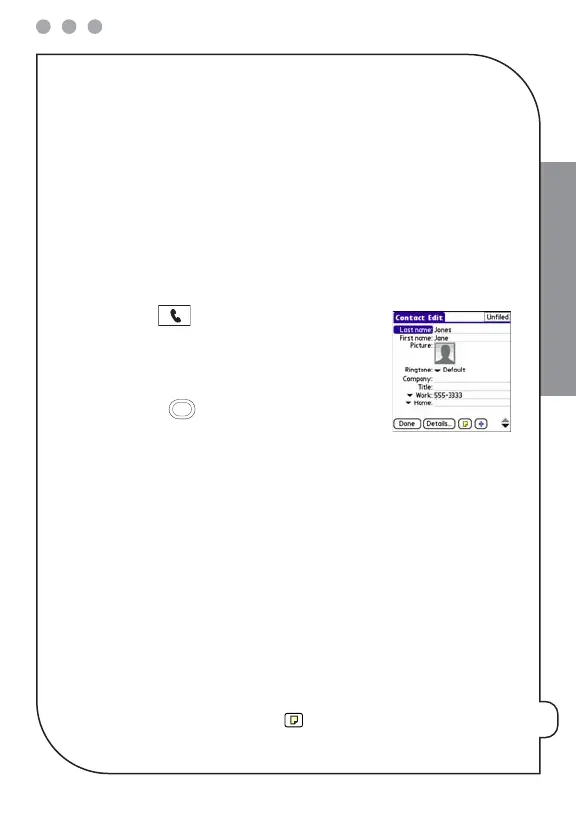
Use the
5-way
to move between fields as you
enter information.
5:
(Optional) Do any of the following:
Add a caller ID photo:
Select the
Picture
box, and then do one of the following:
•
Select
Camera
to take a picture and add it to this contact when you save the
picture (camera version only).
•
Select
Photos
to add an existing picture to this contact.
Add a caller ID ringtone:
Select the
Ringtone
pick list and select a ringtone from
the list to give incoming calls from this contact a distinctive ring.
Place the entry in a category or mark it private:
Select
Details
. (See the
User
Guide
for more info.)
Add a note to an entry:
Select
Note
.


 To Next Page