pg
7
THE BASICS
Moving around the screen
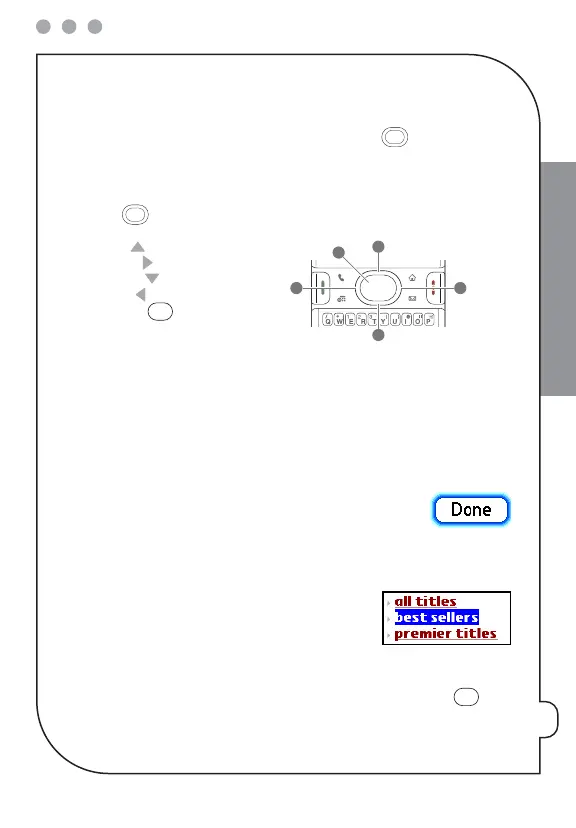
To move around the screen, you can use the 5-way navigator for one-handed
navigation, or you can tap items on the screen with the stylus. With use, you’ll find your
own favorite way to scroll, highlight, and select items.
The 5-way includes the following buttons:
1
Up
2
Right
3
Down
4
Left
5Center
Highlighting and selecting items
On most screens, one item—a button, a list entry, or a check box—is highlighted by
default. The highlight identifies which item is affected by your next action. Use the
5-way to move the highlight from one item to another before opening or selecting it.
The highlight can take one of two forms, depending on what is highlighted:
Border glow
: When an entire screen, onscreen button (such as OK
or Cancel), or a pick list is highlighted, a glow appears around its
border. If an entire screen is highlighted, the glow appears at the
top and bottom of the screen only.
Colored background
: When a phone number, text, an
email address, a web link, or an item is highlighted, the
item is displayed as white text against a colored
background.
After highlighting an item, you can select or activate it by pressing
Center
or by
tapping the item with the stylus.


 To Next Page