EasyManua.ls Logo

versa CSG1300 - User Manual

versa CSG1300
6 pages
Print Icon
To Next Page IconTo Next Page
Loading...
– 1 –
Rackmount the Device
1. A
ttach each of the rear-post brackets to the switch using six of
the included bracket screws.
2. Use the rack screws to secure the switch in the rack.
Adjust Rear-Post Bracket Ears
1. Lock the position of the rear-post bracket ears using the included
position-locking screws.
You can adjust the rear-post bracket ears to fit different rack
depths from 56 cm to 75 cm.
Ground the Device
1. Ens
ure the rack is properly grounded and in compliance with
ETSI ETS 300 253. Verify that there is a good electrical
connection to the grounding point on the rack (no paint or
isolating surface treatment).
2. Attach the grounding wire (#18 AWG) to the grounding point
on the device rear panel. Then connect the other end of the wire
to rack ground.
Connect Power
1. Ins
tall two AC PSUs in the device.
2. Connect an external AC power source to each PSU.
3. Push the power button to power on the device.
Wa
rning:
This equipment is not suitable for use in
locations where children are likely to be present.
A
vertissement:
Cet
équipement ne peut pas être utilisé
dans des endroits où des enfants sont susceptibles d’être
présents.
1
1
2
2
1
Ca
ution:
Th
e earth connection must not be removed unless
all supply connections have been disconnected.
Att
ention:
L
e raccordement à la terre ne doit pas être retiré
sauf si toutes les connexions d’alimentation ont été
débranchées.
3
2
1
4
2
1
E082
020-CS-R01
15020000xxxxA
Q
u
i
c
k
S
t
a
r
t
G
u
i
d
e
Cloud Services Gateway
CSG1300 | CSG1500|CSG3300|CSG3500
1.
Clo
ud Services Gateway CSG1300 or CSG1500
2. Rack mounting kit—4 rack screws, 2 rear-post brackets, 2
rear-post bracket ears, 20 screws, and 2 ear-locking screws
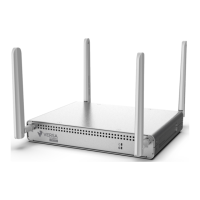
3. 2 LTE antennas
4. 2 Wi-Fi antennas
5. Power Cord
6. Console Cable—USB to RJ-45
Package Contents
2
5
6
1
3
4
Question and Answer IconNeed help?

Do you have a question about the versa CSG1300 and is the answer not in the manual?

Summary

Rackmount the Device

Attach Rear-Post Brackets

Attach rear-post brackets to the switch using six included bracket screws.

Secure Switch in Rack

Use rack screws to secure the switch in the rack.

Adjust Rear-Post Bracket Ears

Lock Bracket Ears

Lock the position of rear-post bracket ears using included position-locking screws.

Ground the Device

Ensure Proper Grounding

Ensure the rack is properly grounded and complies with ETSI ETS 300 253.

Attach Grounding Wire

Attach the grounding wire to the device rear panel and connect to rack ground.

Connect Power

Install PSUs

Install two AC PSUs in the device.

Connect AC Power

Connect an external AC power source to each PSU.

Power On Device

Push the power button to power on the device.

Verify Device is Powered On

Check Power LED

Verify the device is powered on by checking the Power LED. It should be green when operating normally.

Connect Network Cables

Connect Network Cables

Connect RJ-45 and fiber optic cables to the appropriate ports, installing transceivers first.

Check Port Status LEDs

As connections are made, check the port status LEDs to confirm valid links.

Safety and Regulatory Information

FCC Class A Compliance

Equipment tested and compliant with FCC Class A limits for digital devices.

FCC Caution

Modifications not approved by the compliance party may void user authority.

FCC Radiation Exposure Statement

Equipment complies with FCC radiation exposure limits for uncontrolled environments.

Industry Canada Statement

Class A digital apparatus complies with Canadian ICES-003.

Antenna List

Lists supported antenna types, connectors, and maximum permissible gain.

Safety and Regulatory Information

ISED Radiation Exposure Statement

Equipment complies with IC RSS-102 radiation exposure limits for uncontrolled environments.

CE Mark Declaration

Declaration of Conformance for EMI and Safety (EEC) regarding Council Directives 2014/30/EU and 2014/35/EU.

Radio Standards Compliance

Lists applied standards for RFI Emission, EMC Immunity, and Radio compliance with EU directives.

Laser Safety

Warning regarding safe operation of fiber optic ports and laser product classification.

Power and Battery Safety

Warnings about handling lithium batteries and potential explosion risks.

Safety and Regulatory Information

Caution - Risk of Electrical Shock

Instructions for safely disconnecting power by removing all power cords from the unit.

PSE Alarm

Information regarding the dedicated power cord set included with the product.

Power Cord Safety

General safety information and warnings for installing and connecting the power cord.

Power Cord Set Requirements by Region

Details specific power cord requirements and certifications for USA, Canada, Denmark, Switzerland, UK, and Europe.

Safety and Regulatory Information

SELV Conditions

Explains SELV (Safety Extra Low Voltage) conditions and requirements for connected equipment.

Country-Specific Power Cord Approvals

Lists specific power cord approval requirements for Switzerland and Europe.

Warnings and Cautionary Messages

No Serviceable Parts Warning

Informs users that the product contains no user-serviceable parts.

Installation and Removal Warning

Stresses that installation and removal must be carried out by qualified personnel only.

Electrical Hazards Warning

Warns about connecting the field ground lead to prevent electrical hazards.

Laser Safety Warning

Highlights laser safety for fiber optic ports and advises against looking directly at transmit ports.

Fiber SFP;SFP+ Temperature Warning

Advises users to ensure SFP/SFP+ devices function at recommended temperatures and use approved transceivers.

Electrostatic Discharge Caution

Recommends wearing an anti-static wrist strap or using other measures to prevent electrostatic discharge.

RJ-45 Port Phone Jack Caution

Warns against plugging a phone jack connector into the RJ-45 port to prevent device damage.

RJ-45 Cable Standard Caution

Advises using only twisted-pair cables with RJ-45 connectors that conform to FCC standards.
versa CSG1300 Specifications

General IconGeneral
Brandversa
ModelCSG1300
CategoryGateway
LanguageEnglish

Related product manuals