Need help?
Do you have a question about the Vertiv Cybex SC 840 and is the answer not in the manual?
Instructions for connecting local peripherals like monitors, keyboards, mice, speakers, and CAC devices to the switch.
Steps to power on the KVM switch and verify the diagnostic LED indicating EDID capture.
Procedure for connecting computers to the switch using monitor, keyboard, mouse, and speaker cables.
Guide for configuring and operating Common Access Card (CAC) devices on SC 845 and SC 945 models.
Instructions for turning on connected computers and switching between them using front panel buttons.
Details on supported hardware (monitors, keyboards, mice) and environmental operating parameters.
Information on switch dimensions, weight, supported resolutions, and available cable options.
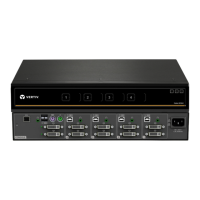
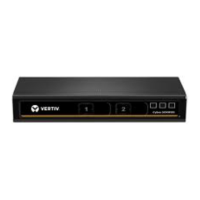
The Vertiv™ Cybex™ SC 840/845 and 940/945 KVM Switches are designed to provide secure and efficient control over multiple computers from a single console. These switches are specifically engineered for environments requiring robust security and reliable performance, making them suitable for government, military, and other sensitive applications. The Quick Installation Guide focuses on the DVI-I models, with the Vertiv™ Cybex™ SC 945 Switch being shown as an example.
At its core, the device acts as a KVM (Keyboard, Video, Mouse) switch, allowing a user to operate several computers using one set of peripherals: a monitor, keyboard, and mouse. This consolidation not only saves desk space but also enhances security by centralizing control and reducing the number of peripheral devices connected to individual computers. The "SC" in the model name likely denotes "Secure," highlighting its advanced security features.
The switches support DVI-I monitors, indicating their capability to handle both digital and analog video signals, providing flexibility for various display setups. They are compatible with USB and PS/2 keyboards and mice, accommodating a wide range of peripheral hardware. Additionally, the switches include support for audio (speakers or headsets), allowing for comprehensive control over connected systems.
A key feature of the SC 845 and SC 945 models is the integrated Common Access Card (CAC) device support. This functionality is crucial for environments that rely on smart card authentication for user access and data security. The CAC integration allows users to securely log in to different computers without physically moving their smart card reader, streamlining workflows while maintaining high security standards. The switch manages the CAC connection, ensuring it is active only for the selected, CAC-enabled port, and intelligently retains the connection with the last enabled port when switching to a non-CAC port.
The device is equipped with active intrusion protection, a critical security measure. This feature is designed to detect and prevent unauthorized physical tampering with the switch's enclosure. Any attempt to compromise the device's physical integrity can result in the permanent disabling of the switch, effectively rendering it unusable and voiding the warranty. This proactive security mechanism ensures that the integrity of the KVM system is maintained, protecting sensitive data and operations.
The switches also feature tamper-evident seals. These seals provide a visual indication if the device has been opened or manipulated. If these seals are broken or removed, it signifies potential tampering and will void the product warranty, reinforcing the importance of physical security.
Setting up the Vertiv Cybex SC KVM switch involves a straightforward process. Users begin by connecting their local peripherals—monitor, keyboard, mouse, audio devices, and CAC device—to the designated CONSOLE ports on the back of the switch. It is important to ensure all computers intended for use with the system are turned off before making these connections.
Once the console peripherals are connected, the monitor should be turned on, and the power supply cord should be plugged into the switch and then into an AC wall outlet. A solid green display diagnostic LED indicates that the display EDID (Extended Display Identification Data) information has been successfully captured and secured, a crucial step for optimal video performance.
Connecting the computers to the switch involves plugging the monitor, speaker, keyboard, and mouse cables from each computer into the corresponding ports on the switch. A critical note for optimal performance and security is that all cables must be connected directly to a free USB port on the computer, without the use of USB hubs or other intermediate devices. This direct connection ensures reliable communication and prevents potential security vulnerabilities introduced by unmanaged devices.
For models with CAC functionality (SC 845 and SC 945), a USB cable connects the computer requiring CAC to the corresponding CAC port on the switch. The CAC functionality for a specific port is enabled by switching the CAC switch to the right. This process is repeated for all computers that require CAC authentication. The switch intelligently manages CAC connections, ensuring that the CAC connection is only active for the currently selected, CAC-enabled port. When switching from a CAC-enabled port to a non-CAC-enabled port, the CAC connection remains with the last previously selected port where CAC was enabled, providing a seamless user experience.
After all connections are made, users can turn on the attached computers. The system is designed to display the computer connected to the front panel upon startup. Switching between computers is intuitive, accomplished by pressing the corresponding front panel button (numbered 1 through 4) on the switch. The illuminated button indicates which computer is currently selected and being controlled.
The switches support a variety of video inputs, including DVI, HDMI, and VGA, through the use of appropriate adapters, offering broad compatibility with different display technologies. This flexibility ensures that the KVM switch can be integrated into diverse IT environments without requiring extensive hardware upgrades.
The Vertiv Cybex SC KVM switches are designed for reliability and minimal maintenance, but certain aspects are crucial for ensuring continued secure operation.
The active intrusion protection and tamper-evident seals are not just security features but also integral to the device's maintenance protocol. Users are explicitly warned that tampering with the enclosure or breaking the seals will permanently disable the switch and void the warranty. This emphasizes the importance of not attempting unauthorized repairs or modifications. If the enclosure appears to have been tampered with, or if all port LEDs flash continuously, users are instructed to contact Technical Support immediately. This proactive approach to physical security helps maintain the integrity of the device and the overall security posture of the connected systems.
Environmental considerations are also outlined to ensure the longevity and proper functioning of the device. The operating temperature range is specified, as is the storage temperature range. Adhering to these environmental guidelines helps prevent hardware degradation due to extreme conditions. The humidity requirements specify a non-condensing environment, which is crucial for protecting internal electronic components from moisture damage.
While the guide does not detail routine user-performed maintenance tasks like cleaning, the emphasis on not tampering with the device suggests that internal maintenance should only be performed by authorized personnel. The robust design and security features imply that the device is built to operate reliably without frequent intervention.
In summary, the Vertiv Cybex SC 840/845 and 940/945 KVM Switches are secure, reliable, and user-friendly devices designed to centralize control over multiple computers. Their strong emphasis on physical and logical security, combined with flexible connectivity options and straightforward operation, makes them an ideal solution for environments where data protection and operational efficiency are paramount. The clear instructions for setup and the warnings regarding tampering underscore the importance of maintaining the device's integrity for continued secure performance.
 General
| Product Type | KVM Switch |
|---|---|
| Ports | 8 x KVM port(s) |
| Maximum Video Resolution | 1920 x 1200 |
| Operating Temperature | 32°F (0°C) - 104°F (40°C) |
| Storage Temperature | -4°F to 140°F (-20°C to 60°C) |
| Humidity | 0 to 90% Non-Condensing |

 To Next Page