EasyManua.ls Logo

VESTEL 22PF5021B - User Manual

VESTEL 22PF5021B
59 pages
Go to English
Print Icon
To Next Page IconTo Next Page
Loading...
2
KULLANIM KILAVUZU
OPERATING INSTRUCTIONS
DANIÞMA MERKEZi:
444 4 123
www.vestel.com.tr
COLOR 22PF5021B
22” LED TV
Vestel Dayanýklý Tüketim Mallarý Pazarlama A.Þ.
Zorlu Plaza Avcýlar 34310 Ýstanbul-TÜRKÝYE
Tel: (0212) 456 22 00 Faks: (0212) 422 02 03
50237363
Vestel Danýþma Hattý'ný arayarak;
Ürününüzle ilgili tüm soru ve taleplerinizi Vestel danýþma hattýna iletebilir,
Þikayet, dilek, önerileriniz ve Vestel Þirketler Grubu ile ilgili sorularýnýzý ilgili
birimlere aktarabilirsiniz.
e-mail baþvurularýnýz için;
tuketicihizmetleri@vestel.com.tr
Cihazýnýzýn T.C Gümrük ve Ticaret Bakanlýðý Tüketicinin Korunmasý
ve Piyasa Gözetimi Genel Müdürlüðü’nce tespit ve ilan edilen
kullaným ömrü (cihazýn fonksiyonlarýný yerine getirebilmesi için
gerekli yedek parça bulundurma süresi) 10 yýldýr.

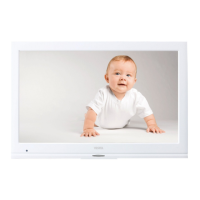
Table of Contents

Questions and Answers

  • J
    John GarciaAug 18, 2025
    What to do if my VESTEL 22PF5021B LED TV says 'USB is too slow'?
    • A
      angela51Aug 18, 2025
      If your VESTEL LED TV shows 'USB is too slow' while recording, first try restarting the recording. If the error persists, your USB disk might not meet the necessary speed requirements. Consider using a different USB disk.
  • M
    matthewjimenezAug 20, 2025
    Why is recording unavailable on my VESTEL 22PF5021B LED TV?
    • B
      Brandon MeyersAug 21, 2025
      To record a program on your VESTEL LED TV, first connect a USB disk while the TV is off. Then, switch the TV on to enable the recording feature. If recording is still unavailable, try turning off the TV and re-inserting the USB device while the TV is off.
  • J
    johnsontammyAug 23, 2025
    How to fix poor picture quality on VESTEL 22PF5021B LED TV?
    • A
      Angela OconnellAug 23, 2025
      If your VESTEL LED TV displays a poor picture, consider these possible solutions: * Ensure you've selected the correct TV system. * Check if your TV or aerial is too close to audio equipment or neon lights. * Adjust the aerial direction to improve picture quality, especially in areas with mountains or high buildings. * Verify you've entered the correct frequency. * Retune the channels. * Disconnect one device if multiple devices are connected, as this can degrade picture quality.
  • V
    Valerie FrenchAug 26, 2025
    How to troubleshoot no picture on VESTEL LED TV?
    • A
      Alexis RivasAug 26, 2025
      If there is no picture on your VESTEL LED TV, ensure your TV is receiving a transmission. Verify that you have selected the correct button on the remote control and that the correct input source is selected. Also, check the following: * Is the aerial connected properly? * Are the plugs tightly connected to the aerial socket? * Is the aerial cable damaged? * Are suitable plugs used to connect the aerial?
  • G
    Gary MarshallAug 27, 2025
    What to do if there is no sound on my VESTEL LED TV?
    • M
      Madeline MorrisAug 28, 2025
      If your VESTEL LED TV has no sound, first check if the TV has been set to mute. If so, press the mute button to cancel it, or increase the volume level. Also, check if the sound is only coming from one speaker and adjust the balance if it is set to one extreme.
  • R
    Richard DayAug 30, 2025
    Why is my VESTEL 22PF5021B remote not working?
    • C
      Catherine LoveAug 30, 2025
      If your VESTEL LED TV remote control is not working, the batteries may be exhausted. If so, you can still use the control buttons on the TV.
  • T
    Tyler RobinsonSep 1, 2025
    How to fix input sources that cannot be selected on VESTEL 22PF5021B LED TV?
    • D
      Dawn ChoiSep 1, 2025
      If you cannot select input sources on your VESTEL LED TV, it is possible that no device is connected. If you have connected a device, check the AV cables and connections.
  • A
    Ashley WelchSep 3, 2025
    Why is the DVD picture quality poor on my VESTEL 22PF5021B?
    • A
      Amy EdwardsSep 4, 2025
      If the DVD picture quality on your VESTEL LED TV is poor, ensure the DVD disc surface is not damaged (no scratches, fingerprints, etc.). Clean the DVD disc and try again. Ensure that the DVD disc is in the loader with the label facing you when looking at the TV screen. If the DVD disc is damp or has condensation, wait for 1 to 2 hours in Stand-by mode to dry the equipment.
  • B
    Brian TateSep 6, 2025
    What to do if the disc does not play on my VESTEL 22PF5021B LED TV?
    • S
      Samantha DavidsonSep 6, 2025
      If a disc does not play on your VESTEL LED TV, make sure there is a disc in the loader. Ensure the DVD disc is loaded correctly, with the label facing you. Check that you are using the correct type of disc, as the DVD player cannot play CD-ROMs, etc. Also, the region code of the DVD disc must match the player.
  • P
    Patty PettySep 8, 2025
    How to change the OSD language on VESTEL 22PF5021B?
    • A
      Angela RodriguezSep 8, 2025
      If the OSD language is wrong on your VESTEL LED TV, select the correct language in the setup menu. Note that the language for the sound or subtitles on a DVD disc cannot always be changed, as multilingual options may not be recorded on the DVD disc. Try changing the sound or subtitles using the DVD’s title menu, as some DVDs require this method.

Summary

Safety Precautions

Power Source

The TV should be operated only from a 220-240 V AC, 50 Hz outlet. Do not leave TV unattended.

TV Features

Remote Control Operation

Remote Control Functions

Channel, Volume and Audio Settings

Buttons for changing channels, volume, mute, and audio mode selection.

Viewing Connections

Connector Types and Ports

Details various connector types like Scart, VGA, HDMI, USB, and CI, and their locations.

Connecting Power and Antenna

TV Power On and Off

Switching the TV On

How to turn the TV on from standby mode using the remote or TV button.

Switching the TV Off

How to turn the TV off completely by removing the power cord plug.

Initial Setup and Installation

Aerial Installation and Tuning

Manual Scan Settings

Allows manual adjustment of frequency ranges for channel scanning.

Cable Installation and Tuning

Satellite Installation and Tuning

Antenna Type Selection

Options for Direct, Unicable, or DiSEqC switch antenna types.

Scanning Satellite Services

Steps to scan for satellite channels based on antenna type selection.

USB Media Playback

Media Browser Menu Usage

Picture Menu Settings

Basic Picture Adjustments

Settings for Mode, Contrast, Brightness, Sharpness, Colour, and Power Save.

Advanced Picture Options

Includes Dynamic Contrast, Colour Temp, Picture Zoom, and Film Mode.

PC Mode Picture Settings

Sound Menu Settings

Channel Tuning and Setup

Automatic Channel Scan

Options for Automatic Channel Scan, Manual Channel Scan, and Network Channel Scan.

Initial Setup Process

System Settings Overview

DVD Mode Operations

DVD Mode Configuration

DVD Remote Control Functions

Electronic Programme Guide (EPG)

Recording Programmes and Timers

Instructions to set or cancel programme recordings and timers.

Programme Recording Guide

Timeshift Recording

Instant Recording Function

Managing Recorded Programmes

Accessing Recordings Library

Accessing and managing recorded programmes from the library.

Software Update

Troubleshooting Common Issues

Troubleshooting Advanced Issues

DVD and Recording Troubleshooting

Covers poor DVD picture, discs not playing, recording unavailability, and slow USB.

Product Specifications

DVD Supported File Formats

Important Usage Warnings

Warranty Certificate

Warranty Terms and Conditions

Customer Warranty Responsibilities

VESTEL 22PF5021B Specifications

General IconGeneral
Screen Size22 inches
Display TechnologyLED
HDMI Ports2
USB Ports1
Contrast Ratio1000:1
Brightness250 cd/m²
Aspect Ratio16:9
Refresh Rate60 Hz
Built-in SpeakersYes
Weight3.5 kg
Resolution1920 x 1080 (Full HD)
Audio Output5W x 2

Related product manuals