8
4. Touch Control
Vibe is equipped with an infrared touch display and can be operated by ngetips or Vibe stylus. The following
descriptions illustrate typical operations. More Vibe software manuals and guides can be found at htts://vibe.us/guide.
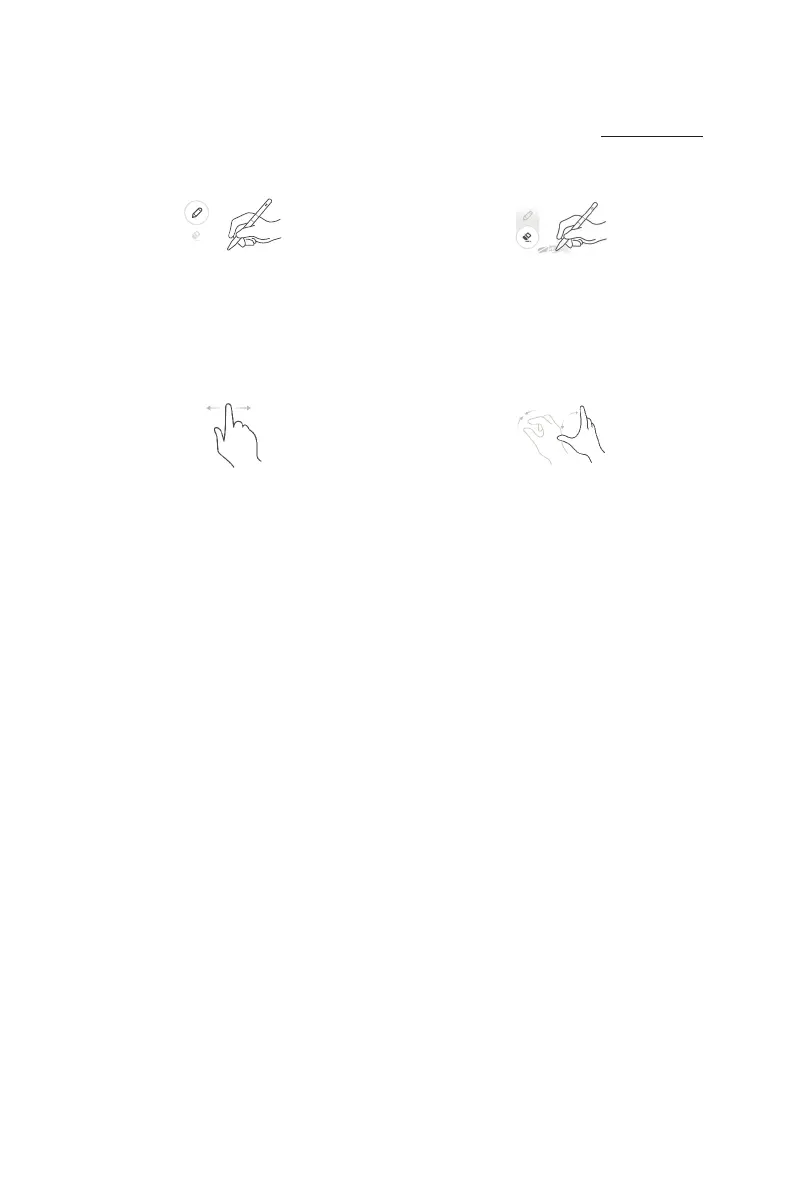
4.1. Draw&Erase with Vibe stylus
Writeordraw
Select a pen tool and use the stylus to write of draw.
Erase
Select the eraser tool and use the stylus to erase
markers on screen.
4.2. Canvas Operation by fingertips
Panthecanvas
Use one ngetip and touch the blank area on the screen
without losing direct contact to move the canvas.
PinchtoZoom
Move one’s nger and thumb apat or bring them
together on (a touchscreen) in order to zoom into or
out of canvas..
4.3. Other Operations
The following operations can be done either with ngetip or Vibe stylus.
Chooseatoolorselectanoption
Touch the target on the screen for one quick tap then release.
Selectanobject
Touch and hold the target (e.g., an image or a Post-it) on the screen for a while to make the target on selection.
Moveanobject
Touch the selected target and move across the target without losing direct contact, then release when reaching a new
location.
Note: Avoid scratching with sharp object on the touch-display. Only ngetips and Vibe stylus are following for touch
control.


 To Next Page