INTRODUCTION
2
Media Center Remotes
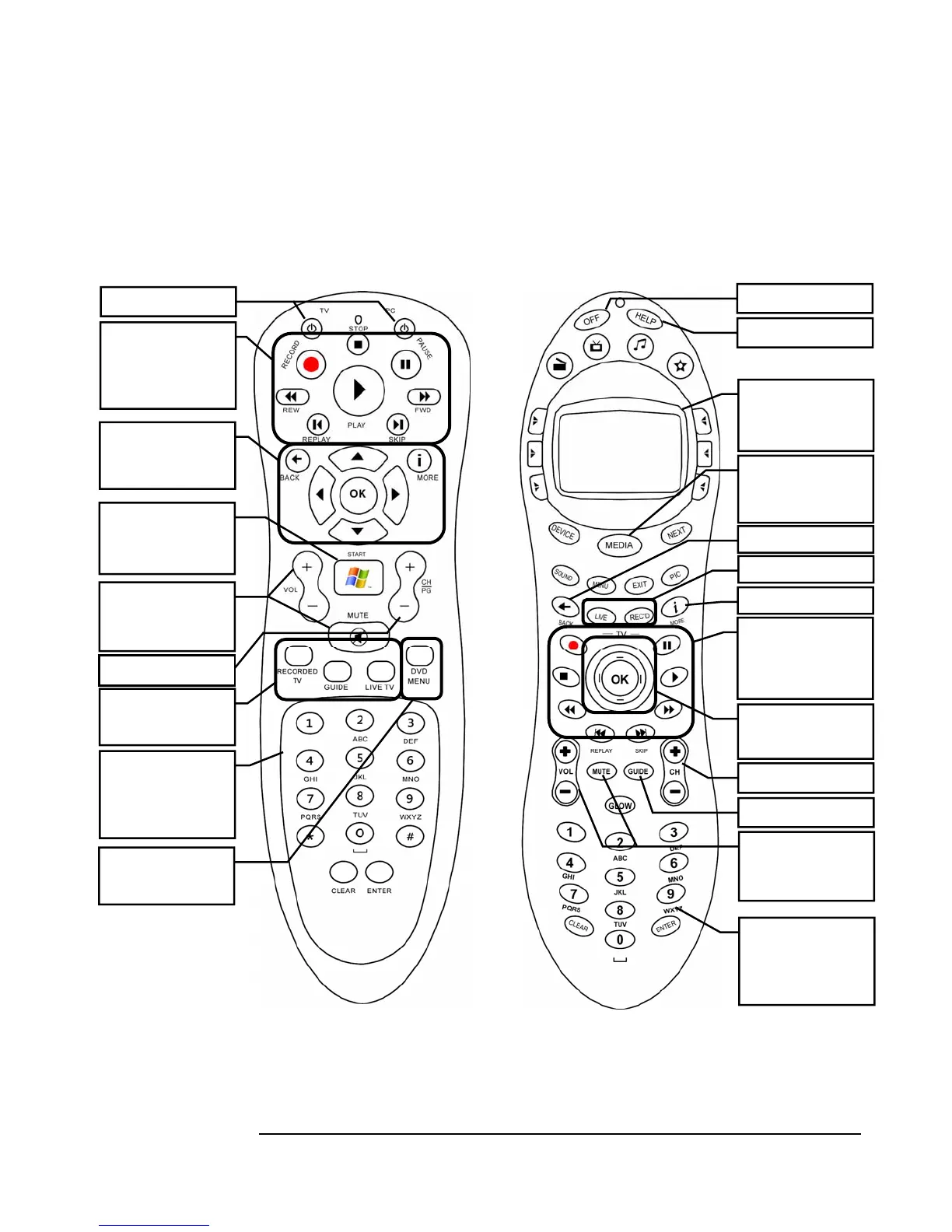
It is very important to familiarize yourself with the VidaBox™ remote. Below are
diagrams of the standard and optional remotes. Pay particular attention to the layout
of the main key buttons. You can control virtually all of the VidaBox™ system’s
functions with these keys.
Standard Microsoft
Remote Diagram
Optional Logitech®
Harmony
Remote Diagram
Navigation Buttons:
Up, Down, Left, Right,
& OK buttons, with Back
and More info buttons
The Green Start Button:
Press this to get to the
Main Media Center
Console Menu
Navigation Buttons:
Up, Down, Left, Right,
& OK buttons
The Green Media/Start
Button: Press this to get to
the Main Media Center
Console Menu
Volume Control:
Controls sound
loudness/softness, with
Mute o
tion
Television Controls:
Quickly Access Recorded
TV, Guide, and Live TV
Numeric Controls:
Enter in TV channels,
radio stations, and other
controls where a numeric
input is required
Playback Controls:
Stop, play, pause, record,
rewind, fast-forward, and
more for video or music
playback.
DVD Menu:
Quickly access a loaded
DVD’s menu.
Power Buttons
Power Button
Get Help
Adaptive Menu:
Control advanced options
with the built-in LCD
screen menu
Playback Controls:
Stop, play, pause, record,
rewind, fast-forward, and
more for video or music
la
back.
Volume Control:
Controls sound
loudness/softness, with
Mute o
tion
Channel/Page Up/Down
Channel/Page Up/Down
Numeric Controls:
Enter in TV channels,
radio stations, and other
controls where a numeric
input is required
Quickly Access TV Guide
Access Live/Recorded T
More Info/O
tions Ke
Back/
eturn to Previous



 To Next Page