25
PIX-ASSIST MONITORING SUITE
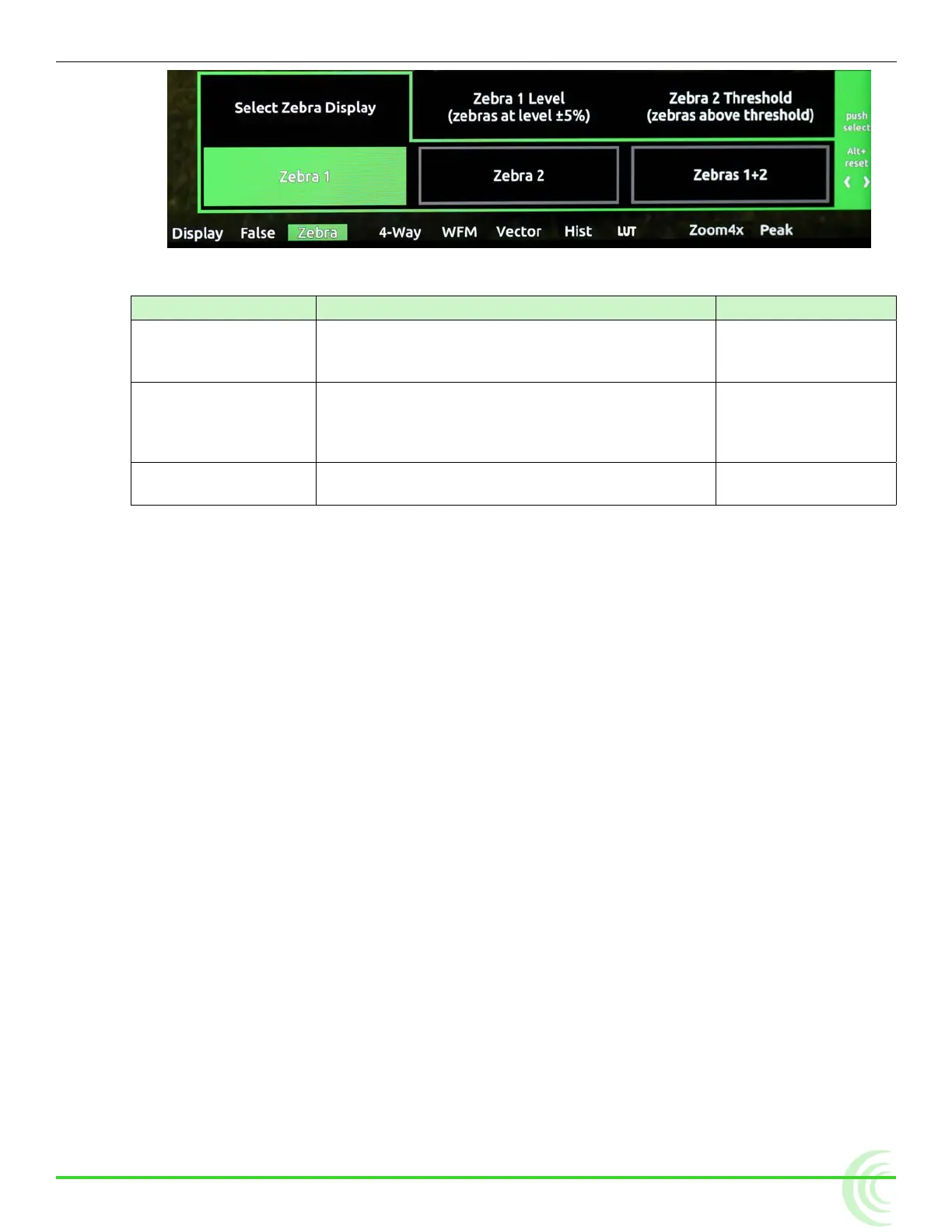
2. Use the touch screen or Control knob to change settings.
setting Description options
Select Zebra Display Sets which zebra is displayed when zebras are
enabled.
• Zebra 1
• Zebra 2
• Zebras 1 + 2
Zebra 1 Level The luminance range where Zebra 1 will be
displayed. The top of the range is 5% above
this setting, and the bottom of the range is 5%
below.
• 0% - 105%
Zebra 2 Threshold Zebra 2 will be displayed for signal above this
threshold.
• 0% - 108%
3. Press the Zebra soft key button to exit.
Using Zoom
For fast and precise focusing on both static and moving subjects, PIX-E moni-
tors provide 2x and 4x magnication and the ability to rapidly adjust the center
point of focus. Zoom can be controlled using the touch screen or the Control
knob.
TapZoom™ is the fastest way to zoom in and out on a subject. Utilizing the
PIX-E monitors’ touch screen, TapZoom lets focus pullers and camera operators
check focus by simply tapping a point on the video image to zoom in on a tar-
get. A second tap zooms back out.
For those who prefer to not use the touch screen, zoom can also be activated
using the Control knob.
To zoom in on a point of interest:
X Tap that point in the image.
X Press in the Control knob.
To zoom out to full image:
X Tap center of screen.
X Press ALT+Control knob.


 To Next Page