Copy the SW (.bin) file in USB to root directory.
file name as “videocon_cvt.bin”
for Videocon brand TV and “
Turn the TV set ON and insert the USB in USB port
of TV set.
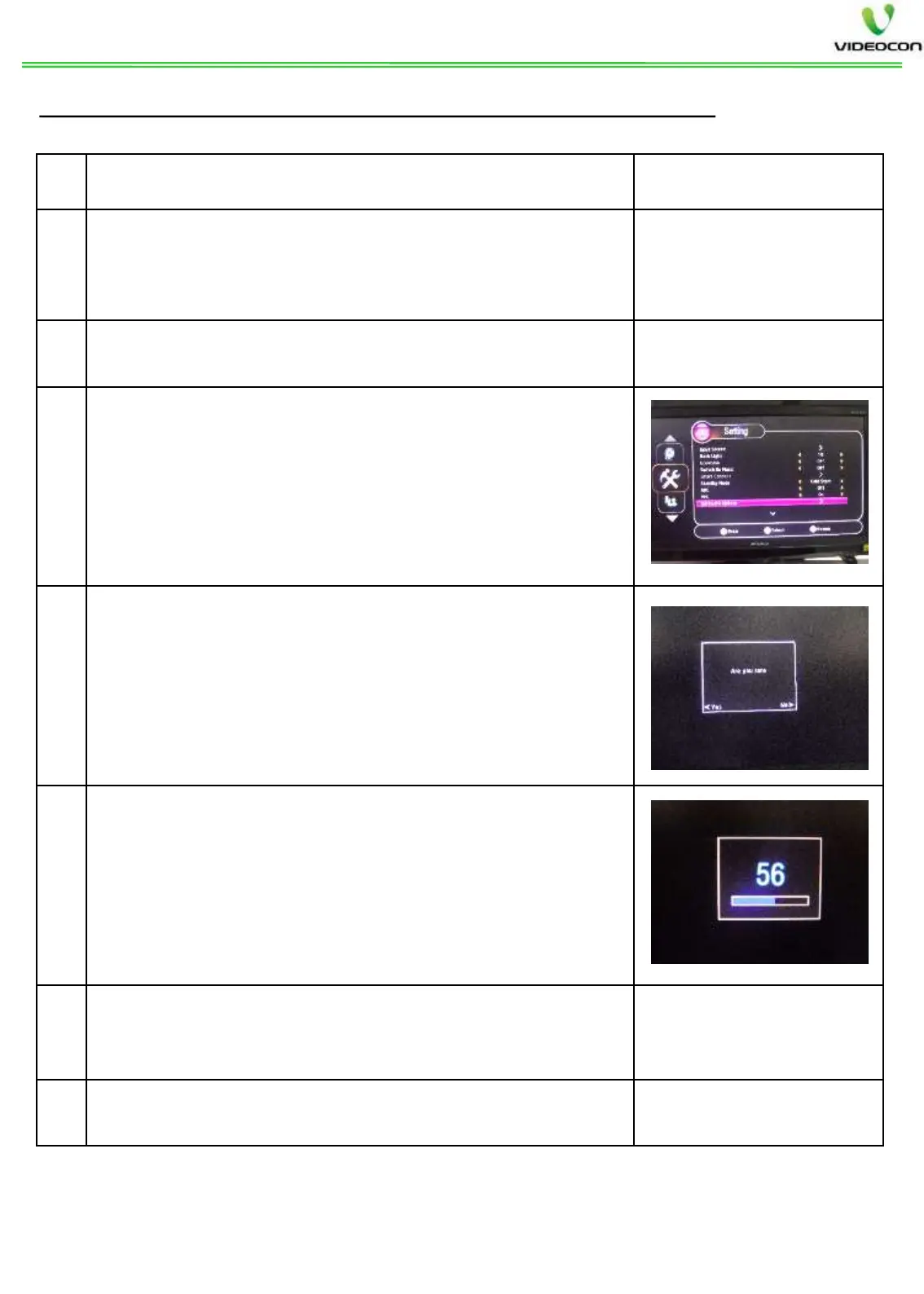
Press Menu key of remote, go to setting menu and
press OK on Software Update Menu.
It will give pop up window asking upgrade SW or
not? Press left arrow key here. The SW update will
start and LED will start blinking, indicating SW
upgrade is in process.
Also, indicator screen will appear
showing SW loading progress.
Once SW update is started, do not switch OFF the
TV set.
After SW update is complete, the TV set will
automatically go to stand by mode and will restart.
Turn ON the TV set from stand by and follow
below steps.
B.) SW INSTALLATION THROUGH USB IN ON CONDITION: -


 To Next Page
 Loading...