14
Programming the Water Softener
Automatic
Recharge now
Schedule
Recharge
FIG. 34
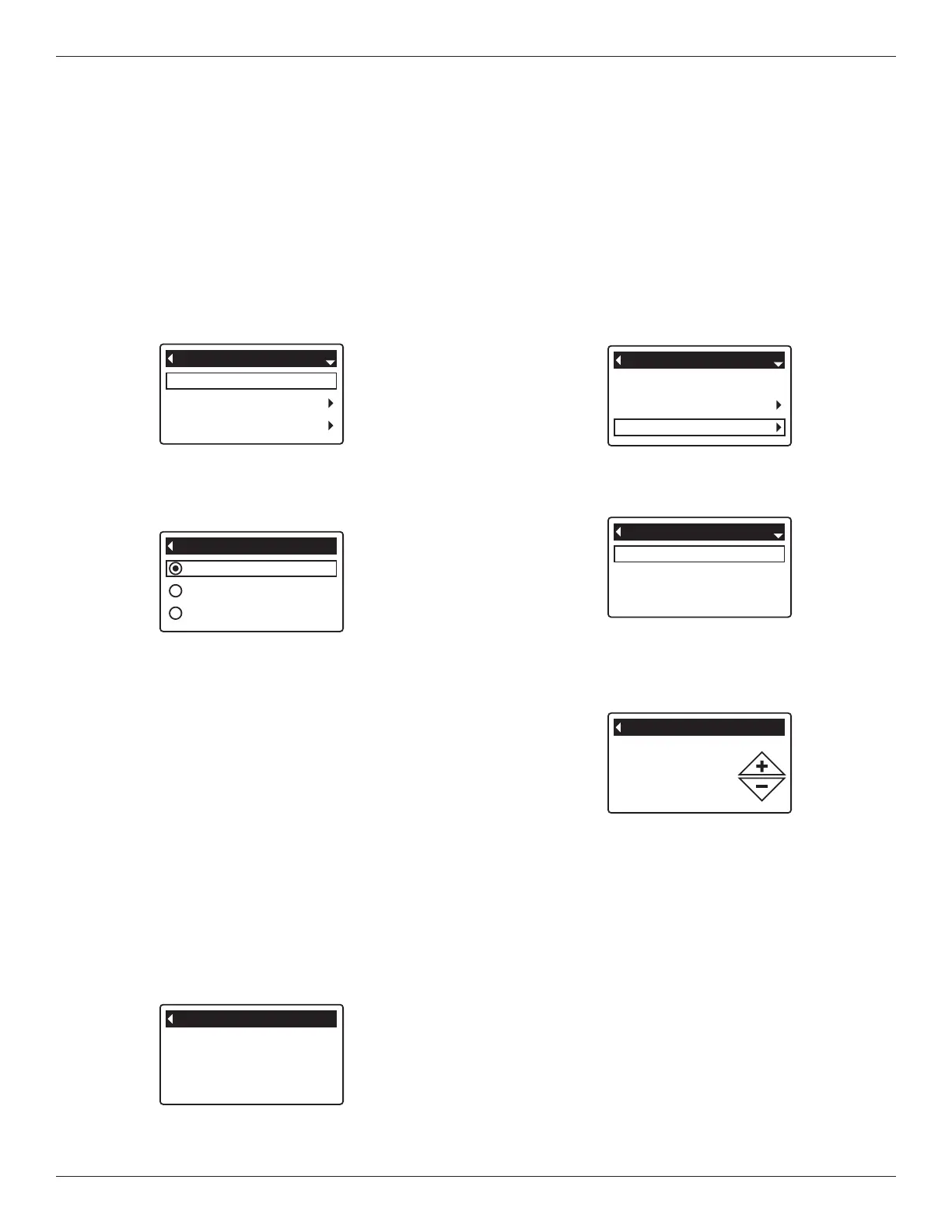
2. Make sure Recharge is highlighted (See Figure 33).
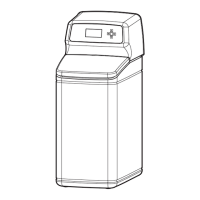
3. Press the OK / MENU button to display the Recharge
menu (See Figure 34).
Recharge
Salt settings
Basic settings
Main menu
FIG. 33
4. If the desired option already has a black dot next to it
(See Figure 34), go to Step 5. Otherwise, press the
DOWN q or UP p buttons to scroll to the desired
option, then press OK / MENU to choose it.
=Automatic cancels a manually scheduled recharge
(if it has not already begun) and lets the electronic
control determine when to recharge next.
=Recharge now begins a recharge immediately
after the OK / MENU button is pushed again in Step
5.
=Schedule sets a recharge to begin at the preset
recharge time (set according to the instructions on
Page 15).
5. Press the OK / MENU button. If Recharge now is
selected, the display immediately goes to the
Recharge status screen (See Figure 35). If
Automatic or Schedule are selected, the display
goes back to the Main menu (Figure 33).
SETTING THE CURRENT TIME
When the softener’s electronic control is first powered
up, a “wizard” screen prompts you to set the current
time (See Page 10). To change the time at a later date,
such as after a long power loss:
1. From any of the rolling status screens, press the OK /
MENU button to display the Main menu.
2. Press the DOWN q button to scroll through the
menu options until Basic settings is highlighted
(See Figure 36).
3. Press the OK / MENU button to display the Basic set-
tings menu (See Figure 37).
Recharge
Salt settings
Basic settings
Main menu
FIG. 36
Current time
Hardness
Iron level
Basic settings
FIG. 37
4. Make sure Current time is highlighted.
5. Press the OK / MENU button to display the Current
time screen (See Figure 38).
6. Press the UP p or DOWN q buttons to change the
time. Hold the button down to rapidly advance. Be
sure that AM or PM is correct (unless softener is set
for a 24-hour clock).
7. Press the OK / MENU button. The display will go
back to the Basic settings menu (Figure 37).
8. Press the LEFT t button twice to return to the rolling
status screens.
FIG. 38
Recharge status
Time left: 118:32
Cycle: Fill
(Right key press advances
cycle)
FIG. 35
6. Press the LEFT t button (twice from the Recharge
status screen) to return to the rolling status screens.
RECHARGING THE SOFTENER
This feature may be used to assure an adequate supply
of softened water at times of unusually high water use.
For example, if you have guests and the “Water avail-
able” screen (See Page 18) is at or below 50%, you
could deplete softened water capacity before the next
automatic recharge. Initiating a manual recharge will
restore 100% softened water capacity after complete.
1. From any of the rolling status screens, press the OK /
MENU button to display the Main menu.



 To Next Page