EasyManua.ls Logo

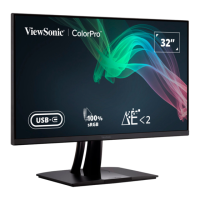
ViewSonic Color Pro VP3256-4K - User Manual

ViewSonic Color Pro VP3256-4K
72 pages
Print Icon
To Next Page IconTo Next Page
Loading...
VP3256-4K
Display
User Guide
Model No. VS18845
P/N: VP3256-4K
IMPORTANT: Please read this User Guide to obtain important information on installing and using your product in
a safe manner, as well as registering your product for future service. Warranty information contained in this User
Guide will describe your limited coverage from ViewSonic® Corporation, which is also found on our web site at
http://www.viewsonic.com in English, or in specific languages using the Regional selection box in the upper right
corner of our website.
TM
Questo manuale d’istruzione è fornito da trovaprezzi.it. Scopri tutte le offerte per ViewSonic VP3256
o cerca il tuo prodotto tra le migliori offerte di Monitor

Questions and Answers

  • D
    Diane CunninghamAug 19, 2025
    What to do if my ViewSonic Color Pro VP3256-4K Monitor has power but no image?
    • P
      Paula CooperAug 19, 2025
      If your ViewSonic monitor has power but isn't displaying an image, ensure the video cable connecting the monitor to the computer is properly and securely connected. Also, try adjusting the brightness and contrast settings. Lastly, make sure the correct input source is selected.
  • J
    John DavisAug 21, 2025
    Why is my ViewSonic Color Pro VP3256-4K screen image too light or dark?
    • W
      whayesAug 21, 2025
      If the screen image on your ViewSonic monitor is too light or dark, try adjusting the brightness and contrast settings via the OSD Menu. If that doesn't work, reset the monitor to factory settings.
  • B
    Brent BlairAug 23, 2025
    How to resolve wrong or abnormal colors on ViewSonic Color Pro VP3256-4K Monitor?
    • S
      Steven WatsonAug 25, 2025
      If you are experiencing wrong or abnormal colors on your ViewSonic monitor, and if any colors (red, green, or blue) are missing, check the video cable to make sure it is properly and securely connected, as loose or broken pins in the cable connector could cause an improper connection. You can also connect the monitor to another computer. If you have an older graphics card, contact ViewSonic® for a non-DDC adapter.
  • D
    Douglas JenningsAug 26, 2025
    How do I fix a blurred screen image on my ViewSonic Color Pro VP3256-4K Monitor?
    • K
      Karina ColemanAug 26, 2025
      To fix a blurred screen image on your ViewSonic monitor, adjust the resolution to the correct Aspect Ratio. If the issue persists, reset the monitor to factory settings.
  • P
    Pamela SellersAug 28, 2025
    Why the external device is connected, but no image appears on the ViewSonic monitor screen?
    • D
      Duane RogersAug 28, 2025
      If the external device is connected, but no image appears on the screen of your ViewSonic monitor, make sure the Power is On. Adjust brightness and contrast via the OSD Menu. Check the connecting cable and make sure it is properly and securely connected, as loose or broken pins in the cable connector could cause an improper connection.
  • D
    Denise YoungAug 30, 2025
    How to fix a ViewSonic Color Pro VP3256-4K with no power?
    • G
      grahamtravisAug 30, 2025
      First, make sure you have turned on the ViewSonic monitor by pressing the Power button. Next, ensure the power cord is properly and securely connected to both the monitor and the power outlet. Finally, plug another electrical device into the power outlet to verify that the outlet is supplying power.
  • F
    Frederick PetersonSep 1, 2025
    What to do if ViewSonic Color Pro VP3256-4K screen image cuts in and out?
    • J
      Jessica MccallSep 1, 2025
      If the screen image on your ViewSonic monitor cuts in and out, ensure the correct input source is selected. Check for bent or broken pins in the video cable connector, as well as making sure the video cable connecting the monitor to the computer is properly and securely connected.
  • P
    pricemarySep 4, 2025
    How to center the screen correctly on a ViewSonic monitor?
    • G
      Gina CruzSep 4, 2025
      To center the screen correctly on your ViewSonic monitor, adjust the horizontal and vertical controls via the OSD Menu. Also, check the Aspect Ratio, and if needed, reset the monitor to factory settings.
  • K
    Kathryn LewisSep 6, 2025
    Why does the screen appear yellow on my ViewSonic monitor?
    • M
      Michelle Cline PhDSep 6, 2025
      If the screen appears yellow on your ViewSonic monitor, make sure the “Blue Light Filter” is Off.
  • K
    Kathleen WalkerSep 8, 2025
    What to do if the OSD Menu does not appear on the screen of my ViewSonic Color Pro VP3256-4K?
    • J
      Joseph GreeneSep 8, 2025
      If the OSD Menu does not appear on the screen or the OSD controls are inaccessible on your ViewSonic monitor, check whether the OSD Menu is locked. You can also try turning off the monitor, unplugging the power cord, plugging it back in, and then turning on the monitor. Resetting the monitor to factory settings might also resolve the issue.

Summary

Safety Precautions

Introduction

Package Contents

Lists items included in the monitor package, such as cables and manuals.

Product Overview

Provides a visual and textual overview of the monitor's front and rear views and ports.

Initial Setup

Installing the Stand

Step-by-step guide on how to attach the monitor stand to the display.

Wall Mounting

Instructions and specifications for mounting the monitor on a wall using a VESA bracket.

Using the Security Slot

Explains how to use a security cable to prevent theft or tip-over.

Making Connections

Connecting to Power

Details on how to connect the monitor to a power source.

HDMI Connection

Guide for connecting a computer to the monitor using an HDMI cable.

DisplayPort Connection

Guide for connecting a computer to the monitor using a DisplayPort cable.

USB Connection

Details on connecting various USB devices to the monitor's ports.

Using the Monitor

Height Adjustment

How to raise or lower the monitor to the desired height.

Tilt Angle Adjustment

How to tilt the monitor forwards or backwards for a comfortable viewing angle.

Screen Orientation Adjustment

Rotate the monitor from landscape to portrait orientation.

Swivel Angle Adjustment

How to swivel the monitor left or right for optimal viewing.

Turning the Device On;Off

Using the Control Panel Keys

Quick Menu

Accessing and using the quick menu options like Standard Color and Input Select.

Hot Keys

Using key combinations for special functions like OSD lock or user modes.

Configuring the Settings

General Operations

Navigating the OSD Menu to access main and sub-menus for adjustments.

On-Screen Display (OSD) Menu Tree

Overview of the OSD menu structure for various settings.

Menu Options

Detailed explanations of various menu options like Input Select and Audio Adjust.

Advanced Features and Settings

Auto Pivot

Automatically adjusts screen orientation based on monitor position using DDC/CI.

Colorbration+

Supports hardware color calibration for long-term color accuracy.

Color Blindness Mode

Offers a color filter feature via vDisplayManager for users with color vision deficiency.

Firmware Update

Instructions for updating the monitor's firmware using vDisplayManager.

Appendix

Specifications

Technical specifications of the monitor, including LCD, input, and compatibility details.

Glossary

Definitions of technical terms used in the manual.

Troubleshooting

Common problems and their solutions for monitor issues.

Maintenance

Guidelines for general care, cleaning the screen, and the case.

Regulatory and Service Information

Compliance Information

General overview of regulatory requirements and statements.

FCC Compliance Statement

Statement regarding compliance with FCC Rules for Class B digital devices.

Industry Canada Statement

Compliance statement for Industry Canada regulations.

CE Conformity for European Countries

Declaration of conformity with EU EMC and Low Voltage Directives.

Declaration of RoHS2 Compliance

A Pantone Validated Monitor

Variables

Lists factors affecting PANTONE Color simulation quality on the display.

Copyright Information

Customer Service

Limited Warranty

What the warranty covers

Details what is covered under the manufacturer's warranty.

How long the warranty is effective

Specifies the duration of the warranty based on purchase country.

Who the warranty protects

Clarifies that the warranty is valid for the first consumer purchaser.

What the warranty excludes and does not cover

Lists conditions and damages not covered by the warranty.

How to get service

Limitation of implied warranties

Statement on the limitations of implied warranties.

Exclusion of damages

Details on damages for which ViewSonic is not liable.

Effect of state law

Information on how state laws may affect warranty rights.

Sales outside the U.S.A. and Canada

Information for warranty and service for products sold outside North America.

Mexico Limited Warranty

What the warranty covers

Details what is covered under the warranty for products sold in Mexico.

How long the warranty is effective

Specifies the warranty duration for Mexico.

Who the warranty protects

Clarifies who is protected by the warranty for Mexico.

What the warranty excludes and does not cover

Lists exclusions and non-covered damages for Mexico warranty.

How to get service

Limitation of implied warranties

Statement on limitations of implied warranties for Mexico.

Exclusion of damages

Details on damages for which ViewSonic is not liable in Mexico.

Contact Information for Sales & Authorized Service

ViewSonic Color Pro VP3256-4K Specifications

General IconGeneral
BrandViewSonic
ModelColor Pro VP3256-4K
CategoryMonitor
LanguageEnglish

Related product manuals