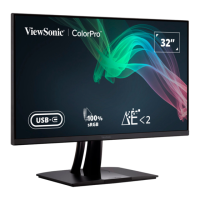
Why is my ViewSonic ColorPro VP3256-4K screen image blurred?
- JjrodriguezAug 21, 2025
If the screen image on your ViewSonic monitor is blurred, adjust the resolution to the correct Aspect Ratio. Alternatively, reset the monitor to factory settings.
Why is my ViewSonic ColorPro VP3256-4K screen image blurred?
If the screen image on your ViewSonic monitor is blurred, adjust the resolution to the correct Aspect Ratio. Alternatively, reset the monitor to factory settings.
How to fix wrong colors on ViewSonic Monitor?
If your ViewSonic monitor displays wrong or abnormal colors, and if any colors (red, green, or blue) are missing, check the video cable to make sure it is properly and securely connected, as loose or broken pins in the cable connector could cause an improper connection. You can also connect the monitor to another computer. If you have an older graphics card, contact ViewSonic® for a non-DDC adapter.
What to do if my ViewSonic Monitor screen image cuts in and out?
If the screen image on your ViewSonic monitor cuts in and out, make sure the correct input source is selected and that the video cable connecting the monitor to the computer is properly and securely connected. Also, check for bent or broken pins in the video cable connector, as bent or broken pins in the video cable connector may cause this issue.
Why is my ViewSonic ColorPro VP3256-4K Monitor screen image too light or dark?
If the screen image on your ViewSonic monitor is too light or dark, adjust the brightness and contrast settings via the OSD Menu. You can also try resetting the monitor to factory settings.
Why is my ViewSonic monitor screen yellow?
If the screen appears yellow on your ViewSonic monitor, make sure the “Blue Light Filter” is Off.
Why will my ViewSonic ColorPro VP3256-4K not adjust?
If your ViewSonic monitor will not adjust, make sure there are no obstructions near or on the monitor, and that there is adequate spacing. For more information, see “Adjusting the Viewing Angle”.
How to fix ViewSonic Monitor when there is no power?
If your ViewSonic monitor has no power, make sure you have turned on the monitor by pressing the Power button, and that the power cord is properly and securely connected to the monitor and power outlet. To ensure the outlet is working, plug another electrical device into the power outlet to verify that the outlet is supplying power.
How to fix ViewSonic Monitor when the screen isn’t centered correctly?
If the screen isn’t centered correctly on your ViewSonic monitor, adjust the horizontal and vertical controls via the OSD Menu. Also, check the Aspect Ratio and try resetting the monitor to factory settings.
What to do if ViewSonic ColorPro VP3256-4K USB devices are not working?
If USB devices connected to your ViewSonic monitor do not work, make sure the USB cable is connected properly. Try changing to another USB port (if applicable). Some USB devices require a higher electric current; connect the device directly to the computer.
What to do if the OSD Menu does not appear on the ViewSonic ColorPro VP3256-4K?
If the OSD Menu does not appear on the screen or the OSD controls are inaccessible on your ViewSonic monitor, check whether the OSD Menu is locked. You can also turn off the monitor, unplug the power cord, plug it back in, and then turn on the monitor. As a last resort, reset the monitor to factory settings.
Step-by-step guide on how to attach the monitor stand.
Instructions and specifications for mounting the monitor on a wall.
Steps to connect the monitor to a power source.
Guides on connecting external devices via HDMI and DisplayPort.
Details on connecting USB devices via Type-A, Type-B, and Type-C ports.
Explains how to adjust height, tilt, swivel, and pivot for optimal viewing.
How to access and use the Quick Menu for common settings.
Explains special functions accessed via control panel key combinations.
Lists common problems and their possible solutions for the monitor.
Details the warranty coverage, exclusions, how long it's effective, and how to get service.
Step-by-step guide on how to attach the monitor stand.
Instructions and specifications for mounting the monitor on a wall.
Steps to connect the monitor to a power source.
Guides on connecting external devices via HDMI and DisplayPort.
Details on connecting USB devices via Type-A, Type-B, and Type-C ports.
Explains how to adjust height, tilt, swivel, and pivot for optimal viewing.
How to access and use the Quick Menu for common settings.
Explains special functions accessed via control panel key combinations.
Lists common problems and their possible solutions for the monitor.
Details the warranty coverage, exclusions, how long it's effective, and how to get service.


Loading...