EasyManua.ls Logo

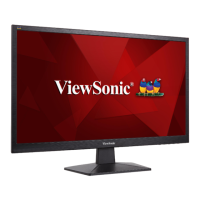
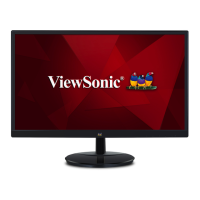
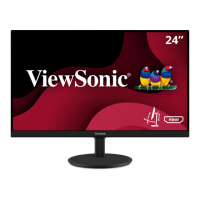
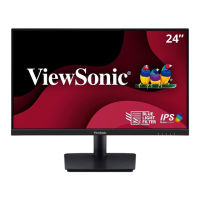
ViewSonic VA2409m - User Manual

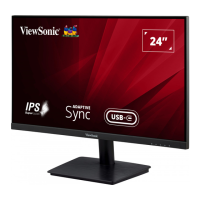
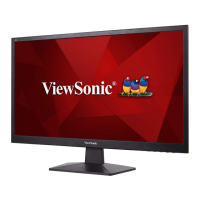
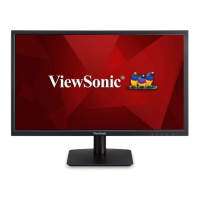
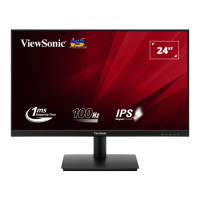
ViewSonic VA2409m
46 pages
Print Icon
To Next Page IconTo Next Page
Loading...
IMPORTANT: Please read this User Guide to obtain important information on installing and using your product in
a safe manner, as well as registering your product for future service. Warranty information contained in this User
Guide will describe your limited coverage from ViewSonic® Corporation, which is also found on our web site at
http://www.viewsonic.com in English, or in specific languages using the Regional selection box in the upper right
corner of our website.
VA2409m
Display
User Guide
Model No. VS18810
P/N: VA2409M

Questions and Answers

  • K
    Karen KramerAug 19, 2025
    How to troubleshoot a ViewSonic VA2409m with no power?
    • S
      Sean SmithAug 19, 2025
      If your ViewSonic monitor shows no power, ensure it's turned on using the power button and that the power cord is correctly and securely connected to both the monitor and the power outlet. To verify the outlet's functionality, try plugging another electrical device into it.
  • M
    Melissa LongAug 21, 2025
    What to do if ViewSonic VA2409m Monitor power is on, but no image appears on screen?
    • S
      Shirley GoldenAug 21, 2025
      If your ViewSonic monitor's power is on but no image appears, ensure the video cable connecting the monitor to the computer is properly and securely connected. Also, adjust the brightness and contrast settings and make sure the correct input source is selected.
  • T
    tanya06Aug 25, 2025
    What to do if external device is connected, but no image appears on the ViewSonic Monitor?
    • M
      Michael JonesAug 25, 2025
      If the external device is connected to your ViewSonic monitor, but no image appears on the screen, make sure the power is on. Adjust brightness and contrast via the OSD Menu. Check the connecting cable and make sure it is properly and securely connected.
  • J
    James EspinozaAug 26, 2025
    Why does the ViewSonic Monitor screen image cut in and out?
    • E
      Elizabeth MoraAug 26, 2025
      If the screen image on your ViewSonic monitor cuts in and out, make sure the correct input source is selected. Also, check for bent or broken pins in the video cable connector, and ensure the video cable is properly and securely connected to the computer.
  • B
    bullockbradleyAug 28, 2025
    How to fix ViewSonic VA2409m screen image that is too light or dark?
    • C
      christine31Aug 28, 2025
      If the screen image on your ViewSonic monitor is too light or dark, adjust the brightness and contrast settings via the OSD Menu. If that doesn't work, reset the monitor to its factory settings.
  • R
    Richard JohnsonAug 30, 2025
    Why does my ViewSonic Monitor display wrong or abnormal colors?
    • T
      Tamara JonesAug 30, 2025
      If your ViewSonic monitor displays wrong or abnormal colors, check the video cable to ensure it's properly and securely connected, especially if any colors (red, green, or blue) are missing. If the connection is improper due to loose or broken pins, connect the monitor to another computer.
  • J
    Jennifer CrawfordSep 1, 2025
    How to fix ViewSonic VA2409m Monitor screen image that is blurred?
    • M
      Michael CombsSep 1, 2025
      If the screen image on your ViewSonic monitor is blurred, adjust the resolution to the correct Aspect Ratio. If the blurring continues, reset the monitor to factory settings.
  • A
    Andrea McknightSep 3, 2025
    What to do if the ViewSonic Monitor control panel keys do not work?
    • W
      wleeSep 3, 2025
      If your ViewSonic monitor's control panel keys aren't working, try pressing only one key at a time. If the issue persists, restart your computer.
  • K
    kelsey57Sep 5, 2025
    What to do if the ViewSonic Monitor OSD Menu does not appear on the screen?
    • R
      rachel43Sep 5, 2025
      If the OSD Menu does not appear on the screen or the OSD controls are inaccessible on your ViewSonic monitor, first check whether the OSD Menu is locked. If it is not locked, try turning off the monitor, unplugging the power cord, plugging it back in, and then turning the monitor back on. If the issue persists, reset the monitor to factory settings.
  • J
    johnsonpamelaSep 7, 2025
    Why are some menus not selectable in the ViewSonic VA2409m OSD?
    • J
      Jamie WilcoxSep 7, 2025
      If some menus aren’t selectable in the OSD on your ViewSonic monitor, adjust the ViewMode or the input source. If the issue persists, reset the monitor to factory settings.

Summary

Safety Precautions

Introduction

Package Contents

Lists the items included in the product package, such as monitor, cables, and quick start guide.

Product Overview

Front and Rear View

Illustrates the front and rear panels of the monitor, showing its physical layout and design.

I;O Ports

Details the various input and output ports available on the monitor for connecting devices.

Initial Setup

Installing the Stand

Provides step-by-step instructions on how to attach the monitor stand for stable placement.

Wall Mounting

Using the Security Slot

Making Connections

Connecting to Power

Details the procedure for connecting the monitor to a power source and outlet.

Connecting External Devices

Outlines how to connect various external devices like computers using HDMI or VGA cables.

Using the Monitor

Adjusting the Viewing Angle

Explains how to tilt the monitor forwards or backwards to achieve an optimal viewing angle.

Turning the Device On;Off

Describes the process of powering the monitor on and off using the power button.

Using the Control Panel Keys

Introduces the function of the monitor's control panel keys for menu navigation and settings.

Quick Menu

Details how to access and use the Quick Menu for common adjustments like ViewMode and Volume.

Hot Keys

Explains how to use specific key combinations to access special functions like OSD lock and power lock.

Configuring the Settings

General Operations

Guides on navigating the On-Screen Display (OSD) menu to adjust settings like input and color.

On-Screen Display (OSD) Menu Tree

Provides a detailed hierarchical overview of all available settings within the OSD menu.

Appendix

Specifications

Lists detailed technical specifications of the monitor, including dimensions, resolution, and power requirements.

Glossary

Troubleshooting

Maintenance

General Precautions

Advises on general safety measures and handling during cleaning and maintenance.

Cleaning the Screen

Provides instructions on how to properly clean the monitor screen without causing damage.

Cleaning the Case

Offers guidance on cleaning the monitor's exterior casing safely and effectively.

Regulatory and Service Information

Compliance Information

Details FCC, CE, and RoHS compliance statements for the product.

Customer Service

Limited Warranty

Mexico Limited Warranty

ViewSonic VA2409m Specifications

General IconGeneral
Haze rate25 %
Color depth6 bit
Screen shapeFlat
Response time3 ms
Display diagonal24 \
Surface hardness3H
Anti-glare screenYes
Display technologyLED
Native aspect ratio16:9
Maximum refresh rate75 Hz
Contrast ratio (dynamic)50000000:1
Display number of colors16.7 million colors
Digital vertical frequency48 - 75 Hz
Digital horizontal frequency24 - 86 kHz
Display brightness (typical)250 cd/m²
HDMI version1.4
Headphone connectivity3.5 mm
Built-in camera-
RMS rated power2 W
Number of speakers2
AC input voltage100 - 240 V
AC input frequency50/60 Hz
Power consumption (max)24 W
Power consumption (standby)0.3 W
Power consumption (typical)21 W
Tilt angle range3 - 20 °
Cable lock slot typeKensington
Panel mounting interface100 x 100 mm
Operating temperature (T-T)0 - 40 °C
Operating relative humidity (H-H)20 - 90 %
Package depth120 mm
Package width602 mm
Package height408 mm
Package weight4200 g
Cables includedAC, HDMI
Product colorBlack
Market positioningBusiness
Weight and Dimensions IconWeight and Dimensions
Depth (with stand)189 mm
Width (with stand)534 mm
Height (with stand)419 mm
Weight (with stand)2900 g
Depth (without stand)51 mm
Height (without stand)321 mm
Weight (without stand)2500 g

Related product manuals