EasyManua.ls Logo

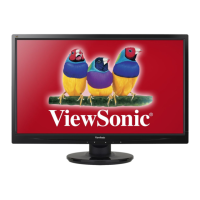
ViewSonic VA2759-smh - User Manual

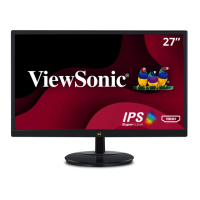
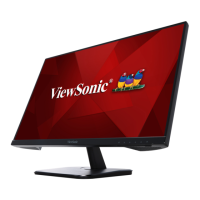
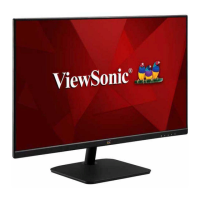
ViewSonic VA2759-smh
46 pages
Print Icon
To Next Page IconTo Next Page
Loading...
VA2759-smh
Display
User Guide
Model No. VS18564
P/N: VA2759-SMH-2
IMPORTANT: Please read this User Guide to obtain important information on installing and using your product in
a safe manner, as well as registering your product for future service. Warranty information contained in this User
Guide will describe your limited coverage from ViewSonic® Corporation, which is also found on our web site at
http://www.viewsonic.com in English, or in specific languages using the Regional selection box in the upper right
corner of our website. “Antes de operar su equipo lea cu idadosamente las instrucciones en este manual”

Questions and Answers

  • B
    Bianca JohnsonAug 18, 2025
    What to do if my ViewSonic Monitor has no power?
    • N
      Nicole ValdezAug 19, 2025
      First, ensure the monitor is turned on using the Power button. Next, verify that the power cord is correctly and securely connected to both the monitor and the power outlet. Finally, test the power outlet with another electrical device to confirm it's supplying power.
  • E
    Eric BallAug 21, 2025
    Why is there no image on my ViewSonic VA2759-smh Monitor even though the power is on?
    • T
      Tina RobertsAug 21, 2025
      If your monitor has power but no image, check that the video cable connecting the monitor to the computer is properly and securely connected. Also, adjust the brightness and contrast settings. Finally, make sure the correct input source is selected.
  • B
    Brianna SantosAug 23, 2025
    Why does the screen image cut in and out on my ViewSonic VA2759-smh Monitor?
    • S
      Sheila RubioAug 23, 2025
      If the screen image cuts in and out, ensure the correct input source is selected. Check the video cable connector for bent or broken pins, as bent or broken pins in the video cable connector may be the reason. Also, make sure the video cable connecting the monitor to the computer is properly and securely connected.
  • B
    bailey48Aug 26, 2025
    How to fix the blurred screen image on my ViewSonic VA2759-smh?
    • B
      Brent AdamsAug 26, 2025
      If the screen image is blurred, adjust the resolution to the correct Aspect Ratio. If the issue persists, reset the monitor to factory settings.
  • T
    Tina LamAug 28, 2025
    What to do if I see wrong or abnormal colors on my ViewSonic Monitor?
    • W
      William CastilloAug 28, 2025
      If you are experiencing incorrect colors, and notice any colors (red, green, or blue) are missing, check the video cable to ensure it is properly and securely connected, as loose or broken pins in the cable connector could cause an improper connection. You can also connect the monitor to another computer to test it. If you have an older graphics card, contact ViewSonic® for a non-DDC adapter.
  • L
    Larry WardAug 30, 2025
    Why is the screen image too light or dark on my ViewSonic VA2759-smh Monitor?
    • J
      Joseph AlvaradoAug 30, 2025
      If the screen image is too light or dark, adjust the brightness and contrast settings via the OSD Menu. If this does not solve the issue, reset the monitor to factory settings.
  • B
    Beverly WatersSep 1, 2025
    Why does my ViewSonic VA2759-smh screen appear yellow?
    • S
      Sandra LarsenSep 1, 2025
      If the screen appears yellow, make sure the “Blue Light Filter” is Off.
  • M
    Mark ArmstrongSep 3, 2025
    What to do if the screen isn’t centered correctly on my ViewSonic VA2759-smh Monitor?
    • D
      Diane MirandaSep 3, 2025
      If the screen isn’t centered correctly, adjust the horizontal and vertical controls via the OSD Menu. Also, check the Aspect Ratio. If these adjustments don't work, reset the monitor to factory settings.
  • D
    Daniel GatesSep 6, 2025
    What to do if the external device is connected, but no image appears on the screen of my ViewSonic VA2759-smh?
    • T
      torresjoseSep 6, 2025
      If an external device is connected but there's no image on the screen, first make sure the Power is On. Then, adjust brightness and contrast via the OSD Menu. Finally, check the connecting cable and make sure it is properly and securely connected, as loose or broken pins in the cable connector could cause an improper connection.
  • J
    James BarreraSep 8, 2025
    What to do if the OSD Menu does not appear on the screen or the OSD controls are inaccessible on my ViewSonic Monitor?
    • C
      Cory BellSep 8, 2025
      First, check whether the OSD Menu is locked. If it is, press and hold the 3 and 5 key for 10 seconds. If this doesn't work, turn off the monitor, unplug the power cord, plug it back in, and then turn on the monitor. As a last resort, reset the monitor to factory settings.

Summary

Safety Precautions

Initial Setup

Installing the Stand

Step-by-step guide for attaching the monitor stand to the display unit.

Wall Mounting

Guidelines and specifications for mounting the monitor on a wall using VESA standards.

Making Connections

Connecting to Power

Steps to connect the monitor to an electrical power outlet using the AC power cord.

Connecting External Devices

Instructions for connecting various input sources like HDMI and VGA to the monitor.

Using the Monitor

Appendix

Troubleshooting

Common problems and their solutions for issues encountered while using the monitor.

Regulatory and Service Information

Limited Warranty

Explanation of the product's warranty coverage, duration, exclusions, and how to obtain service.

ViewSonic VA2759-smh Specifications

General IconGeneral
3DNo
Screen shapeFlat
Backlight typeW-LED
Composite syncYes
Display diagonal27 \
Display technologyLED
Native aspect ratio-
Vertical scan range48 - 76 Hz
Horizontal scan range54 - 85.5 kHz
Contrast ratio (dynamic)50000000:1
Display number of colors16.78 million colors
Display brightness (typical)250 cd/m²
Supported graphics resolutions1920 x 1080 (HD 1080)
DVI-D ports quantity0
Headphone connectivity3.5 mm
RMS rated power2 W
Number of speakers2
CertificationCE EMC, CB, RoHS Green BOM & RoHS DoC, REACH SVHC List and DoC, ErP, WEEE, US NRTL w/ CA, FCC-B w/ ICES003, ENERGY STAR, EPEAT Silver, Mexico CoC, Mexico Energy
Product colorBlack
Tilt angle range-5 - 22 °
Cable lock slot typeKensington
Panel mounting interface100 x 100 mm
AC input voltage100 - 240 V
Power consumption (max)29 W
Power consumption (standby)- W
Power consumption (typical)22 W
Power consumption (PowerSave)17 W
Operating temperature (T-T)0 - 40 °C
Operating relative humidity (H-H)20 - 90 %
Sustainability certificatesEPEAT Silver, ENERGY STAR
Package depth164 mm
Package width693 mm
Package height516 mm
Package weight6800 g
Cables includedAC, AUX, VGA
Weight and Dimensions IconWeight and Dimensions
Depth (with stand)235 mm
Width (with stand)622.5 mm
Height (with stand)446.3 mm
Weight (with stand)4500 g
Depth (without stand)48.6 mm
Height (without stand)372.8 mm
Weight (without stand)4000 g

Related product manuals