EasyManua.ls Logo

ViewSonic VS16422 - User Manual

ViewSonic VS16422
53 pages
Print Icon
To Next Page IconTo Next Page
Loading...
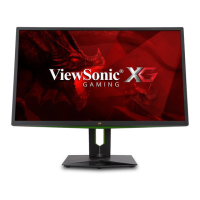
VG2419
VG2719
Display
User Guide
Model No. VS16422 / VS16492
P/N: VG2419 / VG2719
IMPORTANT: Please read this User Guide to obtain important information on installing and using your product in
a safe manner, as well as registering your product for future service. Warranty information contained in this User
Guide will describe your limited coverage from ViewSonic® Corporation, which is also found on our web site at
http://www.viewsonic.com in English, or in specific languages using the Regional selection box in the upper right
corner of our website. “Antes de operar su equipo lea cu idadosamente las instrucciones en este manual”

Questions and Answers

  • Z
    zthomasAug 20, 2025
    How to fix a ViewSonic VS16422 with no power?
    • N
      nicolewoodsAug 20, 2025
      If your ViewSonic Monitor isn't powering on, ensure it's switched on first. If it is off, simply press the power button. Check that the power cord is correctly and securely plugged into the monitor and the outlet. To verify the outlet's functionality, plug another electrical device into it.
  • N
    Nicole DeanAug 22, 2025
    How to adjust brightness on ViewSonic VS16422 Monitor if the screen image is too light or dark?
    • R
      rgainesAug 22, 2025
      If the screen image on your ViewSonic Monitor is too light or dark, you can adjust the brightness and contrast settings. Alternatively, you can reset the monitor to its factory settings.
  • J
    Jeffrey GreeneAug 25, 2025
    What to do if my ViewSonic Monitor has power but no image?
    • L
      Lori MarshAug 25, 2025
      If your ViewSonic Monitor has power but no image, ensure the video cable is securely connected to both the monitor and the computer. Inspect the video cable connector for bent or broken pins. Also, adjust the brightness and contrast settings. Finally, make sure the correct input source is selected.
  • M
    Michael BradleyAug 26, 2025
    Why is the screen image or text blurred on my ViewSonic VS16422 Monitor?
    • A
      amandastanleyAug 27, 2025
      If the image or text on your ViewSonic Monitor appears blurred, try adjusting the resolution to the correct aspect ratio. If that doesn't work, you can also try resetting the monitor to its factory settings.
  • A
    Ashley JonesAug 28, 2025
    What to do if external device is connected, but no image appears on ViewSonic VS16422?
    • J
      James KingAug 28, 2025
      To address the issue of an external device connected to your ViewSonic Monitor but showing no image, first, ensure the monitor is powered on. Then, check the connecting cable to make sure it's properly and securely connected. Also, adjust the brightness and contrast settings.
  • C
    Cynthia ClarkAug 29, 2025
    Why does my ViewSonic VS16422 Monitor have wrong or abnormal colors?
    • J
      Joanna PattersonAug 30, 2025
      To resolve incorrect or abnormal colors on your ViewSonic Monitor, first, check the video cable to ensure it's properly and securely connected, especially if any colors (red, green, or blue) are missing. You can also connect the monitor to another computer to see if the issue persists. If you have an older graphics card, contact ViewSonic for a non-DDC adapter.
  • D
    Dillon ChambersAug 31, 2025
    What to do if ViewSonic VS16422 screen image cuts in and out?
    • M
      michelle34Sep 1, 2025
      To fix a screen image that cuts in and out on your ViewSonic Monitor, ensure the video cable is properly and securely connected between the monitor and the computer. Also, make sure the correct input source is selected. Finally, check the video cable connector for any broken pins.
  • B
    butlerstevenSep 3, 2025
    Why does the OSD Menu not appear on my ViewSonic VS16422?
    • S
      Stephanie DunnSep 3, 2025
      If the OSD Menu is not appearing on your ViewSonic Monitor, first check if the OSD Menu is locked. If it is, press and hold keys 2 and 3 for 10 seconds. If that doesn't work, turn off the monitor, unplug the power cord, plug it back in, and then turn on the monitor. As a last resort, reset the monitor to factory settings.
  • P
    Patrick AndersonSep 5, 2025
    How to center the screen correctly on a ViewSonic VS16422?
    • J
      Julie HammondSep 5, 2025
      To center the screen correctly on your ViewSonic Monitor, adjust the resolution to the correct Aspect Ratio. You can also adjust the horizontal and vertical controls via the OSD Menu. If those options don't work, try resetting the monitor to factory settings.
  • J
    Jonathan CochranSep 6, 2025
    Why does my ViewSonic VS16422 screen appear yellow?
    • M
      Matthew ColeSep 7, 2025
      If your ViewSonic Monitor screen appears yellow, make sure the “Blue Light Filter” is turned off.

Summary

Safety Precautions

Introduction

Package Contents

Lists all items included in the monitor package.

Product Overview

VG2419 Product Overview

Details the front, rear, and I/O ports of the VG2419 model.

VG2419 Front and Rear View

Illustrates the front and rear physical features of the VG2419.

VG2419 I;O Ports

Identifies and explains the input/output ports for the VG2419.

VG2719 Product Overview

Details the front, rear, and I/O ports of the VG2719 model.

VG2719 Front and Rear View

Illustrates the front and rear physical features of the VG2719.

VG2719 I;O Ports

Identifies and explains the input/output ports for the VG2719.

Initial Setup

Installing the Stand

Step-by-step instructions for attaching the monitor stand.

Wall Mounting

Using the Security Slot

Making Connections

Connecting to Power

Instructions for connecting the monitor to a power source.

Connecting External Devices - VG2419

Connecting External Devices - VG2719

Using the Monitor

Adjusting the Viewing Angle

Methods for adjusting the monitor's viewing angle for optimal comfort.

Height Adjustment

Instructions on how to raise or lower the monitor's height.

Tilt Angle Adjustment

How to tilt the monitor forwards or backwards for desired viewing.

Screen Orientation Adjustment (Monitor Pivot)

Steps to rotate the monitor from landscape to portrait orientation.

Swivel Angle Adjustment

Procedure for swiveling the monitor left or right for optimal viewing.

Turning the Device On;Off

Guide on how to power the monitor on and off.

Using the Control Panel Keys

Quick Menu

How to access and use the Quick Menu options.

Hot Keys

Explanation of special functions accessed via control panel keys.

Configuring the Settings

General Operations

Basic operations for navigating and adjusting monitor settings via OSD.

On-Screen Display (OSD) Menu Tree

Specifications

Glossary

Troubleshooting

Maintenance

Regulatory and Service Information

Copyright Information

Customer Service

Limited Warranty

Mexico Limited Warranty

ViewSonic VS16422 Specifications

General IconGeneral
BrandViewSonic
ModelVS16422
CategoryMonitor
LanguageEnglish

Related product manuals