EasyManua.ls Logo

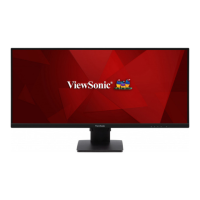
ViewSonic VS17295 - User Manual

ViewSonic VS17295
59 pages
Print Icon
To Next Page IconTo Next Page
Loading...
Model No. VS17295
P/N: VA2456-MIKU
VA2456-MIKU
LCD Monitor
User Guide
Art by Fukahire © Crypton Future Media, INC.
www.piapro.net

Questions and Answers

  • K
    Katelyn ClarkAug 19, 2025
    How do I fix a blurred screen image on my ViewSonic VS17295?
    • A
      Amber ThompsonAug 19, 2025
      If the screen image on your ViewSonic Monitor is blurred, adjust the resolution to the correct Aspect Ratio. You may also try resetting the monitor to factory settings.
  • J
    jameswilsonAug 21, 2025
    What to do if my ViewSonic Monitor has power but no image?
    • J
      Jeffrey PrinceAug 21, 2025
      If your ViewSonic Monitor has power but no image, ensure the video cable connecting the monitor to the computer is properly and securely connected. Also, try adjusting the brightness and contrast settings and make sure the correct input source is selected.
  • J
    Julie HebertAug 23, 2025
    Why does my ViewSonic VS17295 Monitor have wrong or abnormal colors?
    • P
      Patricia SimmonsAug 25, 2025
      If your ViewSonic Monitor displays wrong or abnormal colors, and any colors (red, green, or blue) are missing, check the video cable to ensure it is properly and securely connected, as loose or broken pins in the cable connector could cause an improper connection. You can also connect the monitor to another computer to test it.
  • T
    Timothy KelleyAug 26, 2025
    What causes the screen image to cut in and out on a ViewSonic VS17295?
    • B
      Bryan HartAug 26, 2025
      If the screen image on your ViewSonic Monitor cuts in and out, ensure the correct input source is selected. Check the video cable connector for bent or broken pins and make sure the video cable connecting the monitor to the computer is properly and securely connected.
  • M
    Michael PinedaAug 28, 2025
    How to fix a ViewSonic VS17295 Monitor screen image that is too light or dark?
    • S
      Stephen Craig MDAug 28, 2025
      If the screen image on your ViewSonic Monitor is too light or dark, adjust brightness and contrast settings via the OSD Menu. You can also reset the monitor to factory settings.
  • I
    Isaac MorganAug 30, 2025
    Why is there no image on my ViewSonic VS17295 when an external device is connected?
    • J
      Jamie Floyd PhDAug 30, 2025
      If an external device is connected to your ViewSonic Monitor, but no image appears, make sure the power is on. Adjust brightness and contrast via the OSD Menu. Check the connecting cable and make sure it is properly and securely connected, as loose or broken pins in the cable connector could cause an improper connection.
  • W
    williammunozSep 1, 2025
    How to troubleshoot a ViewSonic VS17295 that has no power?
    • D
      Devin ThomasSep 1, 2025
      If your ViewSonic Monitor has no power, first, ensure you have turned on the monitor by pressing the Power button. Then, make sure the power cord is properly and securely connected to both the monitor and the power outlet. To verify the outlet is supplying power, plug another electrical device into it.
  • T
    timothypatelSep 3, 2025
    How to fix no audio output on ViewSonic Monitor?
    • C
      Caroline SimonSep 3, 2025
      If your ViewSonic Monitor has no audio output, and you are using headphones, ensure the mini stereo jack is properly connected. Also, make sure the volume is not muted or set to 0, and check the Audio Input setting.
  • J
    John SmithSep 5, 2025
    Why are USB devices not working when connected to my ViewSonic VS17295 Monitor?
    • M
      mfordSep 5, 2025
      If USB devices connected to your ViewSonic Monitor do not work, ensure the USB cable is connected properly. If applicable, try changing to another USB port. Note that some USB devices require a higher electric current, so connect the device directly to the computer.
  • M
    Matthew CollinsSep 7, 2025
    What to do if the OSD Menu does not appear on my ViewSonic VS17295?
    • A
      Amy EatonSep 8, 2025
      If the OSD Menu does not appear on the screen or the OSD controls are inaccessible on your ViewSonic Monitor, check whether the OSD Menu is locked by pressing and holding the 2 and 3 key for 10 seconds. Also, try turning off the monitor, unplugging the power cord, plugging it back in, and then turning on the monitor. Resetting the monitor to factory settings can also help.

Summary

Safety Precautions

Initial Setup

Installing the Stand

Step-by-step instructions for attaching the monitor stand.

Wall Mounting

Guidelines and specifications for VESA wall mounting the monitor.

Making Connections

Connecting to Power

Procedure for connecting the monitor to an electrical power source.

Connecting External Devices

Instructions for connecting video sources like HDMI, DisplayPort, and VGA.

Using the Monitor

Configuring the Settings

Appendix

Troubleshooting

Common problems and their solutions for the monitor.

ViewSonic VS17295 Specifications

General IconGeneral
Panel TypeIPS
Response Time5ms
Aspect Ratio16:9
Contrast Ratio1000:1
Display Size27 inches
Resolution2560 x 1440
ConnectivityHDMI, DisplayPort, USB
Screen Size27 inches
Brightness350 cd/m²
Viewing Angle178º/178°

Related product manuals