EasyManua.ls Logo

ViewSonic VS18552 - User Manual

ViewSonic VS18552
49 pages
Print Icon
To Next Page IconTo Next Page
Loading...
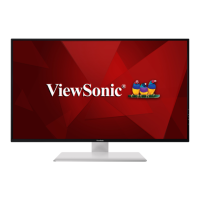
VX4381-4K
Display
User Guide
Model No. VS18552
P/N: VX4381-4K
IMPORTANT: Please read this User Guide to obtain important information on installing and using your product in
a safe manner, as well as registering your product for future service. Warranty information contained in this User
Guide will describe your limited coverage from ViewSonic® Corporation, which is also found on our web site at
http://www.viewsonic.com in English, or in specific languages using the Regional selection box in the upper right
corner of our website. “Antes de operar su equipo lea cu idadosamente las instrucciones en este manual”

Questions and Answers

  • V
    Victoria JoyceAug 19, 2025
    What to do if power is on, but no image appears on ViewSonic VS18552?
    • L
      Lisa JuarezAug 19, 2025
      If your ViewSonic monitor shows no image even when the power is on, ensure the video cable is properly connected to both the monitor and the computer. You might also need to adjust the brightness and contrast settings or make sure the correct input source is selected.
  • J
    James SandovalAug 21, 2025
    Why does the screen image cut in and out on my ViewSonic VS18552?
    • L
      lindseyadkinsAug 21, 2025
      If your ViewSonic monitor screen image cuts in and out, ensure the correct input source is selected. Check the video cable connector for bent or broken pins, which could cause a bad connection. Also, make sure the video cable connecting the monitor to the computer is properly and securely connected.
  • A
    Amy JohnsonAug 23, 2025
    How to troubleshoot a ViewSonic VS18552 with no power?
    • E
      Erin PetersAug 25, 2025
      If your ViewSonic monitor displays no power, start by ensuring you've turned it on using the power button. Next, verify that the power cord is correctly and securely connected to both the monitor and the power outlet. To confirm the outlet is functioning, plug another electrical device into it.
  • A
    April GarzaAug 26, 2025
    What to do if external device is connected, but no image appears on ViewSonic VS18552?
    • M
      Matthew MurphyAug 26, 2025
      If an external device is connected to your ViewSonic monitor but no image appears, first ensure the power is on. Then, adjust the brightness and contrast via the OSD Menu. Finally, check the connecting cable to make sure it is properly and securely connected; loose or broken pins in the cable connector could cause an improper connection.
  • R
    Rachel WashingtonAug 28, 2025
    How to adjust brightness on ViewSonic VS18552?
    • B
      barbara81Aug 28, 2025
      If the screen image on your ViewSonic monitor is too light or dark, adjust the brightness and contrast settings via the OSD Menu. You can also reset the monitor to factory settings.
  • L
    Linda ThomasAug 30, 2025
    Why are the colors wrong on my ViewSonic VS18552?
    • A
      Ashley NashAug 30, 2025
      If the colors on your ViewSonic monitor appear wrong or abnormal, and you notice colors like red, green, or blue are missing, check the video cable to ensure it's properly and securely connected. Loose or broken pins in the cable connector could cause an improper connection. You can also try connecting the monitor to another computer.
  • T
    Tiffany BarrySep 1, 2025
    How to fix a blurred screen image on ViewSonic monitor?
    • P
      Paul GutierrezSep 1, 2025
      If the screen image on your ViewSonic monitor is blurred, adjust the resolution to the correct Aspect Ratio. You can also reset the monitor to factory settings.
  • A
    Austin RiceSep 3, 2025
    How do I center the screen on my ViewSonic monitor?
    • M
      Michael Simmons MDSep 3, 2025
      If the screen isn’t centered correctly on your ViewSonic monitor, adjust the horizontal and vertical controls via the OSD Menu. Check the Aspect Ratio. You can also reset the monitor to factory settings.
  • J
    Jordan WilsonSep 5, 2025
    Why does my ViewSonic monitor screen appear yellow?
    • S
      Shannon JosephSep 6, 2025
      If the screen appears yellow on your ViewSonic monitor, make sure the “Blue Light Filter” is Off.
  • A
    Aaron RuizSep 7, 2025
    How to fix ViewSonic VS18552 Monitor OSD menu not appearing?
    • S
      samantha07Sep 7, 2025
      If the OSD Menu does not appear on the screen or the OSD controls are inaccessible on your ViewSonic monitor, check whether the OSD Menu is locked. Try turning off the monitor, unplugging the power cord, plugging it back in, and then turning on the monitor. You can also reset the monitor to factory settings.

Summary

Safety Precautions

General Safety Guidelines

Key safety instructions for using the device safely and preventing hazards.

Electrical and Child Safety

Guidelines for electrical safety, plug usage, and preventing child access.

Wall Mounting Safety

Ensuring secure wall mounting to prevent the display from falling over.

Introduction

Package Contents

Lists the items included in the monitor package.

Initial Setup

Wall Mounting

Instructions for attaching the monitor to a wall using a mounting kit.

Using the Security Slot

Guide on how to use a security slot locking device to prevent theft.

Making Connections

Connecting to Power

Steps to connect the monitor to a power outlet.

Connecting External Devices

Instructions for connecting audio and video sources to the monitor.

DisplayPort MST Daisy Chain Connection

Guide on connecting multiple monitors using DisplayPort MST.

Using the Monitor

Adjusting Viewing Angle

How to tilt the monitor to achieve the desired viewing angle.

Powering On;Off and Control Keys

Procedure for powering the monitor on/off and using control panel keys.

Hot Key Functions (OSD Lock;Unlock)

Details on using hot keys for OSD lock and unlock functionality.

Hot Key Functions (Power Lock;Boot Screen)

Details on using hot keys for power button lock and boot screen control.

Quick and Shortcut Menus Explained

Overview of the Quick Menu and Shortcut Menu functions and options.

Configuring Monitor Settings (General)

Steps for navigating and adjusting general monitor settings via the OSD menu.

Configuring Monitor Settings (Advanced)

Advanced adjustments within the OSD menu, such as color temperature.

On-Screen Display (OSD) Menu Structure

Hierarchical structure of the monitor's On-Screen Display menu options.

Appendix

Specifications

Technical specifications of the monitor, including LCD, input signal, and compatibility.

Glossary of Terms

Definitions of technical terms used in the monitor manual.

Troubleshooting Common Issues

Common problems and their solutions for using the monitor.

Maintenance and Cleaning

Guidelines for cleaning and maintaining the monitor's screen and case.

Regulatory and Service Information

FCC Compliance Statement

Information regarding compliance with FCC rules and regulations for digital devices.

Industry Canada Statement

Compliance statement for Industry Canada regulations.

RoHS2 Compliance Declaration

Details on the product's compliance with RoHS2 directive on hazardous substances.

Product Disposal and Environmental Info

Information on responsible disposal of the product and environmental considerations.

Copyright and Legal Information

Legal information regarding copyright, trademarks, and disclaimers.

Customer Service and Support

Contact information and procedures for technical support and product service.

Limited Warranty Details

Details of the product warranty coverage, duration, and exclusions.

Service Procedures and Limitations

Instructions on obtaining warranty service, limitations, and exclusions.

Warranty Exclusions and State Law

Information on damages not covered by warranty and the effect of state law.

Mexico Limited Warranty

Specific warranty terms and conditions applicable to Mexico.

Warranty Record Keeping

Guidance on recording product information for warranty claims.

Mexico Service Contact Information

List of authorized service centers and contact details within Mexico.

ViewSonic VS18552 Specifications

General IconGeneral
BrandViewSonic
ModelVS18552
CategoryMonitor
LanguageEnglish

Related product manuals