EasyManua.ls Logo

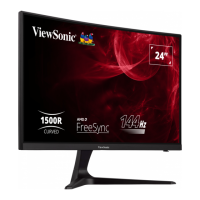
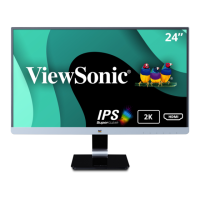
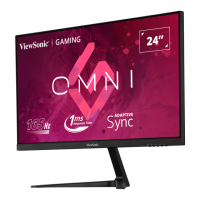
ViewSonic VX2418-P-mhd - User Manual

ViewSonic VX2418-P-mhd
45 pages
Print Icon
To Next Page IconTo Next Page
Loading...
VX2418-P-mhd
Display
User Guide
Model No. VS18572
P/N: VX2418-P-MHD
IMPORTANT: Please read this User Guide to obtain important information on installing and using your product in
a safe manner, as well as registering your product for future service. Warranty information contained in this User
Guide will describe your limited coverage from ViewSonic® Corporation, which is also found on our web site at
http://www.viewsonic.com in English, or in specific languages using the Regional selection box in the upper right
corner of our website. “Antes de operar su equipo lea cu idadosamente las instrucciones en este manual”

Questions and Answers

  • M
    Mark WolfeAug 21, 2025
    What to do if the external device is connected, but no image appears on the ViewSonic VX2418-P-mhd Monitor?
    • R
      Ryan DavenportAug 22, 2025
      First, ensure that the power to the external device is on. Adjust the brightness and contrast via the OSD Menu. Check the connecting cable to ensure it is properly and securely connected. Loose or broken pins in the cable connector could also be the cause.
  • T
    tiffany78Aug 25, 2025
    What to do if power is on but no image appears on ViewSonic VX2418-P-mhd Monitor?
    • C
      Chad Price MDAug 25, 2025
      Ensure the video cable connecting your ViewSonic monitor to the computer is properly and securely connected. You may also need to adjust the brightness and contrast settings using the monitor's controls. Lastly, make sure the correct input source is selected.
  • H
    heatherthomasAug 26, 2025
    What to do if the image on my ViewSonic VX2418-P-mhd is too light or dark?
    • J
      Joshua RiosAug 26, 2025
      Adjust the brightness and contrast settings on your ViewSonic monitor through the OSD Menu. If that doesn't work, try resetting the monitor to its factory settings.
  • D
    Deanna LarsonAug 28, 2025
    Why are the colors wrong or abnormal on my ViewSonic VX2418-P-mhd?
    • S
      Samuel MatthewsAug 28, 2025
      Loose or broken pins in the cable connector could cause an improper connection. If colors are missing (red, green, or blue), check the video cable to ensure it's properly and securely connected. You can also connect the ViewSonic monitor to another computer to test if the issue persists.
  • M
    maymichaelAug 30, 2025
    What to do if the screen image cuts in and out on ViewSonic Monitor?
    • C
      Cory MarshallAug 30, 2025
      Ensure that the correct input source is selected on your ViewSonic monitor. Inspect the video cable connector for any bent or broken pins. Also, make sure the video cable connecting the monitor to the computer is properly and securely connected.
  • C
    Carlos DavisSep 1, 2025
    How to fix a blurred screen image on ViewSonic VX2418-P-mhd Monitor?
    • D
      Derek BellSep 1, 2025
      Adjust the resolution to the correct Aspect Ratio. If the image is still blurred, reset the ViewSonic monitor to its factory settings.
  • C
    Chase PerezSep 3, 2025
    How to center the screen correctly on a ViewSonic VX2418-P-mhd?
    • T
      tmezaSep 3, 2025
      Adjust the horizontal and vertical controls through the OSD Menu. Also, check the Aspect Ratio setting. If the issue persists, reset the ViewSonic monitor to factory settings.
  • M
    Michael BrewerSep 5, 2025
    Why does the screen appear yellow on my ViewSonic VX2418-P-mhd Monitor?
    • J
      Jeffrey KennedySep 5, 2025
      Make sure the “Blue Light Filter” is turned Off in the monitor's settings.
  • R
    rebecca74Sep 7, 2025
    What to do if the OSD Menu does not appear on the screen of ViewSonic VX2418-P-mhd Monitor?
    • V
      Vincent TateSep 7, 2025
      Check if the OSD Menu is locked. If it is, press and hold the 2 and 4 keys for 10 seconds. If that doesn't work, turn off the ViewSonic monitor, unplug the power cord, plug it back in, and then turn the monitor back on. As a last resort, reset the monitor to its factory settings.
  • E
    Erika GalvanSep 9, 2025
    Why are some menus not selectable in the OSD of my ViewSonic VX2418-P-mhd Monitor?
    • L
      lmuellerSep 10, 2025
      Adjust the ViewMode or the input source settings. If that doesn't resolve the issue, reset the ViewSonic monitor to its factory settings.

Summary

Safety Precautions

Regulatory and Service Information

Compliance and Standards

Details FCC, CE, RoHS compliance, and other relevant regulatory statements.

Product Disposal and Copyright

Information on WEEE disposal requirements and copyright notices.

Customer Service and Warranty

Covers customer service, limited warranty terms, and regional support contacts.

Mexico Specific Information

Details Mexico limited warranty and service contact information.

Introduction

Package Contents

Lists items included in the monitor package, such as cables and documentation.

Product Overview

Details the physical layout, including front/rear views and input/output ports of the monitor.

Initial Setup

Installing the Stand

Step-by-step instructions for attaching the monitor stand.

Wall Mounting

Guidelines and specifications for mounting the monitor on a wall using VESA standards.

Using the Security Slot

How to use a security cable to prevent theft and secure the monitor.

Making Connections

Connecting to Power

Instructions for connecting the monitor to a power outlet.

Connecting External Devices

Guidance on connecting video sources like HDMI and DisplayPort.

Using the Monitor

Adjusting the Viewing Angle

Tilt the monitor forwards or backwards to the desired viewing angle (-5° to 20°).

Turning the Device On;Off

Instructions for powering the monitor on and off using the power button.

Using the Control Panel Keys

Explains how to use the monitor's control panel keys for navigation and settings.

Quick Menu Operations

How to access and use the Quick Menu for preset options and volume control.

Hot Keys Functionality

Details on using control panel keys for special functions like OSD lock and power lock.

Configuring the Settings

General Operations

Steps to navigate and access the On-Screen Display (OSD) Menu for adjustments.

On-Screen Display (OSD) Menu Tree

A detailed breakdown of the OSD menu structure and available options.

Appendix

Product Specifications

Technical details of the monitor including display size, input signals, and resolutions.

Glossary of Terms

Definitions of common terms used throughout the user manual for clarity.

Troubleshooting Guide

Solutions for common problems encountered while using the monitor.

Maintenance and Cleaning

Guidelines for proper care and cleaning of the monitor screen and case.

ViewSonic VX2418-P-mhd Specifications

General IconGeneral
Screen Size24 inches
Refresh Rate165Hz
Panel TypeVA
Response Time1ms (MPRT)
Adaptive SyncAMD FreeSync
Aspect Ratio16:9
Brightness250 cd/m²
Viewing Angle178° (H) / 178° (V)
Color GamutNTSC 72%
VESA Mount100 x 100 mm
Resolution1920 x 1080
ConnectivityDisplayPort, HDMI
Contrast Ratio3000:1 (Static)
Ports1x DisplayPort 1.2, 2x HDMI 1.4
Weight3.39 kg

Related product manuals