EasyManua.ls Logo

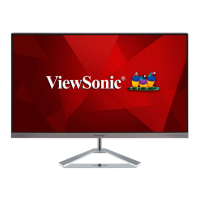
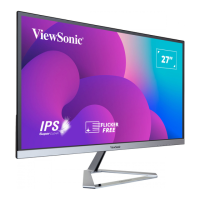
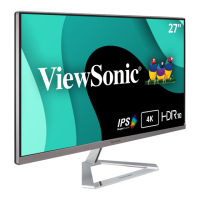
ViewSonic VX2776-4K-mhdu - User Manual

ViewSonic VX2776-4K-mhdu
47 pages
Print Icon
To Next Page IconTo Next Page
Loading...
VX2776-4K-mhdu
Display
User Guide
IMPORTANT: Please read this User Guide to obtain important information on installing and using your product in
a safe manner, as well as registering your product for future service. Warranty information contained in this User
Guide will describe your limited coverage from ViewSonic® Corporation, which is also found on our web site at
http://www.viewsonic.com in English, or in specific languages using the Regional selection box in the upper right
corner of our website.
Model No. VS19281
P/N: VX2776-4K-MHDU

Questions and Answers

  • J
    Julie KelleyAug 19, 2025
    What to do if my ViewSonic VX2776-4K-mhdu has no power?
    • D
      darren15Aug 19, 2025
      First, ensure the monitor is turned on by pressing the power button. Next, check that the power cord is properly and securely connected to both the monitor and the power outlet. Finally, test the power outlet by plugging in another electrical device to verify it's supplying power.
  • R
    Ryan DavidsonAug 21, 2025
    What to do if my ViewSonic VX2776-4K-mhdu power is on, but no image appears?
    • C
      Curtis BeckAug 21, 2025
      First, ensure the video cable connecting the monitor to the computer is properly and securely connected. You might also want to adjust the brightness and contrast settings. Lastly, make sure the correct input source is selected.
  • C
    Carolyn LoveAug 25, 2025
    How to fix wrong or abnormal colors on ViewSonic Monitor?
    • L
      Lauren DunlapAug 25, 2025
      If you notice any missing colors (red, green, or blue), check the video cable to ensure it's properly and securely connected, as loose or broken pins in the cable connector could cause an improper connection. Also, try connecting the monitor to another computer to rule out issues with the first computer's video output.
  • L
    Linda BurkeAug 26, 2025
    What to do if the screen image is too light or dark on my ViewSonic VX2776-4K-mhdu?
    • J
      Jennifer GregoryAug 26, 2025
      You can adjust the brightness and contrast settings via the OSD Menu. If that doesn't resolve the issue, try resetting the monitor to its factory settings.
  • T
    Tiffany EverettAug 27, 2025
    Why does the screen image cut in and out on my ViewSonic VX2776-4K-mhdu?
    • J
      johnkhanAug 28, 2025
      Ensure the correct input source is selected. Check the video cable connector for bent or broken pins. Also, make sure the video cable connecting the monitor to the computer is properly and securely connected.
  • V
    victoria15Aug 30, 2025
    How to fix a blurred screen image on ViewSonic Monitor?
    • W
      William RomeroAug 30, 2025
      First, adjust the resolution to the correct Aspect Ratio. If the issue persists, try resetting the monitor to factory settings.
  • J
    James RiceSep 1, 2025
    What to do if the external device is connected, but no image appears on the screen of my ViewSonic Monitor?
    • J
      John NielsenSep 1, 2025
      Ensure the monitor's power is on. Adjust brightness and contrast via the OSD Menu. Check the connecting cable and make sure it is properly and securely connected, as loose or broken pins in the cable connector could cause an improper connection.
  • C
    Connor DoyleSep 3, 2025
    What to do if the screen isn’t centered correctly on my ViewSonic Monitor?
    • K
      kevin42Sep 3, 2025
      Adjust the horizontal and vertical controls via the OSD Menu. Also, check the Aspect Ratio. If problems persist, reset the monitor to factory settings.
  • M
    Melinda HaynesSep 5, 2025
    Why does my ViewSonic VX2776-4K-mhdu screen appear yellow?
    • D
      David MaysSep 5, 2025
      Make sure the “Blue Light Filter” is turned Off.
  • N
    Nicole LopezSep 7, 2025
    What to do if the OSD Menu does not appear on the screen or the OSD controls are inaccessible on my ViewSonic VX2776-4K-mhdu?
    • B
      Brandy LeonardSep 7, 2025
      First, check whether the OSD Menu is locked. If it is not locked, try turning off the monitor, unplugging the power cord, plugging it back in, and then turning on the monitor. You can also try resetting the monitor to factory settings.

Summary

Safety Precautions

Introduction

Package Contents

Lists the items included in the product package.

Product Overview

Describes the front and rear view of the monitor and its ports.

Initial Setup

Installing the Stand

Step-by-step guide for attaching the monitor stand.

Wall Mounting

Instructions and specifications for mounting the monitor on a wall.

Using the Security Slot

How to secure the monitor to a fixed object using a security cable.

Making Connections

Connecting to Power

Procedure for connecting the monitor to a power source.

Connecting External Devices

Guides on connecting various devices like HDMI, DP, and Type C.

Using the Monitor

Adjusting the Viewing Angle

Instructions on how to tilt the monitor for optimal viewing.

Turning the Device On;Off

Steps to power the monitor on and off.

Using the Control Panel Keys

Overview of the monitor's control panel buttons.

Quick Menu

How to access and use the monitor's quick settings menu.

Hot Keys

Explains special functions accessed via key combinations.

Configuring the Settings

Guide to navigating and adjusting monitor settings via OSD.

On-Screen Display (OSD) Menu Tree

A visual representation of the OSD menu structure.

Specifications

Glossary

Troubleshooting

Maintenance

General Precautions

General safety guidelines for maintaining the monitor.

Cleaning the Screen

Instructions for safely cleaning the monitor screen.

Cleaning the Case

Instructions for safely cleaning the monitor's exterior case.

Regulatory and Service Information

Compliance Information

Addresses regulatory requirements and statements.

FCC Compliance Statement

Statement regarding compliance with FCC Rules.

Industry Canada Statement

Statement regarding Industry Canada compliance.

CE Conformity for European Countries

Statement regarding compliance with EU directives.

Declaration of RoHS2 Compliance

Declaration of compliance with RoHS2 directive.

Indian Restriction of Hazardous Substances

Statement on hazardous substances restriction in India.

Product Disposal at End of Product Life

Information on how to dispose of the product responsibly.

Customer Service

Limited Warranty

What the warranty covers

Details what is covered under the product warranty.

How long the warranty is effective

Specifies the duration of the warranty coverage.

Who the warranty protects

Identifies the eligible recipients of the warranty.

What the warranty excludes and does not cover

Lists items and damages not covered by the warranty.

How to get service

Instructions on how to obtain warranty service.

Limitation of implied warranties

States limitations on implied warranties.

Exclusion of damages

Details the types of damages ViewSonic is not liable for.

Mexico Limited Warranty

What the warranty covers

Details what is covered under the product warranty.

How long the warranty is effective

Specifies the duration of the warranty coverage.

Who the warranty protects

Identifies the eligible recipients of the warranty.

What the warranty excludes and does not cover

Lists items and damages not covered by the warranty.

How to get service

Instructions on how to obtain warranty service.

ViewSonic VX2776-4K-mhdu Specifications

General IconGeneral
Screen Size27 inches
Resolution3840 x 2160
Panel TypeIPS
Refresh Rate60 Hz
Brightness350 cd/m²
Contrast Ratio1000:1
Aspect Ratio16:9
Dynamic Contrast Ratio20M:1
Color Gamut100% sRGB
PortsHDMI, DisplayPort, USB-C
Viewing Angles178º horizontal, 178º vertical
VESA MountYes
Response Time4ms (GtG)
SpeakersYes (2 x 2W)

Related product manuals