EasyManua.ls Logo

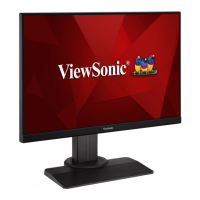
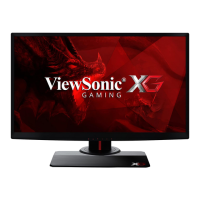
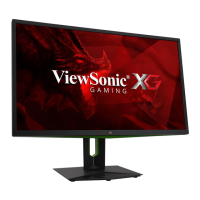
ViewSonic XG2431 - User Manual

ViewSonic XG2431
46 pages
Print Icon
To Next Page IconTo Next Page
Loading...
XG2431
Display
User Guide
Model No. VS18533
P/N: XG2431
IMPORTANT: Please read this User Guide to obtain important information on installing and using your product in
a safe manner, as well as registering your product for future service. Warranty information contained in this User
Guide will describe your limited coverage from ViewSonic® Corporation, which is also found on our web site at
http://www.viewsonic.com in English, or in specific languages using the Regional selection box in the upper right
corner of our website. “Antes de operar su equipo lea cu idadosamente las instrucciones en este manual”

Other manuals for ViewSonic XG2431

Questions and Answers

  • A
    Austin WrightAug 18, 2025
    What to do if my ViewSonic XG2431 Monitor has power but no image?
    • T
      tsimmonsAug 18, 2025
      First, ensure the video cable connecting the monitor to the computer is properly and securely connected. If the connection is fine, adjust the brightness and contrast settings. Also, make sure the correct input source is selected.
  • H
    Harold BassAug 21, 2025
    Why no image appears on the screen when the external device is connected to my ViewSonic monitor?
    • X
      xmorrisAug 21, 2025
      Make sure the power is on. Adjust brightness and contrast via the OSD Menu. Loose or broken pins in the cable connector could cause an improper connection, so check the connecting cable and make sure it is properly and securely connected.
  • S
    Steven Woodward DVMAug 23, 2025
    How to fix a ViewSonic Monitor screen that is too light or dark?
    • J
      Jessica BuchananAug 23, 2025
      Adjust brightness and contrast settings via the OSD Menu. If that doesn't work, reset the monitor to factory settings.
  • M
    Melissa SullivanAug 26, 2025
    How do I fix a blurred screen image on my ViewSonic XG2431?
    • B
      Bradley HarperAug 26, 2025
      Adjust the resolution to the correct Aspect Ratio. If the image is still blurred, reset the monitor to factory settings.
  • L
    Linda HesterAug 27, 2025
    Why will my ViewSonic XG2431 Monitor not adjust?
    • R
      Robert GarciaAug 27, 2025
      Make sure there are no obstructions near or on the monitor, and that there is adequate spacing. For more information, see "Adjusting the Viewing Angle" on page 1515.
  • B
    Benjamin AdamsAug 30, 2025
    Why is there no audio output from my ViewSonic XG2431?
    • J
      Jennifer BergAug 30, 2025
      If you're using headphones, make sure the mini stereo jack is properly connected. Also, check that the volume isn't muted or set to 0. Finally, verify the Audio Input setting.
  • M
    Mark HudsonSep 1, 2025
    Why are the colors wrong on my ViewSonic XG2431?
    • A
      Amy BrownSep 1, 2025
      Loose or broken pins in the cable connector could cause an improper connection, so if any colors (red, green, or blue) are missing, check the video cable to make sure it is properly and securely connected. You can also connect the monitor to another computer. If you have an older graphics card, contact ViewSonic® for a non-DDC adapter.
  • A
    Angela HansenSep 4, 2025
    What causes my ViewSonic XG2431 Monitor screen image to cut in and out?
    • M
      Marisa HunterSep 4, 2025
      First, make sure the correct input source is selected. Bent or broken pins in the video cable connector could cause an improper connection, so check for bent or broken pins in the video cable connector. Also, ensure the video cable connecting the monitor to the computer is properly and securely connected.
  • V
    Vanessa MeyerSep 6, 2025
    What to do if the OSD Menu doesn't appear on my ViewSonic monitor?
    • L
      Latoya CharlesSep 6, 2025
      Check whether the OSD Menu is locked. If it is, press and hold the 3 and 5 key for 10 seconds. If it is not locked, turn off the monitor, unplug the power cord, plug it back in, and then turn on the monitor. If it still doesn't appear, reset the monitor to factory settings.
  • L
    Lorraine HernandezSep 8, 2025
    Why aren't USB devices working when connected to my ViewSonic XG2431 Monitor?
    • S
      Steven LongSep 8, 2025
      Make sure the USB cable is connected properly. Try changing to another USB port, if applicable. Some USB devices require a higher electric current, so connect the device directly to the computer.

Summary

Safety Precautions

Introduction

Package Contents

Lists items included in the package, such as monitor, power cord, video cable, and quick start guide.

Product Overview

Front and Rear View

Illustrates the front and rear of the display, highlighting key components like the screen, power LED, and buttons.

I;O Ports

Details the various input/output ports available on the monitor, including HDMI, DisplayPort, and USB.

Initial Setup

Installing the Stand

Provides step-by-step instructions and diagrams for attaching the monitor stand to the display.

Wall Mounting

Using the Security Slot

Using the Mouse Anchor

Making Connections

Connecting to Power

Guides users on how to connect the monitor to a power outlet for operation.

Connecting External Devices

Using the Monitor

Adjusting the Viewing Angle

Explains how to adjust the tilt angle of the monitor for optimal viewing position.

Turning the Device On;Off

Using the Control Panel Keys

Quick Menu

Hot Keys

Configuring the Settings

General Operations

Guides users on navigating the On-Screen Display (OSD) Menu to adjust various settings.

On-Screen Display (OSD) Menu Tree

Appendix

Specifications

Lists detailed technical specifications of the monitor, including display size, resolution, and input signals.

Glossary

Troubleshooting

Maintenance

General Precautions

Offers general advice on handling and cleaning the monitor safely.

Cleaning the Screen

Provides instructions on how to clean the monitor screen properly.

Cleaning the Case

Details the correct method for cleaning the monitor's exterior casing.

Regulatory and Service Information

Compliance Information

Covers general compliance statements and regulatory information for the device.

FCC Compliance Statement

Details the FCC compliance rules and regulations for the device.

Industry Canada Statement

Provides the compliance statement for Industry Canada regulations.

CE Conformity for European Countries

States the device's conformity with European EMC and Low Voltage Directives.

Declaration of RoHS2 Compliance

Indian Restriction of Hazardous Substances

Product Disposal at End of Product Life

Copyright Information

Customer Service

Limited Warranty

What the warranty covers

Explains what the warranty includes, such as defects in material and workmanship.

How long the warranty is effective

Specifies the duration of the warranty period for parts and labor.

Who the warranty protects

Clarifies that the warranty is valid only for the first consumer purchaser.

What the warranty excludes and does not cover

Lists conditions and damages not covered by the warranty.

How to get service

Limitation of implied warranties

Exclusion of damages

Effect of state law

Explains how warranty rights may vary by state.

Sales outside the U.S.A. and Canada

Provides information for warranty and service outside North America.

Mexico Limited Warranty

What the warranty covers

Explains what the Mexican limited warranty includes for defects.

How long the warranty is effective

Specifies the duration of the warranty in Mexico.

Who the warranty protects

Clarifies who the Mexican warranty is valid for.

What the warranty excludes and does not cover

Lists exclusions for the Mexican warranty.

How to get service

Limitation of implied warranties

Exclusion of damages

Contact Information for Sales & Authorized Service (Centro Autorizado de Servicio) within Mexico

Name, address, of manufacturer and importers

Lists the manufacturer's and importers' contact details for Mexico.

Hermosillo

Provides contact details for authorized service in Hermosillo.

Puebla, Pue. (Matriz)

Lists contact information for authorized service in Puebla.

Chihuahua

Provides contact details for authorized service in Chihuahua.

Distrito Federal

Lists contact information for authorized service in Distrito Federal.

Guerrero Acapulco

Provides contact details for authorized service in Acapulco.

MERIDA

Lists contact information for authorized service in Merida.

Tijuana

Provides contact details for authorized service in Tijuana.

Villahermosa

Lists contact information for authorized service in Villahermosa.

Veracruz, Ver.

Provides contact details for authorized service in Veracruz.

Cuernavaca

Lists contact information for authorized service in Cuernavaca.

Guadalajara, Jal.

Provides contact information for authorized service in Guadalajara.

Monterrey

Lists contact information for authorized service in Monterrey.

Oaxaca, Oax.

Provides contact details for authorized service in Oaxaca.

FOR USA SUPPORT

Lists contact information for technical support in the USA.

ViewSonic XG2431 Specifications

General IconGeneral
Screen shapeFlat
Display diagonal24 \
Surface hardness3H
Anti-glare screenYes
Display technologyLED
Native aspect ratio16:9
Maximum refresh rate240 Hz
Supported video modes1080p
Contrast ratio (dynamic)80000000:1
Contrast ratio (typical)1000:1
Display number of colors16.7 million colors
Digital vertical frequency48 - 240 Hz
Digital horizontal frequency15 - 255 kHz
Display brightness (typical)350 cd/m²
Supported graphics resolutions1920 x 1080 (HD 1080)
HDMI version1.4
Headphone connectivity3.5 mm
USB upstream port typeUSB Type-B
AMD FreeSync typeFreeSync Premium
Built-in camera-
RMS rated power6 W
Product colorBlack
Market positioningGaming
Tilt angle range-5 - 15 °
Cable lock slot typeKensington
Panel mounting interface100 x 100 mm
AC input voltage100 - 240 V
AC input frequency50 - 60 Hz
Energy efficiency scaleA to G
Power consumption (max)54 W
Power consumption (standby)0.5 W
Power consumption (typical)27 W
Operating temperature (T-T)0 - 40 °C
Operating relative humidity (H-H)20 - 90 %
Package depth185 mm
Package width698 mm
Package height400 mm
Package weight8600 g
Cables includedDisplayPort, USB Type-A to USB Type-B
Sustainability certificatesRoHS
Weight and Dimensions IconWeight and Dimensions
Depth (with stand)239 mm
Width (with stand)540 mm
Height (with stand)434.1 mm
Weight (with stand)6800 g
Depth (without stand)49 mm
Height (without stand)323 mm
Weight (without stand)3500 g

Related product manuals