2. HOW TO RESET SAFE TO FACTORY DEFAULT SETTINGS
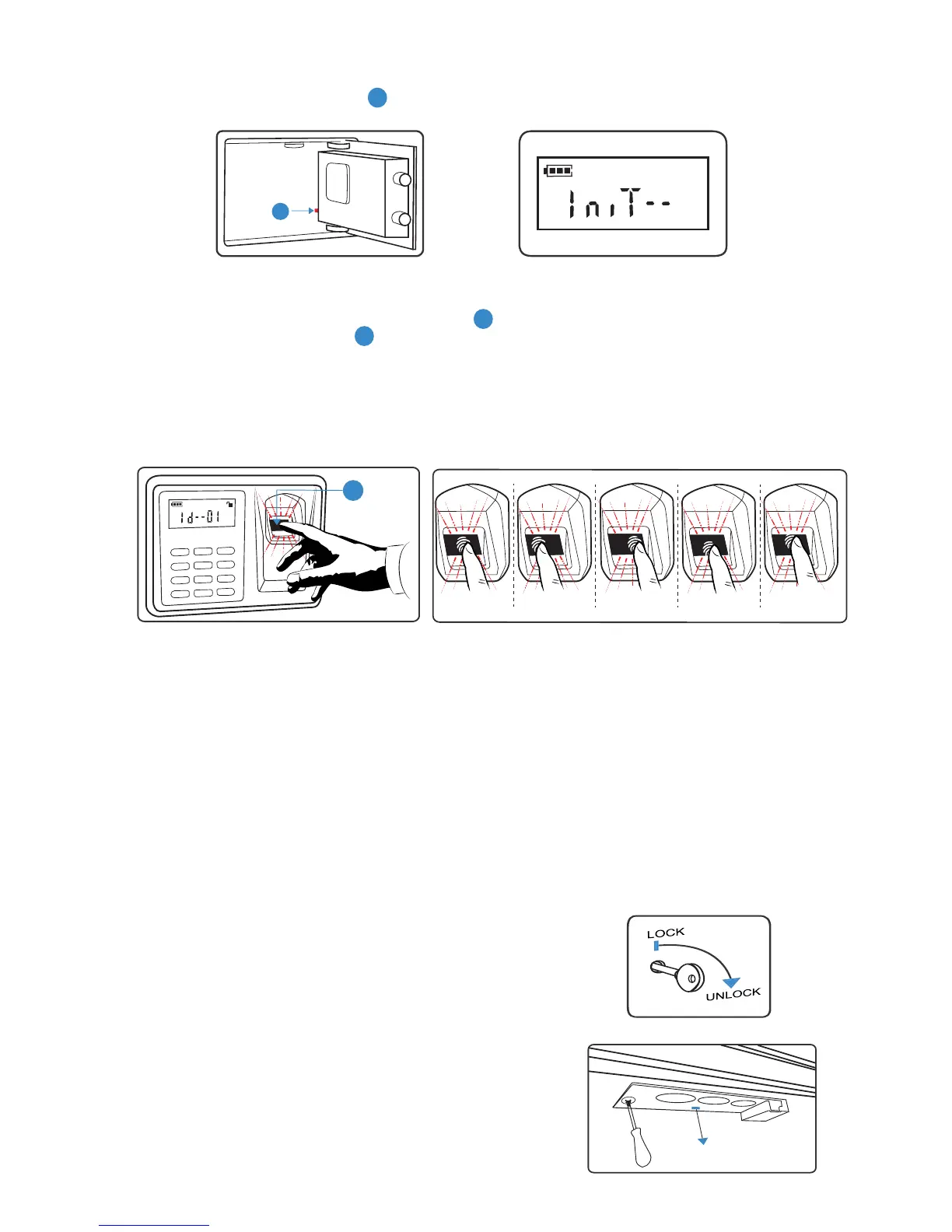
2.1. PRESS and HOLD down red button A for 10 seconds. “INIT” ashes on LCD display followed by “OK”. Safe is
reset to Factory Default. All data is deleted and you can begin new registration when red light comes on.
3. HOW TO REGISTER FINGERPRINTS ON FINGERPRINT SCANNER
3.1. To register ngerprints PRESS BRIEFLY red button A . As soon as red light comes on, press your ngerprint
on the Glass Fingerprint Scanner F . LCD screen will display “OK”, battery indicator and data count indicator
“1d - -01”.
3.2. If the registration fails “Err” will be displayed on LCD screen. Register the same nger again by repeating Step 3.1.
3.3. Repeat Step 3.1 with the same ngerprint but change ngerprint position on the Glass Fingerprint Scanner - left,
right, up, down, to the side.
Note:
The more times and various positions you program one ngerprint the more likely it is to open in an emergency.
3.4. To register a completely different ngerprint, repeat Step 3.1.
4. HOW TO REGISTER/CHANGE PIN CODE ON KEYPAD
Note: Start with Factory Default PIN 1234 if safe is new or reset. Register New PIN code using 4-8 digits. If
you want to change already registered PIN, follow the same steps beginning with your Registered PIN and
changing it to the New PIN. Test both PIN codes. Only Registered PIN code should open the safe.
4.1. Punch in the PIN and HOLD DOWN star button (*) until underscore (_) is displayed on the LCD screen.
4.2. Immediately punch in the New PIN code and press star button (*). Underscore (_) is displayed again. Punch in
the New PIN again and press star button(*) again. An "OK" will display after the PIN is input twice. New PIN is
registered. Test with New PIN as well as with Old PIN.
5. HOW TO UNLOCK AND LOCK THE SAFE WITH YOUR
FINGERPRINT
5.1. UNLOCK: Press pound button (#). When red light comes on,
press a registered ngerprint on the Glass Fingerprint Scanner.
Battery indicator and data count indicator “1d - -01” will display
on LCD screen. Safe is Unlocked.
5.2. LOCK: Press either star button (*) or pound button (#).
6. HOW TO UNLOCK AND LOCK THE
SAFE WITH PIN CODE
6.1. UNLOCK: Punch in a registered PIN
code and press star button (*).
6.2. LOCK: Press either star button (*) or
pound button (#).
7. HOW TO UNLOCK AND LOCK THE SAFE WITH A KEY
7.1. Insert the key in the keyhole and rotate to the right/clockwise to unlock
and back to the starting/lock position to lock the safe.
8. HOW TO TURN SOUNDS ON/OFF
8.1. SOUNDS ON: Press 1 & (*) star button, you will hear a long beep, sound is on.
8.2. SOUNDS OFF: Press 0 & (*) star button, the sound is off.
9. HOW TO INSTALL/CHANGE BATTERIES ON LED LIGHT
9.1. Unscrew the little bolt. Remove the LED light carefully. Put 2 fresh
AA batteries on the back of the light. Insert LED light back in the safe.
Note: 2 AA batteries are provided and have to be installed
.


 To Next Page
 Loading...