5
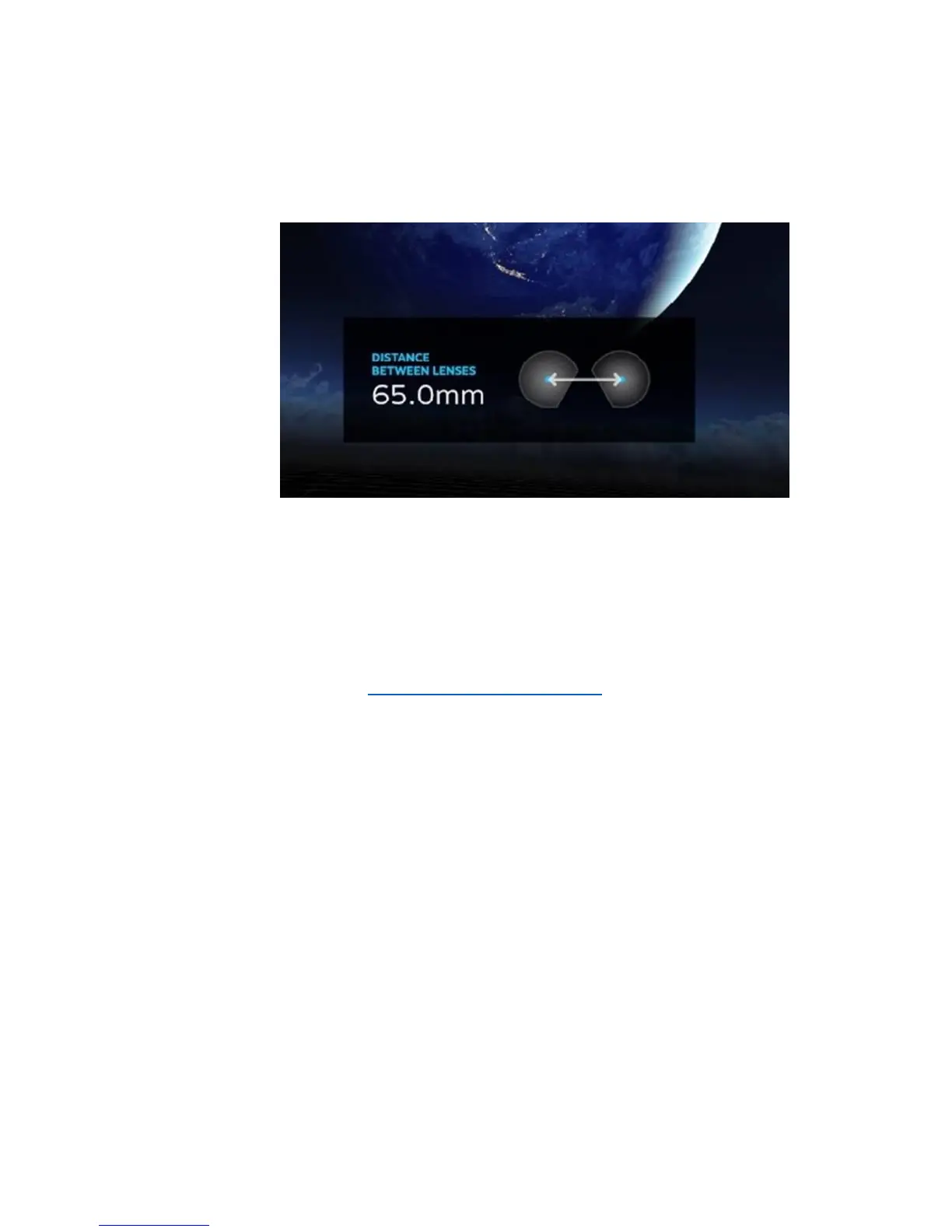
Recommended: Verify the lens distance between gameplay sessions and
adjust this setting back to the average of 65mm in case players have
changed this setting during their session. Failure to do this may result in
eye-strain and simulator sickness.
4. TROUBLESHOOTING AND FAQ
For assistance, contact Virtuix at commercialsupport@virtuix.com.
I am moving on the Omni but my movement is not being recognized in the game. What
should I do?
Instructions:
1. File exit from Omni Connect.
2. Turn the Omni off and then back on.
3. Turn Pods off and then back on.
4. Restart Omni Connect.
5. If Steps 1 to 4 did not solve the issue, connect the Pods to the PC via the provided USB
cables. After the connected Pods have been recognized in Omni Connect, disconnect the
Pods.
6. Be sure to insert the Pods into the shoe cradles. Pods will not be detected wirelessly
otherwise.



 To Next Page