8
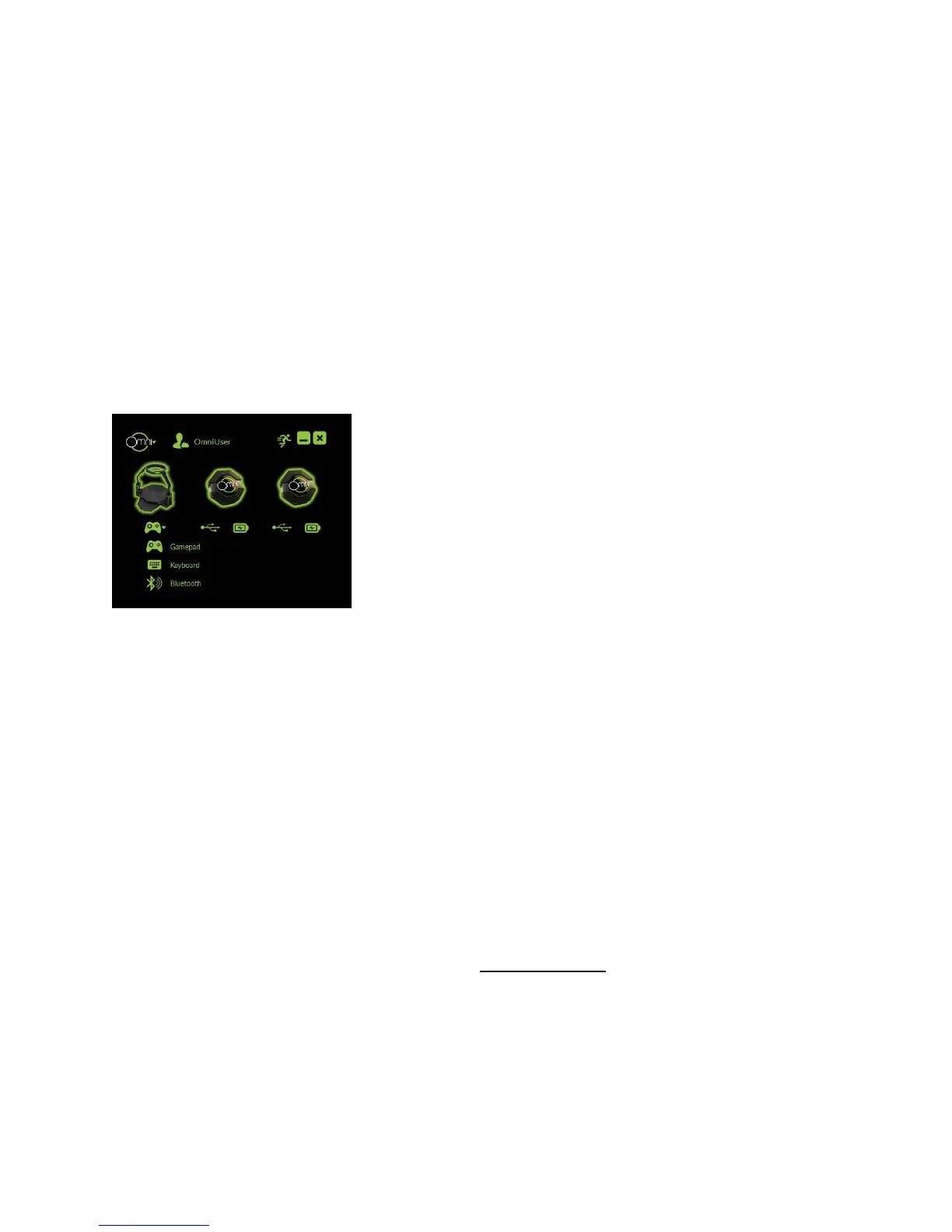
A.2. SELECT YOUR OMNI MODE
The Omni has several modes, accessed by clicking the controller icon.
• “Gamepad” - for games made with the Omni SDK, such as Omni Arena, or for applications that
use standard gamepad input
• “Keyboard” - for legacy games or applications that use WASD for movement
• “Bluetooth” - for mobile games that use a gamepad
If you wish to use the Omni with a mobile VR headset, you will first need to pair the Omni with
your phone.
a. In Omni Connect, set the Omni to “Bluetooth” mode.
b. From the mobile device, pair to the Omni. It may appear as “OmniV001”.
c. The default pairing code is “0000”.
d. The Omni will now be sending gamepad input to the mobile device.
e. Follow your Mobile VR HMD’s instructions for launching a VR game with your
device.
NOTE: A player with a big waist size may not be able to move the Harness forward enough in
the Ring to trigger forward movement instead of backward movement or strafing. As a result, a
big player may move backward inside the game instead of going forward.
To accommodate bigger users, please select the “Forward Only” mode in the Advanced menu
of Omni Connect. “Forward Only” mode disables strafing and backward movements, and
instead translates all movements of the user to “Forward”.
NOTE: The Omni Gamepad mode can emulate a standard gamepad controller but not an XBOX
controller. Games that require XBOX controller input will not recognize the Omni. To do so,
additional software like X360CE is needed.


 To Next Page
 Loading...