I
NSTALLING
THE
S
CANNER
S
OFTWARE
4
I
NSTALLING
THE
S
CANNER
S
OFTWARE
To install the scanner software:
1. Start Microsoft Windows 98 or Microsoft 2000 and make sure that
no other applications are running.
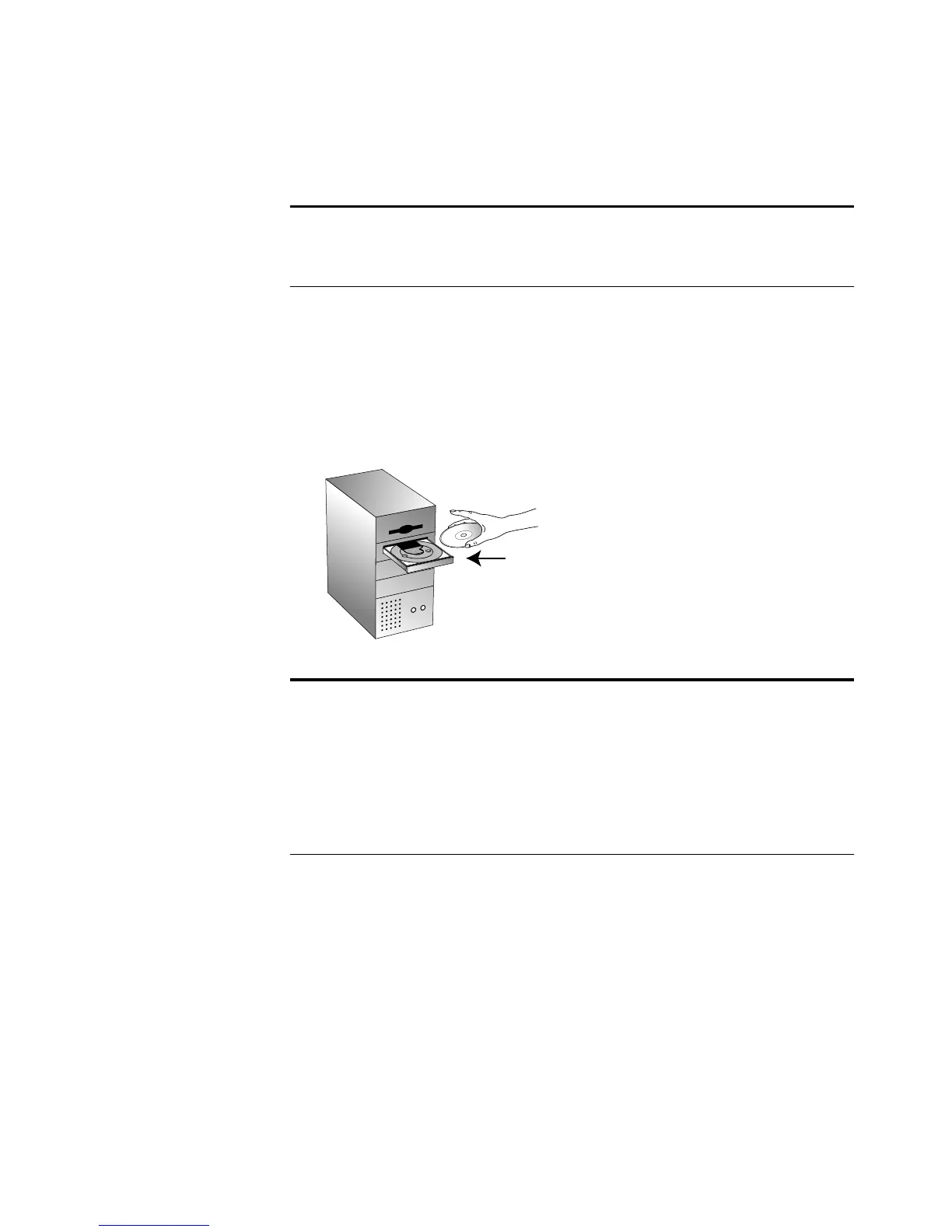
2. Insert the CD into your computer’s CD-ROM drive. The CD
automatically starts.
3. When the CD window appears, click the button
PaperPort Deluxe
and follow the instructions on the screen to install the software on
your computer. You can install other applications on the CD later.
When you are finished installing the software, a message on the
screen instructs you to connect the scanner to the computer.
4. Do not remove the CD from the computer yet. You can install the
other applications on the CD after connecting the scanner.
Note
: You must install the scanner software
before
connecting the
scanner to your computer. Otherwise, the correct driver software for
your scanner will not be installed and it may not work properly.
Note
: If the CD does not automatically start, make sure the CD
drive’s door is completely shut. If the CD still doesn’t start, click the
Windows icon that shows the drives on your computer. (Usually, the
icon is named My Computer.) The window shows the drives available
on your computer. Double-click the icon for your CD-ROM drive to
see the list of files on the CD. Double-click the file named
START32.EXE. The CD starts.








 To Next Page