EasyManua.ls Logo

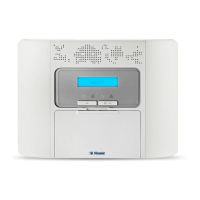
Visonic PowerMaster-30 - User Manual

Visonic PowerMaster-30
76 pages
Print Icon
To Next Page IconTo Next Page
Loading...
Fully supervised wireless alarm control system
Fully supervised wireless alarm control system Fully supervised wireless alarm control system Fully
supervised wireless alarm control system Fully supervised wireless alarm control system Fully supervised

wireless alarm control system Fully supervised wireless alarm control system Fully supervised wireless

alarm control system Fully supervised wireless alarm control system Fully supervised wireless alarm
control system Fully supervised wireless alarm control system Fully supervised wireless alarm control
system Fully supervised wireless alarm control system Fully supervised wireless alarm control system Fully
supervised wireless alarm control system Fully supervised wireless alarm control system Fully supervised
wireless alarm control system Fully supervised wireless alarm control system Fully supervised wireless
alarm control system Fully supervised wireless alarm control system Fully supervised wireless alarm
control system Fully supervised wireless alarm control system Fully supervised wireless alarm control
system Fully supervised wireless alarm control system Fully supervised wireless alarm control
system Fully supervised wireless alarm control system Fully supervised wireless alarm control system Fully
supervised wireless alarm control system Fully supervised wireless alarm control system Fully supervised
User Guide
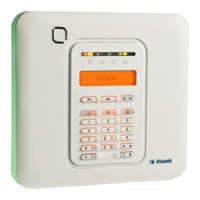
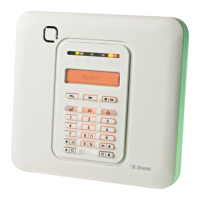
PowerMaster-10/
PowerMaster-30

Other manuals for Visonic PowerMaster-30

Questions and Answers

  • L
    Lisa RichardsonSep 8, 2025
    What does CLEAN ME mean on my Visonic PowerMaster-30 and how to resolve it?
    • C
      crystalsmithSep 8, 2025
      If your Visonic Security System displays a 'CLEAN ME' message, use a vacuum cleaner to occasionally clean the detector air vents to keep them free of dust.
  • J
    Joseph AndersonSep 10, 2025
    What does GAS TROUBLE mean on my Visonic Security System and how to resolve it?
    • B
      beththompsonSep 10, 2025
      If your Visonic Security System displays a GAS TROUBLE message: * For a gas detector: Disconnect and then put back the AC power supply connector. * For a CO Gas detector: Replace the detector.
  • S
    Sherri HollandSep 12, 2025
    What to do if my Visonic Security System shows RSSI LOW?
    • S
      Shannon JohnsonSep 12, 2025
      If your Visonic Security System displays an RSSI LOW message, move the Panel and GSM unit to another location.
  • C
    Cody EvansSep 14, 2025
    What to do if my Visonic Security System LINE FAILURE?
    • D
      David OrtizSep 14, 2025
      If your Visonic Security System indicates a LINE FAILURE: * Lift the telephone receiver and make sure a telephone line can be heard. * Check the telephone connection to the control panel.
  • K
    katelyncraneSep 15, 2025
    What to do if my Visonic PowerMaster-30 Security System shows CPU LOW BATTERY?
    • M
      Maurice BarajasSep 16, 2025
      If your Visonic Security System displays a CPU LOW BATTERY message: * Check if AC power is available in the Panel. * If the trouble persists for more than 72 hours, replace the battery pack.
  • M
    Mrs. Miranda FuentesSep 18, 2025
    What does FUSE TROUBLE mean on my Visonic PowerMaster-30 and how to resolve it?
    • E
      Emily MilesSep 18, 2025
      If your Visonic Security System displays a FUSE TROUBLE message, ensure that the connection load conforms to the specifications.

Summary

1. Introduction

Overview

General description of the PowerMaster system and its capabilities.

System Features

Lists key features of the PowerMaster-10/30 system.

PowerMaster-10 Panel Indicator and Controls

LED Indicators

Explains the function of each LED indicator on the panel.

Arming Keys

Explains the function of keys used for arming the system.

PowerMaster-30 Panel Indicator and Controls

LED Indicators

Explains the function of each LED indicator on the panel.

Other Keys

Proximity Tags

Users and Codes

2. Operating the PowerMaster System

Basic Arming and Disarming

Procedures for basic arming and disarming the system.

Preparing to Arm

Steps to take before arming the system.

Arming AWAY

Arming HOME

Disarming and Stopping Alarm

Special Arming & Disarming Options

Arming AWAY or HOME ‘Instant

How to arm the system in instant mode.

Forced Arming AWAY or HOME

How to arm the system with disturbed zones.

Disarming under Duress

Using Keyfob Transmitters

Arming & disarming with Keyfobs

Procedures for arming/disarming using keyfobs.

Using the AUX key

Explains the functions of the AUX key on the keyfob.

Initiating Alarms

Initiating Panic Alarm

Manual procedure to initiate a panic alarm.

Initiating Fire Alarm

Manual procedure to initiate a fire alarm.

Voice ON;OFF

Message Exchange

4. Electrical Appliance Control

Control Options and Pushbuttons

Manual/automatic control of devices via PGM.

Automatic ON;OFF Control

5. Reviewing Troubles and Alarm memory

Alarm & Tamper Memory Indication

Indication of alarm and tamper events in memory.

Troubles

B. Displaying Trouble Information

How to review and correct trouble messages.

Correcting Trouble Situations

6. Menus and Functions

A The Settings You Need

Overview of available user setting options.

B.1 Entering the User Settings Menu & Selecting a Setting Option

A. To Enter the User Settings Menu

Steps to access the User Settings menu.

B. To Select a Setting Option

How to navigate and select specific setting options.

C. User Setting Options Menu

C.1 Setting the Zone Bypass Scheme

How to bypass or clear zones for arming.

C.4 Programming User Codes

User type

Defines Master User and User roles and functions.

C.5 Add; Delete Proximity Tags

A. To Add (Enroll) a Proximity Tag

Step-by-step guide to enrolling a proximity tag.

C.6 Add; Delete Keyfob Transmitters

A. To Add (Enroll) a Keyfob

Step-by-step guide to enrolling a keyfob.

C.7 Setting the Time & Time Format

A. To Set the Time Format

How to select the time format (12/24 hour).

C.8 Setting the Date & Date Format

A. To Set the Date Format

How to select the date format (MM/DD/YYYY or DD/MM/YYYY).

C.9 Enabling; Disabling Auto-Arming

C.10 Setting the Auto-Arming Time

C.11 Programming Private Phone and SMS Reporting

VOICE REPORT

How to program event reporting via private telephone.

C.12 Enabling; Disabling the Squawk Option

C.13 Programming the Scheduler

A. To Select the Device No.

How to select the device for scheduling.

B. To Set the Day

How to select the day for scheduling.

C.14 Enabling; Disabling Voice Option

7. Event Reporting and Control by Telephone and SMS

Event notifications by Telephone

How the system sends event notifications via telephone.

Event notifications by SMS

How the system sends event notifications via SMS.

Remote Control by Telephone

How to remotely control the system via telephone.

Remote Control by SMS

SMS Command List

List of commands for SMS control.

8. Special Applications and Functions

Looking after People Left at Home

Using the system for monitoring people at home.

9. Testing the System

Periodic Test

Procedure for performing weekly system tests.

D. To Test all other Devices

How to test other system devices.

10. Maintenance

Replacing the Backup Battery

How to replace the backup battery.

Event Log

Information on the event log and its access.

Reading the Event Log

APPENDIX A. PARTITIONING

Selecting a Partition

How to select a partition for operations.

Arming; Disarming the System

Procedures for arming/disarming partitions.

Partition Status display

APPENDIX B. GLOSSARY

Alarm

Definition and types of alarms.

Arming

Definition of the system arming process.

Bypass

Definition of zone bypassing.

APPENDIX C. HOME FIRE ESCAPE PLANNING

FCC STATEMENT

PowerMaster-10;30 G2 V15 Manual Updates

New Devices

Lists new devices supported by version 15.

Record Speech

Operation Mode

How to select the active operation mode of the panel.

BS8243 Setup

DD243 Setup

Smoke Siren Test

Visonic PowerMaster-30 Specifications

General IconGeneral
ModelPowerMaster-30
CategorySecurity System
Backup BatteryYes
Remote ConfigurationYes
Wireless ProtocolPowerG
Siren OutputYes
KeypadLCD keypad
TechnologyWireless
ZonesUp to 64 zones
User CodesUp to 48
Event Log1000 events
CommunicationGSM, PSTN, IP
TypeWireless
Partitions3
Wireless Frequency868 MHz
Supported DetectorsMotion, smoke, flood

Related product manuals