Page 3
IMPORTANT: YOU MUST SHUT DOWN AND RESTART YOUR PC AFTER INSTALLATION
The Vitalograph Reports Utility on your PC receives spirometry report data
from your Vitalograph micro. It converts the report to a PDF format file for
viewing, printing, archiving, e-mailing, etc.
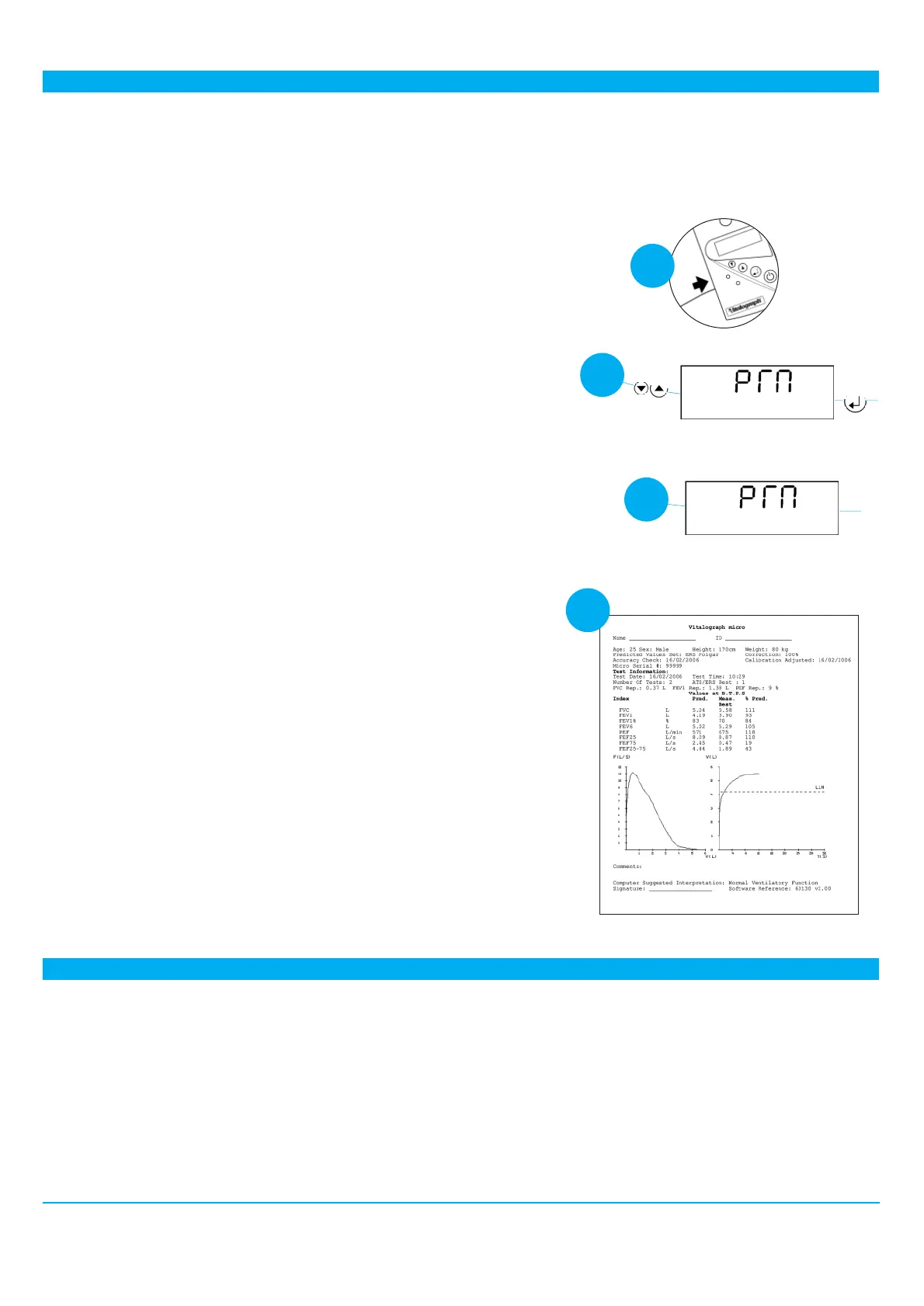
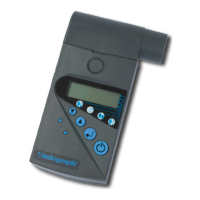
1. Immediately after a test session is completed, wait until the Blow icon re-
appears on the micro display, then plug the jack plug into the
Vitalograph micro jack socket, which is located on the side of the device.
2. Press the Up button on the Vitalograph micro until PRN is displayed...
press the Enter button to start transmission, put the unit down and talk to
your test subject while your Vitalograph micro downloads all the data,
during which time it should not be interfered with.
Note: The screen will go blank for approximately two and a half minutes
while the normal values data is calculated, graphs drawn and the full test
data are being transferred. There is a lot of data: subject demographics,
predicted values, test parameters and curves.
3. At the end of transmission, the device will ‘beep’ and briefly display ‘PRN’
again before switching itself off.
Note: When the Vitalograph micro switches itself off, the best test from
the last session is retained in its memory. The stored test may be printed
at any time as long as the device detects no new blow. Do this by
switching On, pressing the Enter button repeatedly until the Blow icon
and time are displayed, then pressing the Up button and Down button
together to print.
4. At this time the creation of the spirometry report PDF begins on your PC.
Unless you have changed the default settings, a PDF will be created in
the folder called ‘Vitalograph Reports’ which has a shortcut on your
desktop.
Note: For ‘techies’ the default location is: C:\Program
Files\Vitalograph\VitalPrint\Data. Each test report is time and date
stamped.
Note: The best test in the session is printed, not necessarily the last test
shown on the LCD screen.
You can re-name, view, print, e-mail and archive this PDF file as you
wish anywhere on your network.
... using the Vitalograph Reports Utility
2
3
1
4
Many databases will allow the import of PDF documents directly into the record for the test subject. Alternatively a
shortcut link may be pointed to the ‘Vitalograph Reports’ folder.
... archiving the PDF spirometry report in other databases







 To Next Page