Vitalograph Ltd. • Maids Moreton • Buckingham • MK18 1SW • England • Tel: +44 (0) 1280 827110 • Fax: +44 (0) 1280 823302 • E-mail: sales@vitalograph.co.uk
Vitalograph GmbH. • Jacobsenweg 12 • 22525 Hamburg • Germany • Tel: (040) 547391-0 • Fax: (040) 547391-40 • E-mail: info@vitalograph.de
Vitalograph Inc. • 13310 West 99th Street • Lenexa • Kansas 66215 • USA • Tel.: (913) 888 4221 • Fax: (913) 888 4259 • E-mail: vitcs@vitalograph.com
Vitalograph (Ireland) Ltd. • Gort Road Business Park • Ennis • Co. Clare • Ireland • Tel.: (065) 6864100 • Fax: (065) 6829289 • E-mail: sales@vitalograph.ie
Internet:
www.vitalograph.co.uk • www.vitalograph.com • www.vitalograph.de • www.vitalograph.ie
Vitalograph® is a registered trademark of Vitalograph Ltd. 05292/1
from
Vitalograph®
... the spirometry people
l
... adjusting the Vitalograph Reports Utility settings
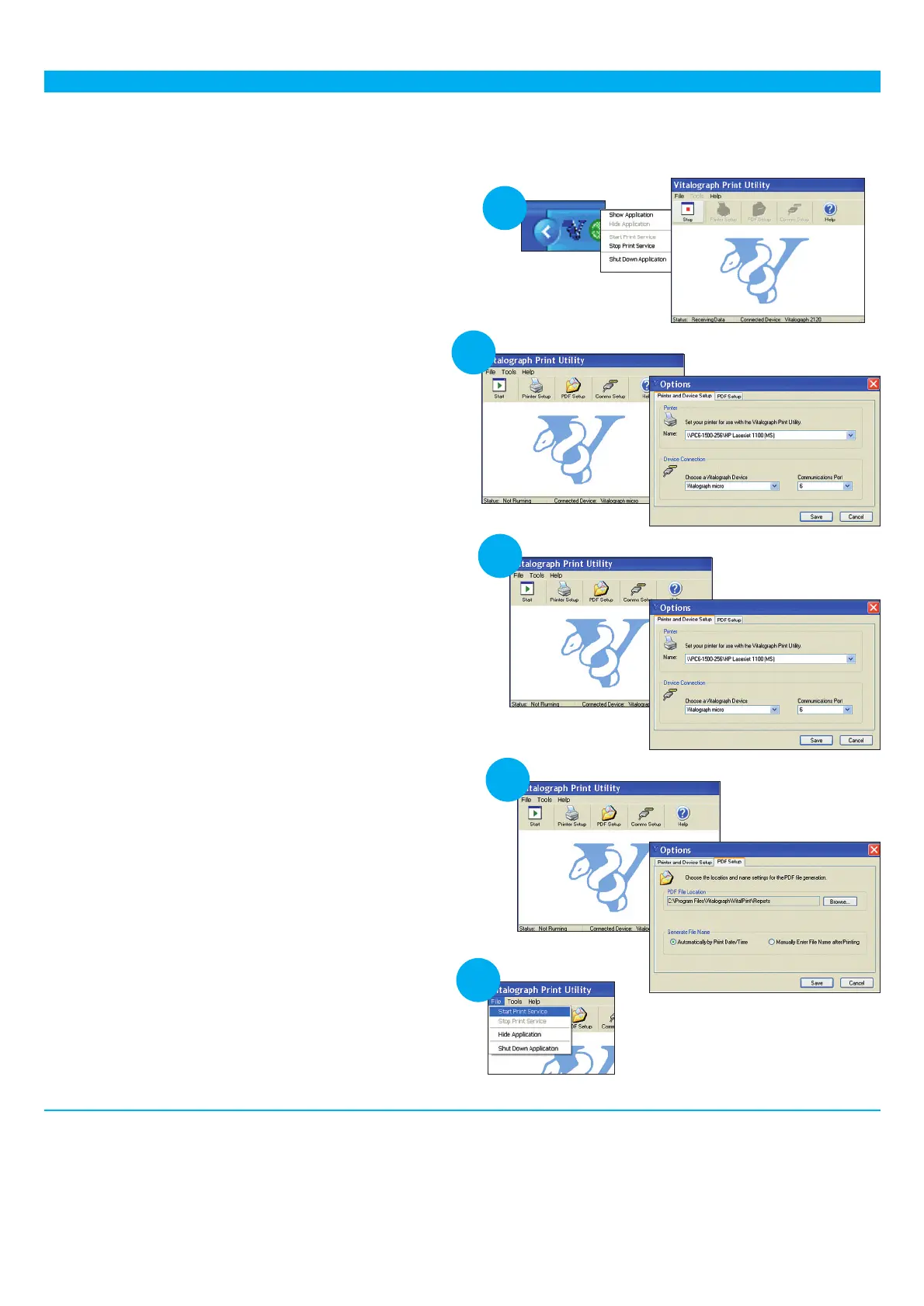
1. First open the Vitalograph Reports Utility and stop it by:
right clicking on the blue 'V-Snake' icon at the bottom
right-hand side of your taskbar,
click on the Show Application menu item,
stop the utility by pressing the Stop button in the
Vitalograph Print Utility window displayed.
2. To change the Vitalograph spirometry device to be used
with the Vitalograph Reports Utility:
click the Comms Setup button,
and in the window displayed,
select the device from the Vitalograph device list,
select the correct Com port from the communications
port list,
click the Save button to save the setting.
3. To select the printer to be used by the Vitalograph
Reports Utility:
click on the Printer Setup button,
and in the window displayed,
select a printer from the printer list,
click the Save button to save the setting.
Note that it is possible to print directly to your PC or
network printer as well as, or instead of creating a PDF.
However, it is recommended always to create a PDF
and print from the Adobe application in preference to
setting a direct print. The reason for this is that the
Vitalograph Reports utility does not have full error
handling such as out-of-paper or warnings if the printer
is switched off.
4. To change the location in which the Vitalograph Reports
Utility archives the PDF Report files:
click on the PDF Setup button,
and in the window displayed,
select a new location to archive your spirometry reports,
click the Save button to save the setting.
Note: In PDF settings it is possible to switch off the
creation of a PDF - this is not recommended.
5. To re-start the Vitalograph Reports Utility:
select Start Print Service from the File menu.
1
2
3
4
5







 To Previous Page