Photo Capture Mode
The Photo Capture mode allows you to capture pictures with your digital video recorder.
When the camcorder is first powered ON, the camcorder will be in Video Capture Mode by
default.
Press the MODE button once to enter the Photo Capture mode.
Taking a Picture
1) Turn on your digital video recorder.
2) Press the MODE button once to open the Photo Capture Mode.
3) The camera icon will appear on the top left corner of the LCD.
4) While in Photo Capture mode, use the LCD display to direct the camcorder at the scene you
would like to capture.
5) Press the UP- T/Zoom In and Down – W/Zoom Out buttons to better set the camcorder
display if desired.
6) Press the Shutter button to capture and save your photo to the memory card.
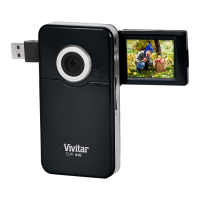
7) You can also capture Self-Portrait photos using the Flip Screen.
When you would like to quickly and easily include yourself in the photo, simply flip the LCD
display out and hold out the camera facing towards you. Make sure you can see yourself
within the scene on the LCD screen and click the Shutter button to take the picture.
It’s as easy as twist and shoot!
Note: The lower the resolution setting the more photos that can be taken. However lower
resolution photos are of less quality than photos taken at higher resolution.










 To Next Page