EasyManua.ls Logo

Vivitar DVR 4K v3 - User Manual

Vivitar DVR 4K v3
17 pages
Print Icon
To Next Page IconTo Next Page
Loading...
Read me before use!
Keep manual and all relevant information for future reference.
110*150mm 105克铜版纸黑白印刷 骑马订
封面1+空白1+内页16+空1+封底1
DVR 4K (v3)
Question and Answer IconNeed help?

Do you have a question about the Vivitar DVR 4K v3 and is the answer not in the manual?

Summary

Friendly Tips

SD Card Requirements

Specifies SD card capacity, class, and formatting requirements for optimal camcorder use.

Battery Installation Guidance

Details correct lithium battery installation to ensure proper charging and device boot-up.

Troubleshooting Video Link

Provides a YouTube link for assistance with lens hood and microphone installation difficulties.

Safety Information

General Warnings

Critical warnings regarding electrical hazards, moisture, liquids, and battery ingestion.

Handling Cautions

Precautions for safe handling of the battery pack, charger, and managing static electricity.

Camera Overview

System Requirements

Lists the minimum computer configurations needed for transferring videos and photos.

Camcorder Components

Details the various parts and controls of the camcorder through different visual perspectives.

Button and Indicator Functions

Button;Indicator Descriptions

Explains the function of each button and indicator light on the camcorder.

Remote Controller

Remote Operation Guide

Provides instructions and a diagram for operating the camcorder remotely.

Charging the Battery

Battery Insertion

Step-by-step guide on how to insert the battery into the camcorder.

Charging Procedure

Explains how to charge the camcorder using a USB cable and adapter or PC.

Powering the Camcorder

Power On;Off Methods

Describes how to power the camcorder on and off using the touch screen or power button.

Camcorder Settings

Accessing Menu Options

Instructions on how to navigate and open the camcorder's menu for custom settings.

System Settings Menu

Available Settings Explained

Details the various system settings like Wi-Fi, language, and formatting options.

Memory Card Management

Inserting the Memory Card

Guide on inserting a memory card into the camcorder until it clicks.

Formatting the Memory Card

Instructions on how to format the memory card before first use for optimal performance.

Using the Camcorder

Mode Selection

Explains how to select different recording modes like Video, Slowly, Loop, and Photo.

Recording and Photo Capture

Instructions for taking photos and starting/stopping/pausing video recordings.

IR Night Vision and Microphone

Details how to activate IR night vision and connect an external microphone.

Playback Options

Photo and Video Playback

How to navigate and play back recorded photos and videos.

Connecting to HDTV

Guide on using the HDMI interface to connect the camcorder to a high-definition television.

Computer Connectivity

Connecting via USB

Instructions for connecting the camcorder to a computer using a USB cable.

Data Transfer Modes

Explains options like Charging Mode, Mass Storage Mode, and PC Camera mode.

Smartphone App Integration

Connecting to Wi-Fi Network

Steps to download the app and connect the camcorder to a smartphone via Wi-Fi.

App Features Overview

Describes app functionalities like live view, photo/video download, and mode changes.

Troubleshooting Common Issues

Camcorder Not Turning On

Solutions for issues related to battery power, installation, or insulating paper.

Battery Charging Problems

Troubleshooting steps for when the battery is not charging correctly.

Remote Control Malfunctions

Guidance for when the remote control is not working as expected.

Camera Crashes and Freezes

Advice on how to handle camera freezes, including rebooting procedures.

Memory Card Recognition Issues

Steps to resolve problems with the memory card not being recognized by the camcorder.

FCC Compliance Statement

Regulatory Information

Details the FCC rules and conditions for device operation and interference.

Vivitar Warranty Information

Warranty Coverage and Exclusions

Explains what the warranty covers, what is excluded, and how to obtain service.

Limitation of Liability

Outlines the extent of distributor and manufacturer liability for damages and product use.

Technical Support

Support Resources

Provides website, email, and phone contact information for technical assistance.

Summary

Friendly Tips

SD Card Requirements

Specifies SD card capacity, class, and formatting requirements for optimal camcorder use.

Battery Installation Guidance

Details correct lithium battery installation to ensure proper charging and device boot-up.

Troubleshooting Video Link

Provides a YouTube link for assistance with lens hood and microphone installation difficulties.

Safety Information

General Warnings

Critical warnings regarding electrical hazards, moisture, liquids, and battery ingestion.

Handling Cautions

Precautions for safe handling of the battery pack, charger, and managing static electricity.

Camera Overview

System Requirements

Lists the minimum computer configurations needed for transferring videos and photos.

Camcorder Components

Details the various parts and controls of the camcorder through different visual perspectives.

Button and Indicator Functions

Button;Indicator Descriptions

Explains the function of each button and indicator light on the camcorder.

Remote Controller

Remote Operation Guide

Provides instructions and a diagram for operating the camcorder remotely.

Charging the Battery

Battery Insertion

Step-by-step guide on how to insert the battery into the camcorder.

Charging Procedure

Explains how to charge the camcorder using a USB cable and adapter or PC.

Powering the Camcorder

Power On;Off Methods

Describes how to power the camcorder on and off using the touch screen or power button.

Camcorder Settings

Accessing Menu Options

Instructions on how to navigate and open the camcorder's menu for custom settings.

System Settings Menu

Available Settings Explained

Details the various system settings like Wi-Fi, language, and formatting options.

Memory Card Management

Inserting the Memory Card

Guide on inserting a memory card into the camcorder until it clicks.

Formatting the Memory Card

Instructions on how to format the memory card before first use for optimal performance.

Using the Camcorder

Mode Selection

Explains how to select different recording modes like Video, Slowly, Loop, and Photo.

Recording and Photo Capture

Instructions for taking photos and starting/stopping/pausing video recordings.

IR Night Vision and Microphone

Details how to activate IR night vision and connect an external microphone.

Playback Options

Photo and Video Playback

How to navigate and play back recorded photos and videos.

Connecting to HDTV

Guide on using the HDMI interface to connect the camcorder to a high-definition television.

Computer Connectivity

Connecting via USB

Instructions for connecting the camcorder to a computer using a USB cable.

Data Transfer Modes

Explains options like Charging Mode, Mass Storage Mode, and PC Camera mode.

Smartphone App Integration

Connecting to Wi-Fi Network

Steps to download the app and connect the camcorder to a smartphone via Wi-Fi.

App Features Overview

Describes app functionalities like live view, photo/video download, and mode changes.

Troubleshooting Common Issues

Camcorder Not Turning On

Solutions for issues related to battery power, installation, or insulating paper.

Battery Charging Problems

Troubleshooting steps for when the battery is not charging correctly.

Remote Control Malfunctions

Guidance for when the remote control is not working as expected.

Camera Crashes and Freezes

Advice on how to handle camera freezes, including rebooting procedures.

Memory Card Recognition Issues

Steps to resolve problems with the memory card not being recognized by the camcorder.

FCC Compliance Statement

Regulatory Information

Details the FCC rules and conditions for device operation and interference.

Vivitar Warranty Information

Warranty Coverage and Exclusions

Explains what the warranty covers, what is excluded, and how to obtain service.

Limitation of Liability

Outlines the extent of distributor and manufacturer liability for damages and product use.

Technical Support

Support Resources

Provides website, email, and phone contact information for technical assistance.

Overview

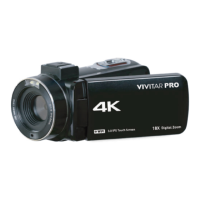
This document describes the Vivitar DVR 4K (v3) Digital Camcorder, an easy-to-use device designed for capturing videos and photos.

Function Description

The Vivitar DVR 4K (v3) is a digital camcorder capable of recording videos and taking still photos. It supports various shooting modes including normal recording, slow motion, infinite loop, fast action, single photo, automatic photo cycling, burst photos, and timed photos. The camcorder can also function as a PC camera (webcam) for live streaming. It features Wi-Fi connectivity to monitor the camcorder and download media to a smartphone via the "iDV-PRO" app. Playback of recorded content is possible directly on the camcorder's screen or by connecting it to an HDTV.
Important Technical Specifications

  • Resolution: 4K video recording.
  • Zoom: 18X Digital Zoom.
  • Display: 3.0 IPS Touch Screen.
  • Storage: Supports SD memory cards up to 256GB (Class-10 SD/SDHC recommended, requires formatting in camcorder before first use).
  • Connectivity:
    • Type-C USB port for charging and data transfer to a computer.
    • HDMI output interface for connecting to HDTVs (Mini HDMI to HDMI cable).
    • 3.5mm external microphone interface (does not support headphone access).
    • Built-in Wi-Fi for smartphone connection.
  • Battery: Equipped with one lithium battery. Charging time is approximately 4-6 hours for a full charge. Battery life is around 70 minutes for recording (with Wi-Fi off).
  • System Requirements for PC Connection:
    • Intel Pentium 2.0GHz or higher.
    • Microsoft Windows XP or higher operating system.
    • 2GB RAM.
    • 40GB or more available disk memory.
    • Standard USB interface.
    • 1GB GPU or higher.
    • 1920x1080 pixel or higher resolution.
  • Smartphone App Requirements:
    • Android 6.0 or higher.
    • iOS 8.0 or higher.

Usage Features

  • Power On/Off: The camcorder powers on automatically when the touch screen is opened. It can also be powered on by pressing the Power/OK/IR Night button. To power off, close the touch screen or hold the Power/OK/IR Night button for 3 seconds.
  • Menu Navigation: Settings can be accessed by tapping the Menu icon on the screen or pressing the Menu button.
  • Shooting Modes: Users can select various modes (Video, Slowly, Loop, Lapse, Photo, Auto, Burst, Timer, PlayBack) by pressing the Mode button or tapping the Mode icon on the screen.
  • Photo Capture: Press the Photo Shutter button to take a photo.
  • Video Recording: Press the Record/Stop button to start/stop recording. The Photo Shutter button can be used to pause/continue recording.
  • IR Night Vision: Short press the Power/IR light/OK button to turn IR night vision on/off.
  • Digital Zoom: The W/T button controls digital zoom in/out.
  • Remote Control: A remote controller (uses CR2025 or CR2032 3V button batteries) allows control from up to 20 meters and a 360-degree angle. It can turn off the camcorder but not turn it on.
  • Charging: The camcorder can be charged via the supplied USB cable connected to a 5V/1A~5V/2A adapter or a PC. A red charging indicator light turns on during charging and off when fully charged.
  • PC Connection Modes: When connected to a computer, the camcorder offers "Charging Mode" (allows normal recording while charging), "Mass Storage Mode" (allows file transfer), and "PC Camera" mode (functions as a webcam).
  • Wi-Fi Connectivity: The built-in Wi-Fi allows connection to a smartphone via the "iDV-PRO" app for live view, monitoring, and downloading photos/videos. The Wi-Fi network is for camcorder access only and does not provide internet access.
  • Playback: Images and videos can be reviewed on the camcorder's screen. The Up/Down buttons scroll through media. The Power/OK/Light button or "Playback" icon enters playback mode.
  • HDTV Playback: Connect the camcorder to an HDTV using the HDMI cable. The camcorder's screen will go black, and content will display on the HDTV.
  • System Settings: Customizable settings include Image Rotation, Wi-Fi On/Off, Wi-Fi Information, Reset Wi-Fi, Light Source Frequency, LED Indicator, Auto Screen Saver, Auto Power Off, Button Prompt Sound, Startup Music, Language, Time Format, Time Set, Date Set, Format (SD Card), Device Info, and Factory Reset.

Maintenance Features

  • Battery Installation: Ensure the lithium battery is installed correctly in the direction shown in the manual. Incorrect installation prevents charging and booting.
  • Memory Card Formatting: It is recommended to format the SD card in the camcorder before first use. Formatting erases all data, so important data should be backed up to a PC beforehand.
  • Troubleshooting: The manual provides guidance for common issues such as the camcorder not turning on (check battery power, installation, insulating paper), battery not charging (check installation, charger connection, ambient temperature), remote control not working (check insulating paper, battery reinsertion), camera crashes (unplug battery to reboot, avoid rapid button presses during recording), and memory card not recognized (check class 10, max 256GB, correct insertion, format if first use).
  • Safety Warnings:
    • Avoid exposing the unit to rain, moisture, or liquids.
    • Do not ingest batteries; remote control contains a coin/button cell battery which can be hazardous if swallowed. Keep batteries away from children.
    • Battery handling cautions: Do not disassemble, crush, expose to shock/force, short circuit, expose to high temperatures (>60°C/140°F), incinerate, or handle damaged/leaking batteries.
    • Replace batteries only with the specified type.
    • Dispose of used batteries according to instructions.
    • Use the AC adapter/battery charger with a nearby wall outlet. Disconnect immediately if malfunction occurs.
    • Avoid placing the AC adapter/battery charger in narrow spaces.
    • If static electricity or electromagnetism disrupts data transfer, restart the application or reconnect the USB cable.
  • Warranty: The Vivitar warranty covers defects in material or workmanship for one year under normal usage. It does not cover damages from abnormal use, unauthorized repairs, tampering, modification, or accidents. Proof of purchase is required for service.
  • Technical Support: Support is available via the Vivitar website (www.vivitar.com) for manuals, software, and FAQs, or by email (support@vivitar.com). Phone support is available in the US at 1-800-592-9541.

Vivitar DVR 4K v3 Specifications

General IconGeneral
BrandVivitar
ModelDVR 4K v3
CategoryCamcorder
LanguageEnglish

Related product manuals