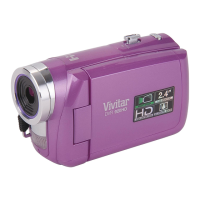
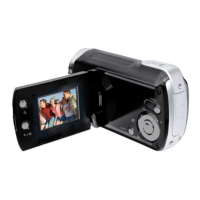
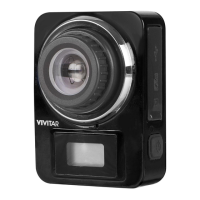
Video Capture Mode
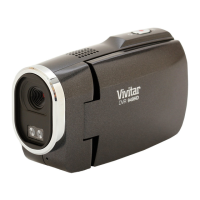
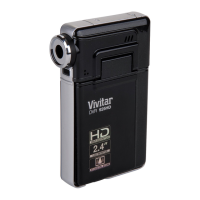
The Video Capture Mode allows you to capture videos with your digital video camera.
When the camera is first powered ON, the camera will be in Video Capture Mode.
Taking a Video
1) While in Video Capture Mode use the LCD display to direct the camera at the scene you would like
to capture.
2) Press the T/Zoom In and W/Zoom Out buttons to better set the camera display if
desired.
Note: The actual shape of these buttons may vary per camera model.
3) Press the Shutter button to START the video capture.
4) You will see a blinking red light at the top of the LCD indicating that the record is in progress.
5) To STOP the video record, press the Shutter button again.
6) The video will automatically be saved to the camera‟s SD memory card.
Video Capture Mode Quick Function Buttons
Your digital video camera has a four-directional control button that functions as Quick Function
buttons.
No function in Video Capture Mode
Light Exposure – Changes the Light Exposure Setting
Delete - Opens the „Delete This Video‟ option and allows you
to view and delete the last video taken as well as previously
captured videos
Light Exposure – Changes the Light Exposure Setting
STARTS/STOPS the video capture
ViviLink - Opens the ViviLink for Videos menu


 To Next Page