17
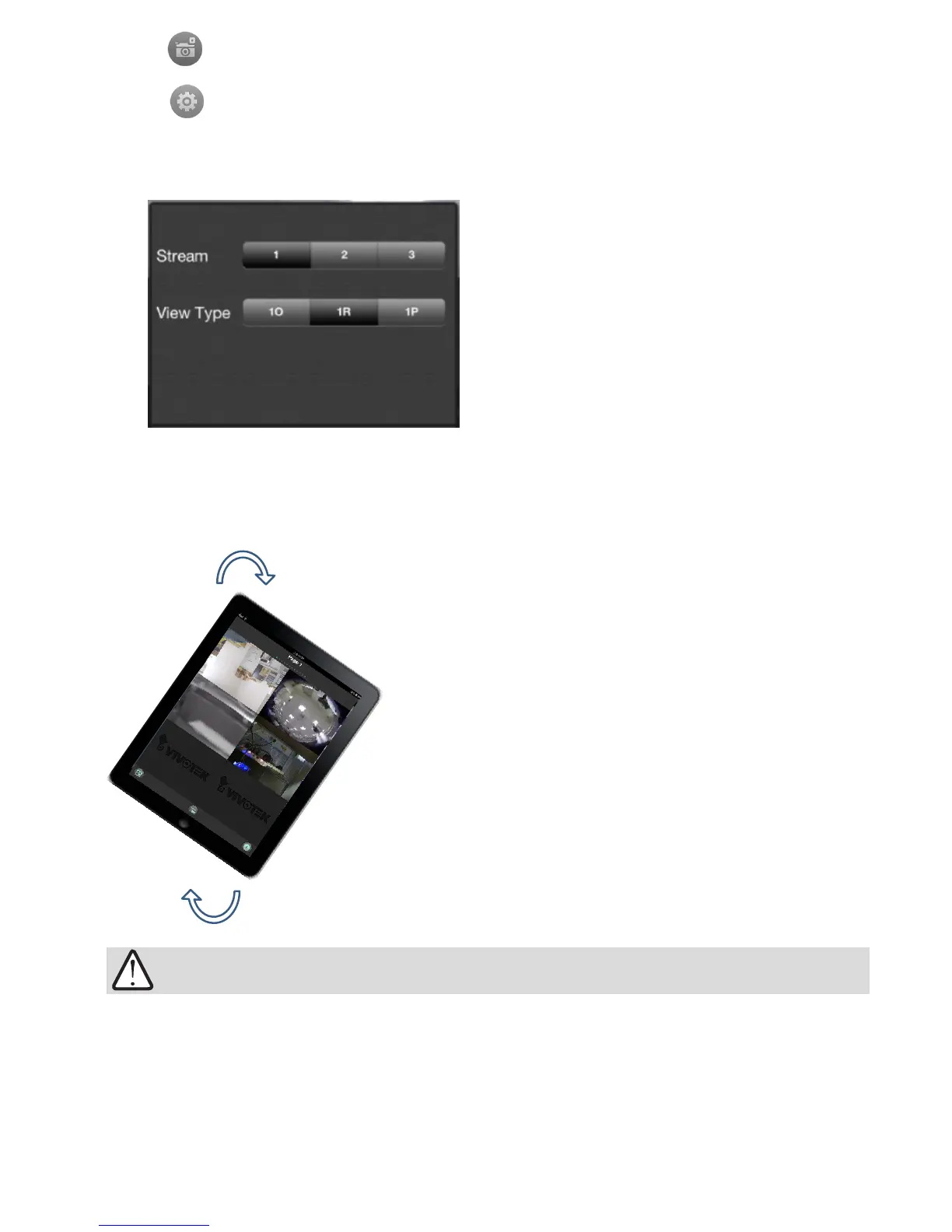
Rotate your iPad to view a live video in a portrait
or landscape orientation. The video rotates
accordingly for both multi- and single-cell
displays.
1. The PTZ, Playback, Snapshot, and Conguration options discussed above only appear
in a Full View window.
2. The PTZ function takes effect only if your cameras come with PTZ mechnical design,
such as a speed dome camera.
3. The PiP function allows users to zoom in on an existing video feed and move along to
different areas covered by the video feed.
IMPORTANT:
2-5-3. Snapshot: saves the current view as a jpeg.
2-5-4. Camera Conguration: Click this button to change the video stream for the
current view cell. If using a sheye camera, you can change the display mode into
the 1R (Regional) or 1P (Panoramic) mode. Note that the rest of sheye's display
modes are currently not supported.
View Type:
1O: The orignal circular view. Note that
you can not exert the PiP function in
this mode.
1R: The Regional view. You can perform
PTZ functions in this mode using
finger moves to move to a different
view area, or zoom in/out on a view
area.
1P: The Panoramic view displays a long
stripe of an all round view. You can
rotate the image horizontally using
nger swipes.
If you change the video stream for the full
view window here, that only takes effect
for the full view window. The smaller view
cells on the Layout page will still display
the smallest-resolution streams.


 To Next Page
 Loading...