EasyManua.ls Logo

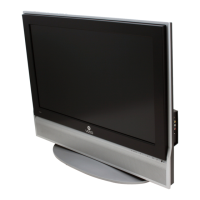
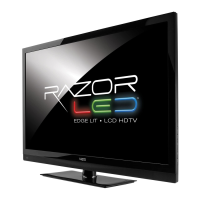
Vizio L32 - User Manual

Vizio L32
81 pages
Print Icon
To Next Page IconTo Next Page
Loading...
www.vizioce.com
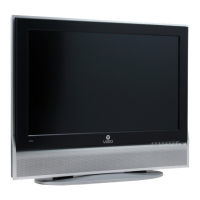
LIQUID CRYSTAL HDTV
L32 HDTV

Table of Contents

Other manuals for Vizio L32

Questions and Answers

  • S
    Sarah CollinsAug 20, 2025
    How to fix no sound on Vizio L32?
    • M
      Michael JenkinsAug 20, 2025
      If there is no sound on your Vizio HDTV, try these steps: Check your audio connections, and ensure they are secure. Press the MUTE button on the remote to make sure the TV is not muted. Check your audio settings to ensure the TV audio is not set to SAP or minimum. Increase the volume using the Volume + button on your remote. Also, make sure headphones are not connected and that your speakers are turned on.
  • D
    Diana BurtonAug 22, 2025
    Why is my Vizio L32 on but there is no picture?
    • K
      Keith LeonardAug 22, 2025
      If your Vizio HDTV is on but there's no screen image, ensure the video cable is tightly secured to the video output port on the back of the computer and the LCD display. Adjust the brightness and contrast settings. Check the Source settings.
  • S
    stephanie36Aug 25, 2025
    What to do if you cannot see a picture on Vizio HDTV?
    • R
      richardbyrdAug 25, 2025
      If you cannot see a picture on your Vizio HDTV, ensure the power cord is plugged into a grounded electrical outlet and that the power button is turned on. Also, verify that the selected input source is connected to a working input source. If your LCD TV is connected to your computer in RGB or HDMI mode, press any key on your keyboard to wake your computer.
  • A
    Ann JeffersonAug 26, 2025
    Why can I see a picture but cannot hear sound on my Vizio L32?
    • A
      Alexa GarciaAug 26, 2025
      If you can see a picture but cannot hear sound on your Vizio HDTV, make sure the volume is not turned down and that the sound is not muted. Also, ensure that your audio input source cables are connected securely and correctly.
  • M
    Melissa RobersonAug 28, 2025
    How to fix wrong colors on Vizio L32?
    • D
      donna12Aug 28, 2025
      If wrong or abnormal colors appear on your Vizio HDTV, and if any colors (red, green, or blue) are missing, check the video cable to make sure it is securely connected. Loose or broken pins in the cable connector could cause an improper connection. You can also connect the LCD display to another computer to test.
  • C
    christopher08Aug 29, 2025
    How to adjust Vizio HDTV screen size to fit the display?
    • M
      Michael ChristianAug 30, 2025
      If the display image does not cover the entire screen on your Vizio HDTV: If you are using RGB mode, make sure that H Size and V Position in the OSD are set correctly. If you are using TV, AV1, AV2, or component (Analog HD) with 480i input, use the WIDE button on the remote control to scroll through various screen modes.
  • B
    brownashleyAug 31, 2025
    Why do I see noise or trash on my Vizio L32 screen?
    • C
      Christopher CaseyAug 31, 2025
      If you see noise or trash on your Vizio HDTV screen, it is because when your LCD TV’s digital capabilities exceed a digital broadcast signal, the signal is up-converted (increased) to match your LCD TV’s display capabilities. Up-converting can cause noise or trash.
  • A
    Ashley RuizSep 2, 2025
    Why does my Vizio L32 HDTV have bright, dark, or colored pixels?
    • E
      eugene92Sep 2, 2025
      Your Vizio LCD TV is manufactured using an extremely high level of precision technology. However, sometimes some pixels of your LCD TV may not display. Pixel defects within industry specifications are inherent to this type of product and do not constitute a defective product.
  • D
    Donna HolderSep 4, 2025
    What to do if Vizio L32 HDTV remote control does not work?
    • M
      Mary GardnerSep 4, 2025
      If your Vizio HDTV remote control isn't working, make sure the batteries are inserted correctly and are not weak. Also, ensure you have selected the TV button on the remote.
  • J
    James JamesSep 6, 2025
    How to troubleshoot Vizio L32 with no power?
    • D
      Deanna DavidsonSep 6, 2025
      If your Vizio HDTV has no power, ensure the AC power button and the DC power button are ON (green LED). Verify the AC power cord is securely connected to the AC socket. To confirm the outlet is supplying power, plug another electrical device into it.

Summary

Television Antenna Connection Protection

External Television Antenna Grounding

Grounding antenna/satellite systems to protect against surges and static.

Lightning Protection

Unplug TV and disconnect antenna during lightning storms for safety.

Power Lines

Avoid placing antennas near overhead power circuits to prevent hazards.

Opening the Package

Package Contents

Lists all items included in the VIZIO L32 HDTV package.

Installation Preparation

Preparing Your LCD TV for Wall Mounting

Instructions for removing the base stand to mount the TV on a wall.

Chapter 1 - Basic Controls and Connections

1.1 Front Panel Controls

Identifies and explains buttons and lights on the front of the LCD TV.

1.2 Side Panel Controls

Describes the audio and video jacks located on the side panel of the TV.

1.3 Rear Panel Connections

Details the various input and output ports on the back of the LCD TV.

1.4 VIZIO Universal Remote Control

Explains the functions and operation of the VIZIO universal remote control.

Chapter 2 - Connecting Equipment

2.1 Which Video Connection Should I Use?

Compares different video connection types for optimal display quality.

2.2 Connecting Your DVD Player

Guides on connecting a DVD player using various methods like HDMI, Component, etc.

2.3 Connecting Your HDTV Set-Top Box

Instructions for connecting an HDTV set-top box via HDMI or RGB.

2.4 Connecting Your VCR or Video Camera

Instructions for connecting VCRs or video cameras using S-Video or Composite.

2.5 Connecting Coaxial (RF)

Explains connecting antenna or cable via coaxial (RF) to TV or VCR.

2.6 Connecting an Amplifier or Speakers

Connects audio output to an amplifier or external speaker system.

2.7 Connecting a Computer

Connects a computer to the LCD TV using RGB and audio cables.

Chapter 3 - Setting Up to Watch TV and DTV

3.1 Basic LCD TV Start Up

Steps for connecting power, cables, turning on the TV, and selecting input sources.

3.2 Watching a TV Program

How to select programming sources (DTV, TV, HDMI) and change channels.

3.3 Adjusting Basic LCD TV Settings

Adjusts volume, channels, and viewing modes (wide, zoom, panoramic).

3.4 DTV Tuner Setup

Configures DTV tuner settings, including time zone and channel scanning.

3.5 Using the On-Screen Display (OSD)

Navigates and adjusts TV settings like picture, audio, parental controls, and PIP.

3.6 Programming the VIZIO Universal Remote Control

Guides for programming the remote to control VCR, cable box, and DVD player.

3.7 Using a Cable Box or Satellite Box Remote

Instructions for using a cable or satellite remote with the VIZIO TV.

Chapter 4 - Maintenance and Troubleshooting

4.1 Maintenance

Instructions for cleaning the TV housing, screen, and remote control.

4.2 Troubleshooting Guide

Common problems and their solutions, including power, sound, and image issues.

4.3 Telephone & Technical Support

Contact information for VIZIO customer support for assistance and warranty service.

4.4 Compliance

General compliance information and safety precautions for product usage.

4.5 FCC Class B Radio Frequency Interference Statement

Details FCC compliance regarding radio frequency interference.

Specifications

Glossary - Standard Definitions

Appendix A: Limited Product Warranty

Appendix B: Component Program Codes

Vizio L32 Specifications

General IconGeneral
Screen Size32 inches
Display TechnologyLCD
Refresh Rate60 Hz
Aspect Ratio16:9
Sound Output10W x 2
Resolution1366 x 768
InputsHDMI, Component, Composite

Related product manuals