VIZIO M320VT User Manual
Version 4/21/2010 36
www.VIZIO.com
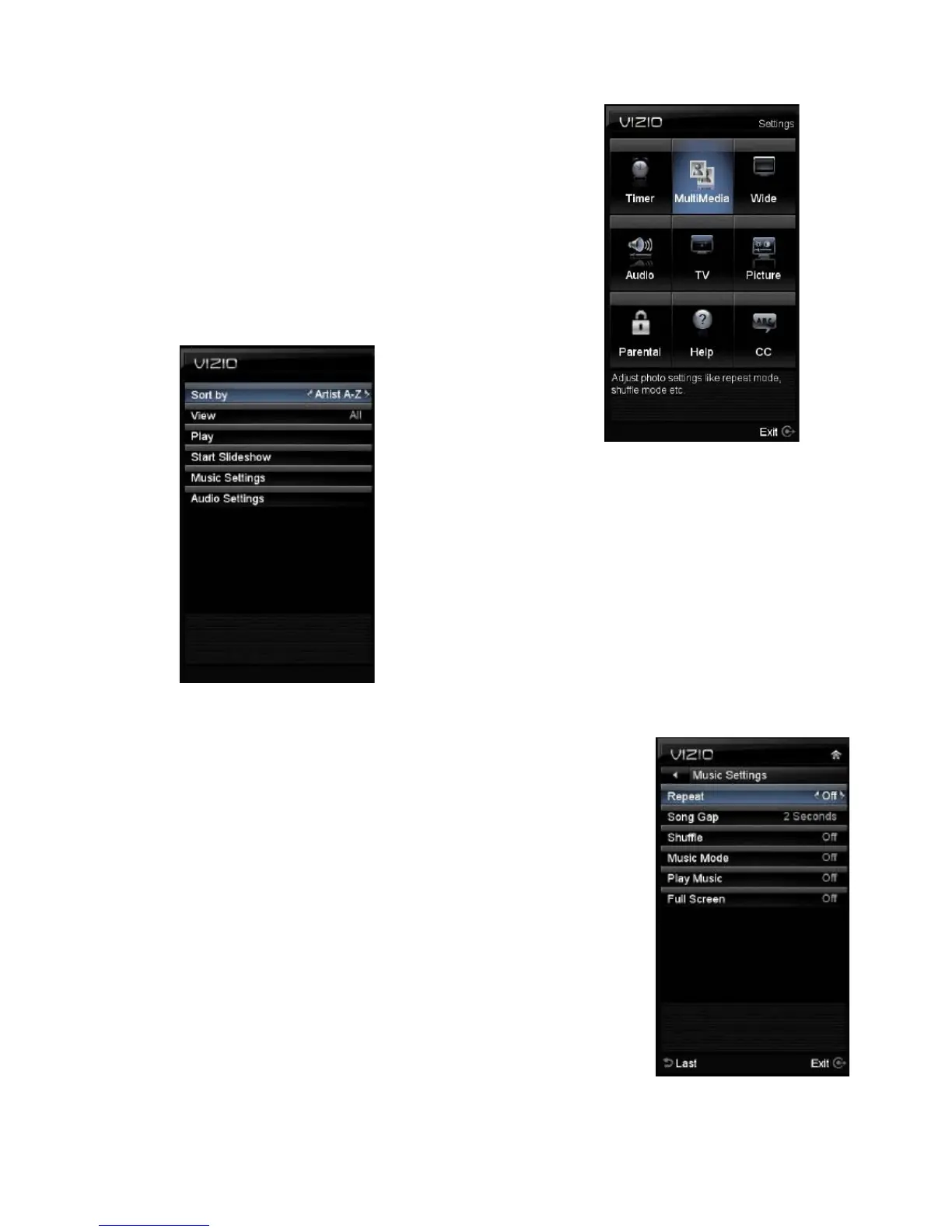
Adjusting Multimedia Settings
In the Multimedia feature, you have the following choices:
The following options are available in the Photos menu:
1. Browse Photos – This option switches to Photos mode
in a browse view screen, allowing the user to see
thumbnails of the photos, if available.
2. View Slideshow
– This option switches to Photos mode
and starts the
slide show
displaying the
images in your
USB storage
device.
3. Slide Settings –
This option allows controlling the behavior or ways of
how you would like to display the images or pictures.
Under these settings, the choices are: Repeat and
Shuffle, Full Screen (it stretches the picture to fill the
screen) and Speed (elapsed time between pictures).
The following options are available in the Music menu:
1.
Sort by – This option allows the end user to set up the different
songs by the name of the artist.
2.
Repeat – Select this option to repeat the songs on your USB
device. The option is either On or Off.
3. Song Gap – This option allows the selection of the gap between
the end of one song and the beginning of the next.
4. Shuffle –
To randomly play the songs or music in the USB device,
please select the setting to On.
5. Music Mode –
When Music Mode is select, the TV’s display goes
dark after one minute. This would save energy and your screen
lifetime.
6. Play Music –
When Play Music is selected, the TV is ready to play
music in the background while a photo slide show is in progress.
7. Full Screen – If it is desired to use the full screen as a
display, please select this option.


 To Next Page