7
61
USING THE FULLSCREEN V.I.A. APPS PLUS
®
WINDOW
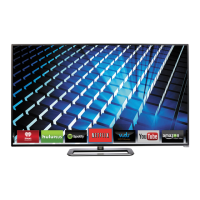
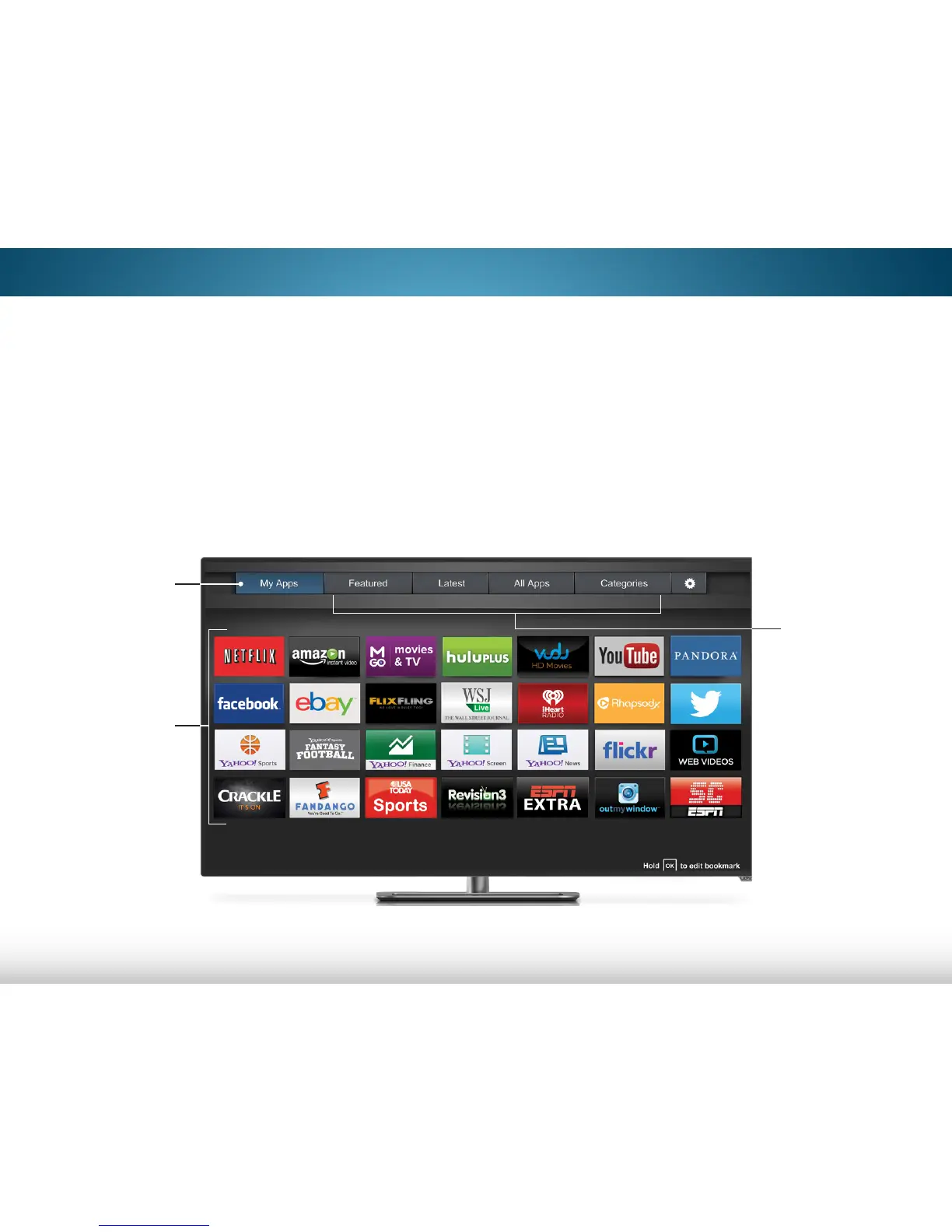
The fullscreen V.I.A. Plus
apps window allows you to add and
store apps. The Apps on the first page are displayed in the
Dock and Apps on additional pages can be moved to the
Dock.
To open the Fullscreen V.I.A. Plus Apps Window:
1. Press the V Button on the remote twice.
2. Highlight an App by using the Arrow buttons on the remote.
My Apps Tab
Features the apps
installed on your TV.
App Store Tab
Browse through
apps on these tabs
and add them to
your My Apps tab.
You can also open
the apps directly
from each tab by
pressing the
OK button.
Installed Apps
The Apps displayed
here are also
available in the V.I.A.
Plus App Dock.
3. Press the OK button on the remote to launch the App.
4. To exit from an open App or to close the App Dock, press the
Exit button on the remote.
Note: App location, appearance, and availability subject to change without notice.


 To Next Page
 Loading...