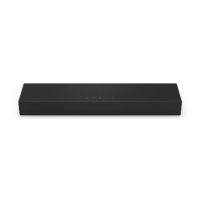
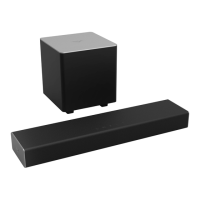
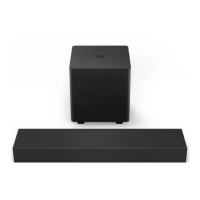
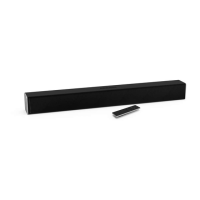
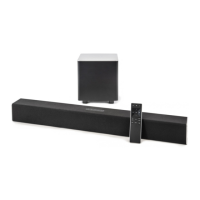
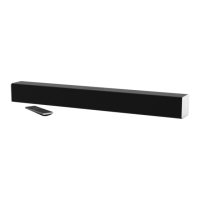
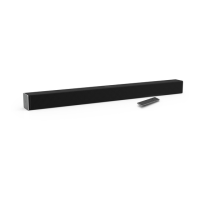
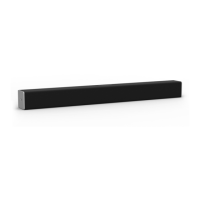
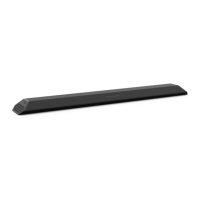
This document describes the VIZIO 20" 2.0 Channel Sound Bar with Bluetooth, model SB2020n-H6, a device designed to enhance your audio experience.
Function Description
The VIZIO Sound Bar is a compact audio device that provides improved sound quality for your television and other media devices. It features 2.0 channel audio, delivering clear and balanced sound. The sound bar is equipped with Bluetooth connectivity, allowing for wireless audio streaming from compatible devices such as smartphones, tablets, and computers. It also includes multiple wired input options for versatile connection to various audio sources.
Usage Features
The sound bar offers several features to optimize your listening experience:
- Power Control: You can easily turn the sound bar on or off using the power button on the top of the sound bar or the included remote control.
- Input Selection: The sound bar supports multiple audio inputs, including Analog Audio In (Stereo 3.5mm), Digital Optical Audio In, and USB In. You can switch between these inputs using the "Input" button on the sound bar or the remote. The LED indicator on the front of the sound bar will change color to indicate the active input: Green for AUX, Amber for Optical, Blue for Bluetooth, and Magenta for USB.
- Auto Input Detect: During first-time setup, the sound bar will automatically search for an active input. This feature can also be re-enabled by performing a Factory Reset or by pressing and holding the INPUT button on the remote for 3 seconds.
- Volume Control: Adjust the loudness of the audio using the volume buttons on the sound bar or the remote.
- Bluetooth Pairing: To stream audio wirelessly, press and hold the Bluetooth button on the sound bar for five seconds, or select the Bluetooth button on the remote. The LED indicator will blink blue during pairing mode and turn solid once a device is successfully paired. The sound bar will be discoverable as "VIZIO SB2020" for 15 minutes.
- Bluetooth Mode Usage: Once paired, your Bluetooth device should remain connected within range. If the input is changed, the Bluetooth device will disconnect but will automatically reconnect when you switch back to Bluetooth mode.
- Play/Pause/Next/Previous Controls: When using Bluetooth or USB input, the remote provides buttons for play/pause, skipping to the next track, and returning to the previous track.
- Mute Function: Temporarily silence the audio by pressing the Mute button on the remote. A long press for 5 seconds will disable the power LED.
- TruVolume: This feature, activated via the TVOL button on the remote, provides a consistent and comfortable volume level, preventing sudden changes in loudness. A high tone double beep indicates On, while a low tone double beep indicates Off.
- Virtual:X: Engage Virtual:X using the VRT:X button on the remote to experience virtual surround sound technology that simulates overhead audio. When disabled, all sources play back in stereo. A high tone double beep indicates On, while a low tone double beep indicates Off.
- Equalizer Modes: The EQ button on the remote allows you to toggle between two preset equalizer settings: Music and Movie. Movie mode is on by default. A high tone double beep indicates Movie mode, while a low tone double beep indicates Music mode.
- Bass and Treble Adjustment: Use the BASS and TREBLE buttons on the remote, followed by the Previous/Next buttons, to fine-tune the bass and treble levels. Mid level is the default setting for both.
- USB Playback: The USB input supports .WAV and .MP3 file format playback only, allowing you to play music directly from a USB thumb drive.
- Sound Bar Placement: For optimal surround sound, position the sound bar close to ear level (approximately 2-3 feet off the floor) and centered below your TV.
- Remote Control Programming: You can program the sound bar to accept IR commands from your TV remote for volume down, volume up, and mute functions. This involves putting the sound bar into learning mode by pressing specific button combinations on the VIZIO remote, then pointing your TV remote at the sound bar and pressing the corresponding TV remote button.
- Factory Reset: To restore the sound bar to its default factory settings, press and hold the Bluetooth and Volume Down buttons on the sound bar for 5 seconds. This will erase all custom settings.
- VIZIO TV Remote Control Functionality: You can enable or disable the use of a VIZIO TV remote to power on and adjust the sound bar's volume by pressing and holding the Power and Volume Up buttons on the sound bar for 5 seconds. This function is enabled by default.
- Eco Power Mode: When enabled, the sound bar will automatically power down after a period of inactivity. To enable or disable this mode, press and hold the Power and Volume Down buttons on the sound bar for 5 seconds. This setting is enabled by default.
Maintenance Features
To ensure the longevity and proper functioning of your VIZIO Sound Bar, consider the following maintenance guidelines:
- Cleaning: Clean the sound bar only with a dry cloth. Avoid using liquid or spray cleaners, and do not use abrasive cleaners.
- Power Cord Protection: Protect the power cord from being walked on or pinched, especially at plugs and where it exits the apparatus.
- Ventilation: Do not block any ventilation openings on the sound bar. Ensure proper ventilation if placing the unit in a bookcase or cabinet.
- Moisture Avoidance: Keep the sound bar away from moisture, rain, or dripping liquids. Do not place containers filled with liquid near the equipment.
- Temperature Considerations: Avoid exposing the sound bar to extreme temperature changes. If moving from a cold to a warm area, allow time for condensation to dissipate before turning it on.
- Battery Replacement: When replacing the remote control batteries, use two new Duracell 'AAA' alkaline batteries, ensuring correct polarity.
- Troubleshooting: The manual provides a troubleshooting section to address common issues such as no power, no sound, buzzing or humming, and remote control malfunction.
- Software Updates: Information in the user manual is subject to change. For the most updated version and quick start guide, refer to the VIZIO website.

 Need help?
 General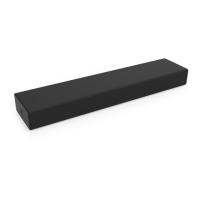

 To Next Page