2
1
VBR121
Remote Control
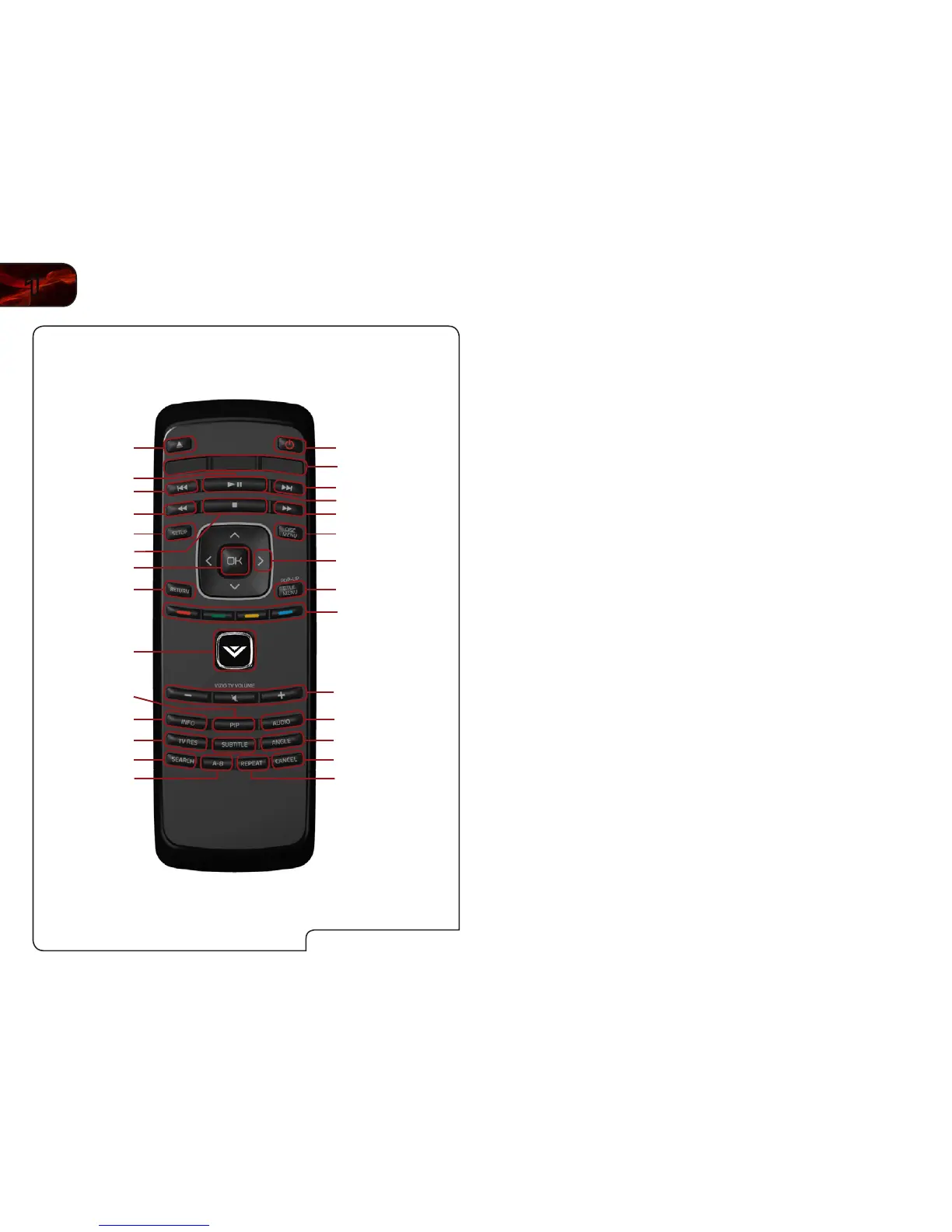
Open/Close: Open or close the disc drawer.
Power: Turn Player on or off.
App Launchers: Quick launch App on button.
Previous: Go to the previous chapter or track.
Play/Pause: Start or pause playback.
Next: Go to the next chapter or track.
Rewind: Reverse playback. Press repeatedly to increase speed.
Stop: Stop playback.
Fast Forward: Advance playback. Press repeatedly to increase speed.
Setup: Open setup menu.
Disc Menu: Open disc menu.
OK: Select highlighted menu item.
Arrow: Navigate menu.
Return: Go back to the previous menu screen.
Popup/Title Menu: Open title menu while movie plays.
App Shortcuts: Control Internet Apps and disc functions (press Red
button to exit Apps).
V Button: Return to the Player home screen.
VIZIO TV Volume: Increase, decrease, or mute volume on a VIZIO TV.
PIP: Enable picture-in-picture.*
Info: Open disc info window.
Subtitle: Change subtitle track.*
Audio: Change audio track.*
TV Res: Change the resolution output of the Player to match the
resolution of your TV.
Angle: Select viewing angle.*
Repeat: Repeat playback of track*
A-B: Create a playback loop*
Search: Find specic title, chapter, or time.*
Cancel: Clear entered numbers/letters.
QWERTY Keypad: Use to enter numbers and letters. Hold down the ALT
button to type a blue letter, number, or symbol.
*Compatible Blu-ray or DVD discs only.
Remote - Front
Power
Next
Fast Forward
Disc Menu
Arrow
A-B
OK
Setup
Open/Close
Popup/Title MenuReturn
VIZIO TV
Volume
Rewind
V Button
Previous
Cancel
Audio
Angle
PIP
TV Res
Info
Search
App
Shortcuts
App Launcher
Repeat
Stop
Play/Pause
Play


 To Next Page