Setting the Soundbar
USB Mode
1. Plug in the USB drive.
(Flash Drive ONLY! Does NOT support other device connect via USB!)
2. The music from the USB drive will play automatically, and you can use the
remote controller to control.
OPERATE INSTRUCTIONS
1: Switch on the soundbar by using power button on soundbar, or by using
2: lnput modes can be changed by pressing the power button on soundbar
again, or by using the INPUT button on the remote.
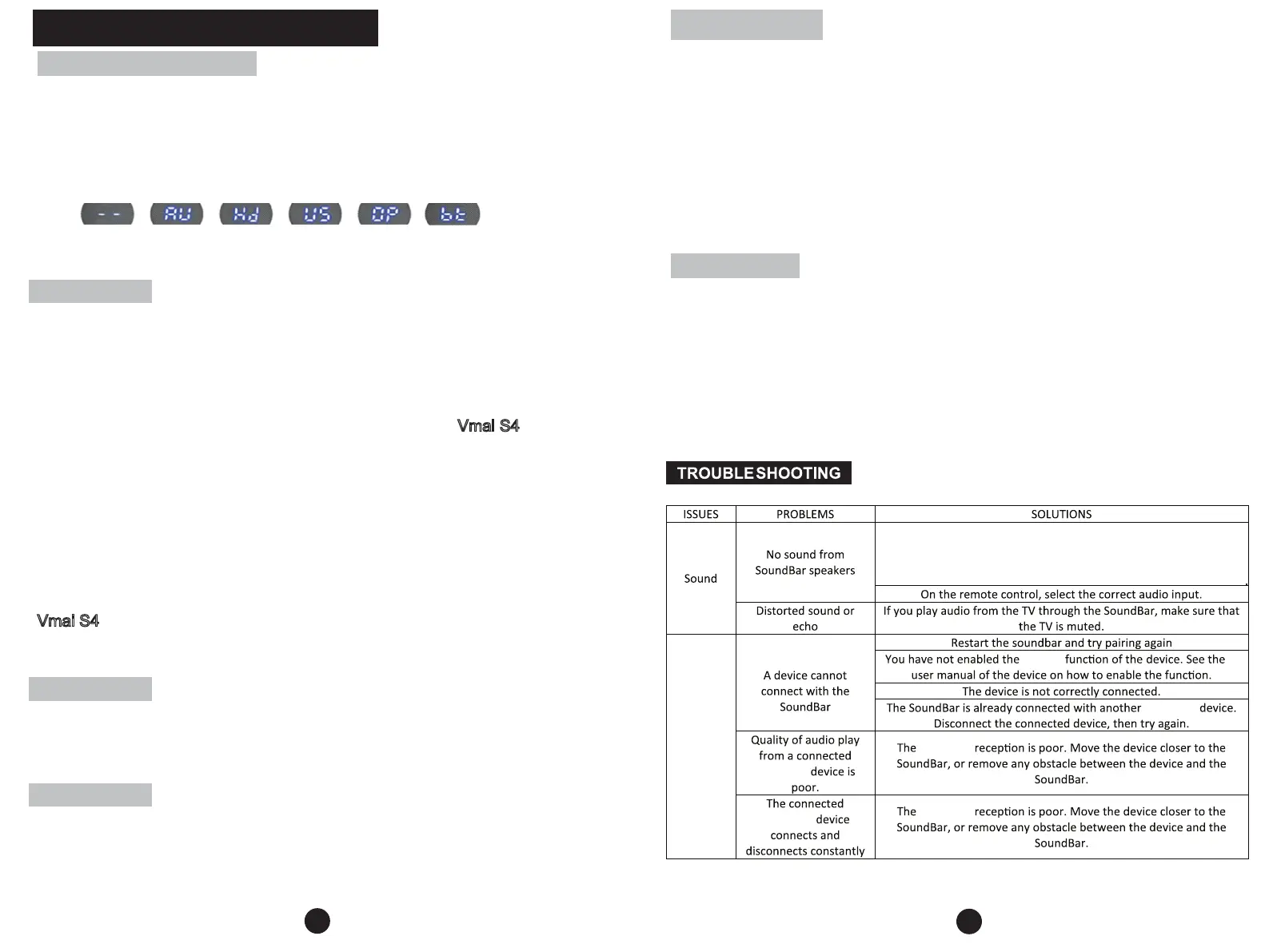
Below are input mode names appearing in the soundbar display:
Connect:
Disconnect:
Go to the Bluetooth setting of your smart device, select
Vmai S4 in the list of devices and choose the option (disconnect).
Note that if the sound bar is connected with a Bluetooth device, you need
to disconnect from the first device in order to connect to second device.
1. After Turn on the soundbar, change to AUX input mode.
2. plug in the 3.5mm AUX cable to the AUX IN connector on the soundbar and
start playing from the music device.
1. Plug in the power cord and the display will light up (stand by mode).
2. Switch on the soundbar using power button and change the input mode to
BT.
3. Search for new device on your Bluetooth player.
(smartphone,tablet,computer). Choose the device named Vmai S4
in the
list of new devices detected and select it. lf a password is asked, just type 0000
.
The "BT" display will stop flashing when the sound bar is paired successfully.
You don’t need to make this pairing procedure again the next time you connect
the same device to the sound bar, it will be re-connected automatically
when it is close to the sound bar with BT input mode activated.
Note: USB input mode is not available in the source selection. lt will get enabled only after inserting
a compatible USB Drive (appears as US in the display)
Note: When unable to detect the soundar while pairing, please restart both device and try pairing
again
.
STANDBY button on remote. After switching on, the default input mode will
appear on display.
9 10
Stand-By (OFF) AUX HDMI(ARC) USB Optical Bluetooth
IMPORTANT: If you need any assistance, don’t hesitate to Contact us:
support@vmaiTech.com Here at Vmai, we truly value customer satisfaction!
Connection
Bluetooth
Bluetooth
Bluetooth
Bluetooth
Bluetooth
“BT”
1. Using the HDMI cable connect to the tv. (not included)
2. Using a High-Speed HDMI (1.4 or 2.0) cable, connect the HDMI TV(ARC) connector on the
sound bar to the HDMI ARC connector on the TV.
(HDMI ARC port on TV may be labelled differently. For details, see the TV user manual.)
3. On your TV, select source as HDMI(ARC) mode. For details, see the TV user manual.
4. Go to Setting in your TV menu (may vary due to different brand):
1)Setting > Sound > Select Speaker to:external speaker (ARC Mode)/ turn off TV Speaker
2)Setting > Sound(audio) > advanced Audio > digital audio output > PCM Setting >
Sound(audio) > audio output format > PCM/ Dolby off
Paring Mode
AUX Mode
HDMI(ARC) Mode
Optical Mode
1. Using the provided optical cable connect to the tv.
2. Select optical mode using the remote by pressing the INPUT button, and the sound bar
indicator will show OP.
3. Go to Setting in your TV menu (may vary due to different brand):
1)Setting > Sound > Select Speaker to:external speaker (optical mode)/ turn off TV Speaker
2)Setting > Sound(audio) > advanced Audio > digital audio output > PCM Setting >
Sound(audio) > audio output format > PCM/ Dolby off
(Common issue)
If you are experiencing no sound using ARC/ Optical Mode, please
check your TV setting, and follow the instruction on top of this page to
set your TV in the correct setting.


 To Previous Page
 Loading...