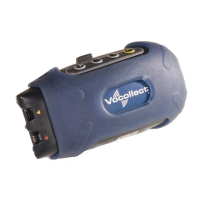
3. Insert the terminal into an open terminal slot on the charger, pressing down and then
back until the terminal clicks into place.
Warning: Do not attempt to place the terminal into the charger unless you have
first disconnected the headset and any other peripheral devices. Do not remove
the battery from the terminal when placing a terminal into a charger.
4. After the terminal has been placed into the charger, make sure that the LED indicator
on the terminal turns on and begins to blink green. If the LED does not turn on after 30
seconds, remove the terminal from the charger slot and then place it into the slot
again. If the LED indicator still does not turn on, try another charger slot.
Note: A terminal is ready to use and can be removed from a charger when the LED
indicator on the terminal is blinking green. If the LED indicator on a terminal is
blinking red, do not remove the terminal from the charger.
To remove a terminal from the charger:
1. Make sure that the terminal is ready to use.
Note: The terminal is ready to use when the LED indicator on the terminal is
blinking green. If the LED is blinking red, the terminal is not ready to be used. For
information about the different states of the LED indicators that are found on a
charger, see LED Indicators.
Warning: If a terminal continuously displays a solid red light, contact your system
administrator.
2. Pull up on the terminal to remove it from the charger.


 To Next Page
 Loading...