73 74
Add to queue
Touch to add the song into playing queue.
Add to playlist
Touch to add to playlist.
Go to artist
Touch to go to artist.
Go to album
Touch to go to album.
Delete
Touch to delete the song.
Video player 8.4
To access this function, touch the Application tab from the Home
screen, then touch Video player.
Video player is a small built-in video player that lists all your
videos.
Touch an item from the list to play. While playing, touch a point
on the timeline to jump to and play from.
Google Maps 9
Get My Location9.1
Turn on GPS9.1.1
To turn on your phone’s global positioning system (GPS) satellite
receiver:
1 Touch
on Quick setting bar to go to Settings.
2 Touch Location access.
3 Touch the switch beside Location access and choose location
mode you preferred.
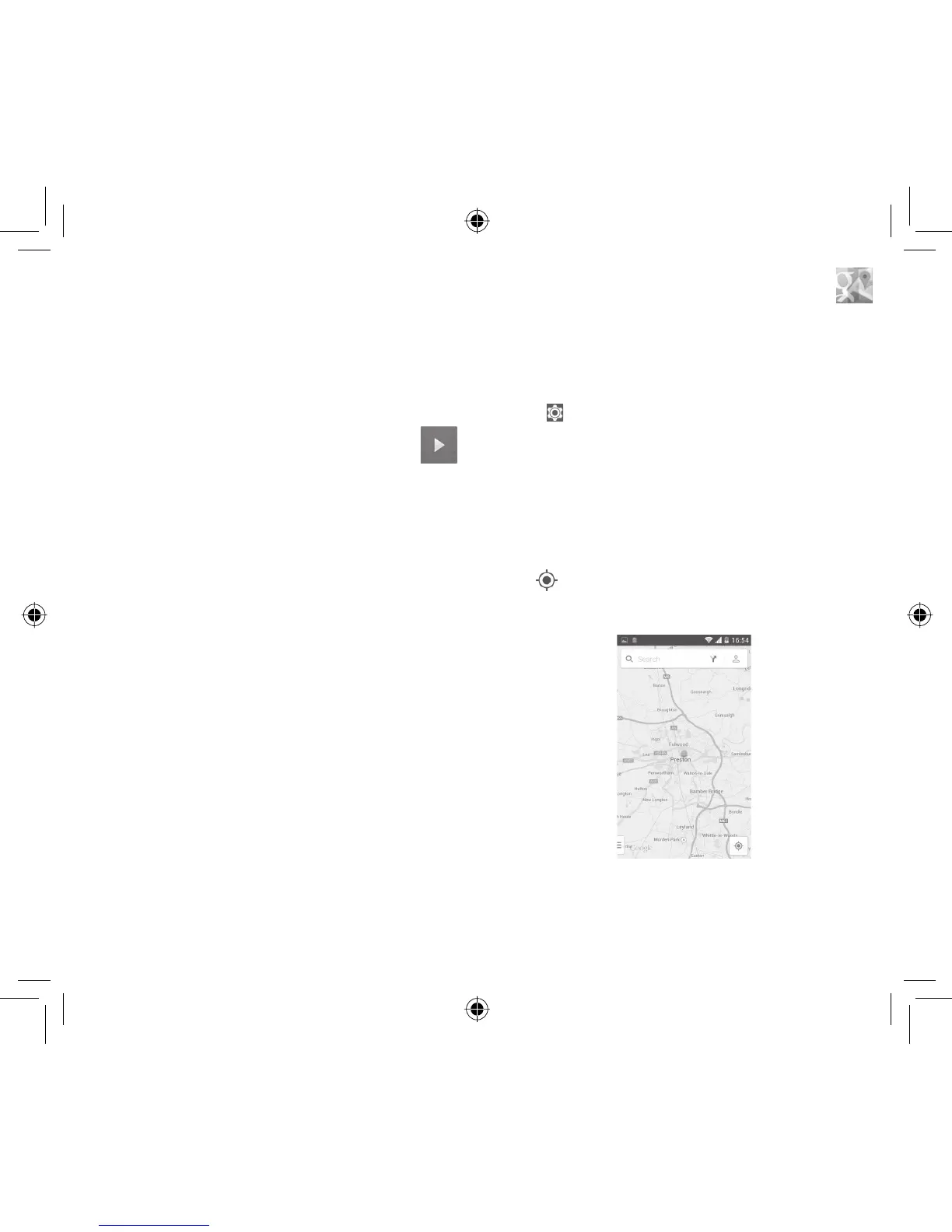
Open Google Maps and view My Location9.1.2
Touch the Application tab from the Home screen, then touch
Maps.
Touch icon on the map to view My Location.
The map will then center on a blue dot. Your actual position will be
at the blue dot.
To move the map, drag the map with your finger.
To zoom in and out of a map, pinch or spread your fingers, or you
can also zoom in by double-tapping a location on screen.
IP4907_VF985N_UM_Eng_GB_09_140528.indd Sec2:73-Sec2:74IP4907_VF985N_UM_Eng_GB_09_140528.indd Sec2:73-Sec2:74 2014-5-28 15:05:082014-5-28 15:05:08



 To Next Page