75 76
Search for a location9.2
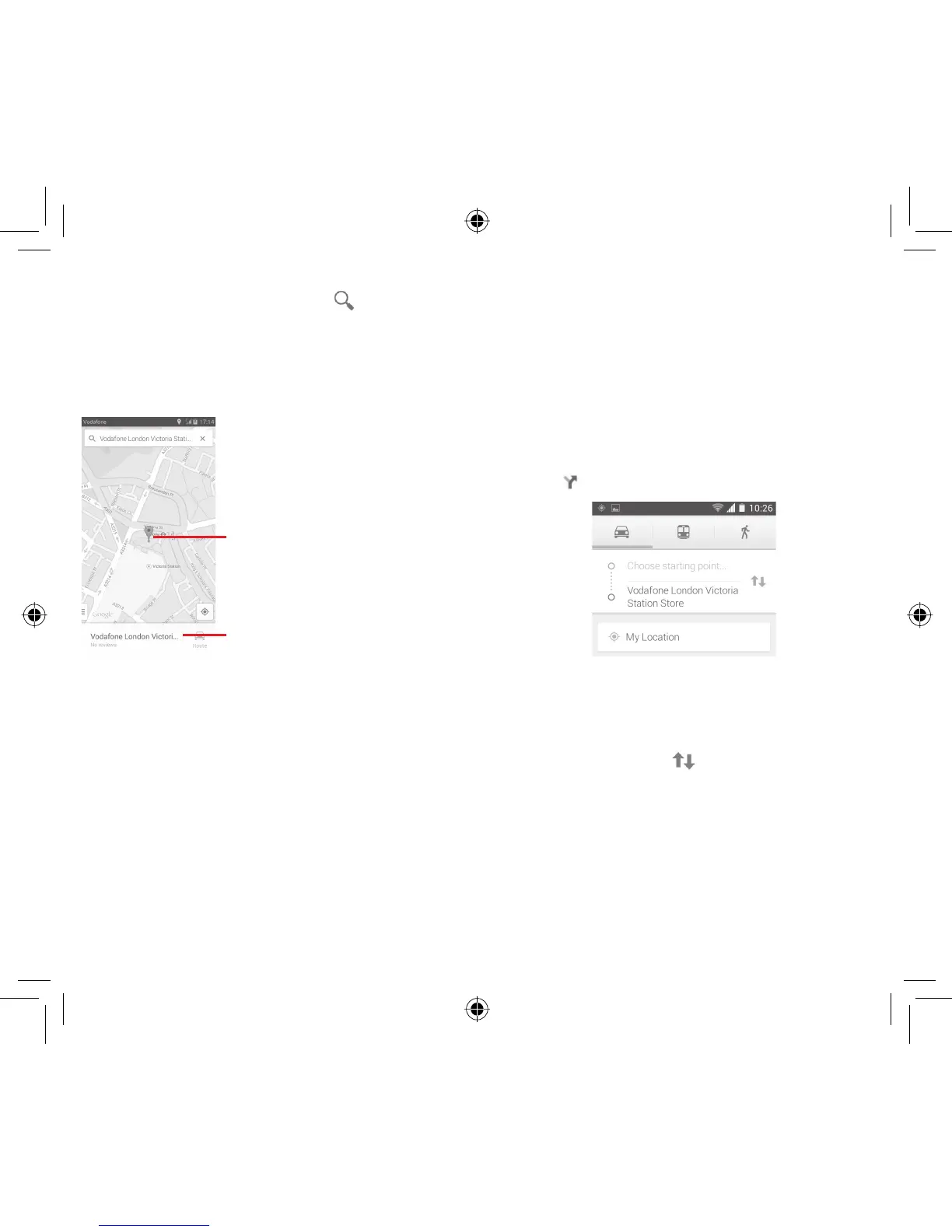
While viewing a map, touch the search icon to activate search
function.
In the search box, enter an address, a city or a local business.
Touch the search icon to search, and in a while your search
results will appear on the map as red dots. You can touch one
to show a label.
Slide left or right to view more search results
Touch to show more information
Save a location9.3
Just like bookmarking a web address on the Internet, you can star
any position on the map for later use.
Open Street View for a location9.4
1 Touch and hold a location to display its address at the bottom
of the maps screen.
2 Drag up the details screen to display a Street View thumbnail.
3 Touch Street view.
Get driving, public transportation or 9.5
walking directions
Get suggested routes for your trip9.5.1
Touch icon from Maps screen.
1 Touch enter bar to edit your start point by entering an address
or selecting a saved item.
2 Do likewise for your end point.
3 To reverse directions, touch
.
4 Then select a transport mode: driving by car, using public
transportation, or walking directions.
5 Touch Route options to select Avoid highways or Avoid
tolls.
6 A couple of suggested routes will appear in a list. Touch any
route to view its respective detailed direction.
IP4907_VF985N_UM_Eng_GB_09_140528.indd Sec2:75-Sec2:76IP4907_VF985N_UM_Eng_GB_09_140528.indd Sec2:75-Sec2:76 2014-5-28 15:05:082014-5-28 15:05:08



 To Next Page