28
You can move or remove folders the same way as moving or
removing shortcuts.
1. Touch and hold a shortcut on the home screen and drag it
quickly over another shortcut.
2. Release the shortcut. A new folder will be created and both
shortcuts are added into the folder.
3. To add more shortcuts into the folder, touch and hold each
shortcut and drag it over the folder before releasing it.
NOTE:
Touch the folder and then touch the name field to rename the
folder.
Rearranging the primary shortcuts
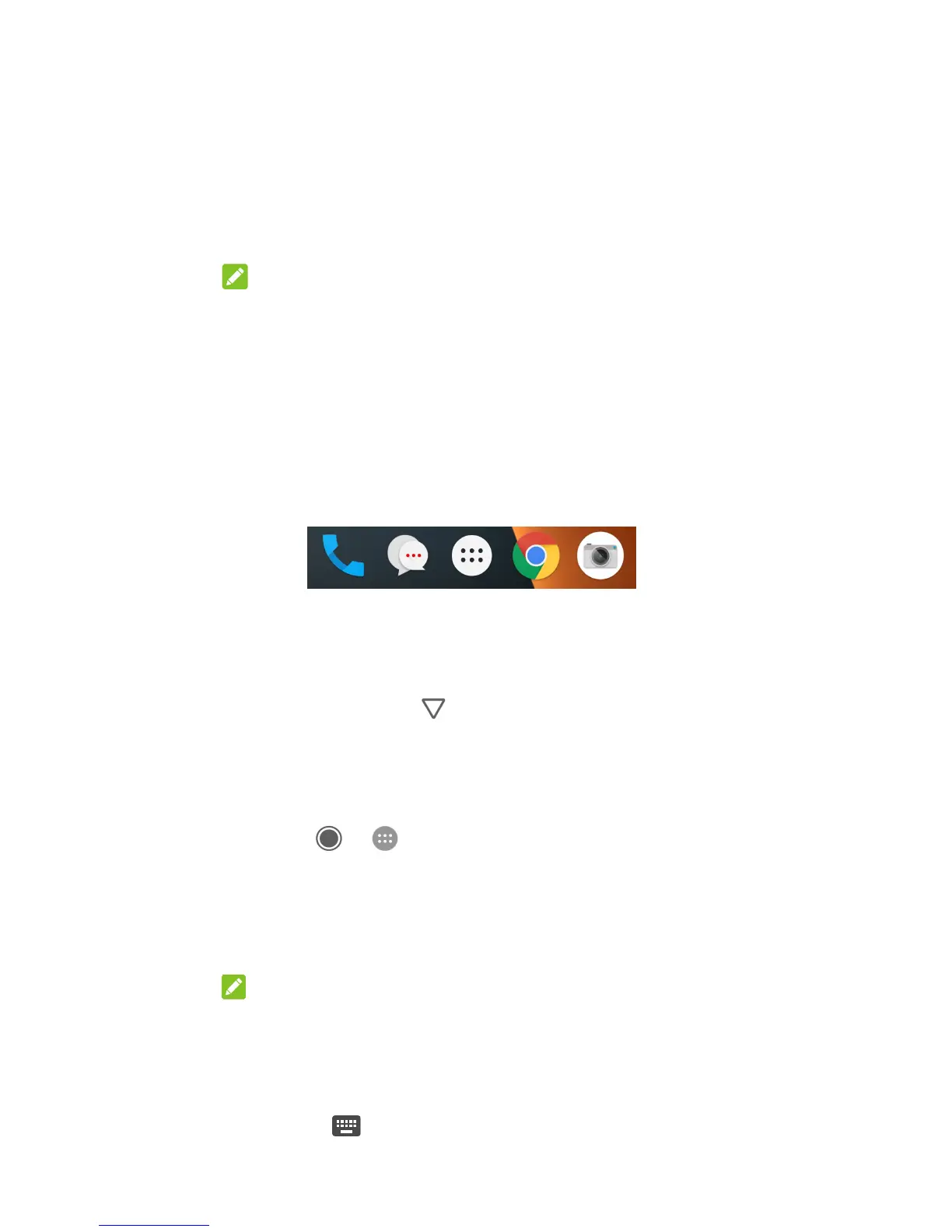
The home screen includes a customisable primary shortcuts
area at the bottom visible from all home screens. You can keep
at most four items in the primary shortcuts area. Drag shortcuts
or folders in or out of the area to rearrange it.
Entering text
You can enter text using the onscreen keyboard. Some apps
open it automatically. In others, you open it by touching where
you want to type. Touch
to hide the onscreen keyboard.
You can also enter text by speaking with the Google voice
typing feature.
Enable or disable input methods
1. Touch > > Settings > Languages & input >
Virtual keyboard.
2. Touch Manage keyboards.
3. Slide the switches beside the input methods to enable or
disable them.
NOTE:
Some default input methods may not be disabled.
Change input methods
1. When you use the onscreen keyboard to enter text, touch
the icon
at the bottom right corner of the screen.
2. Select the input method you need.



 To Next Page