29
NOTE:
The icon
appears only when more than one input method
is installed and enabled.
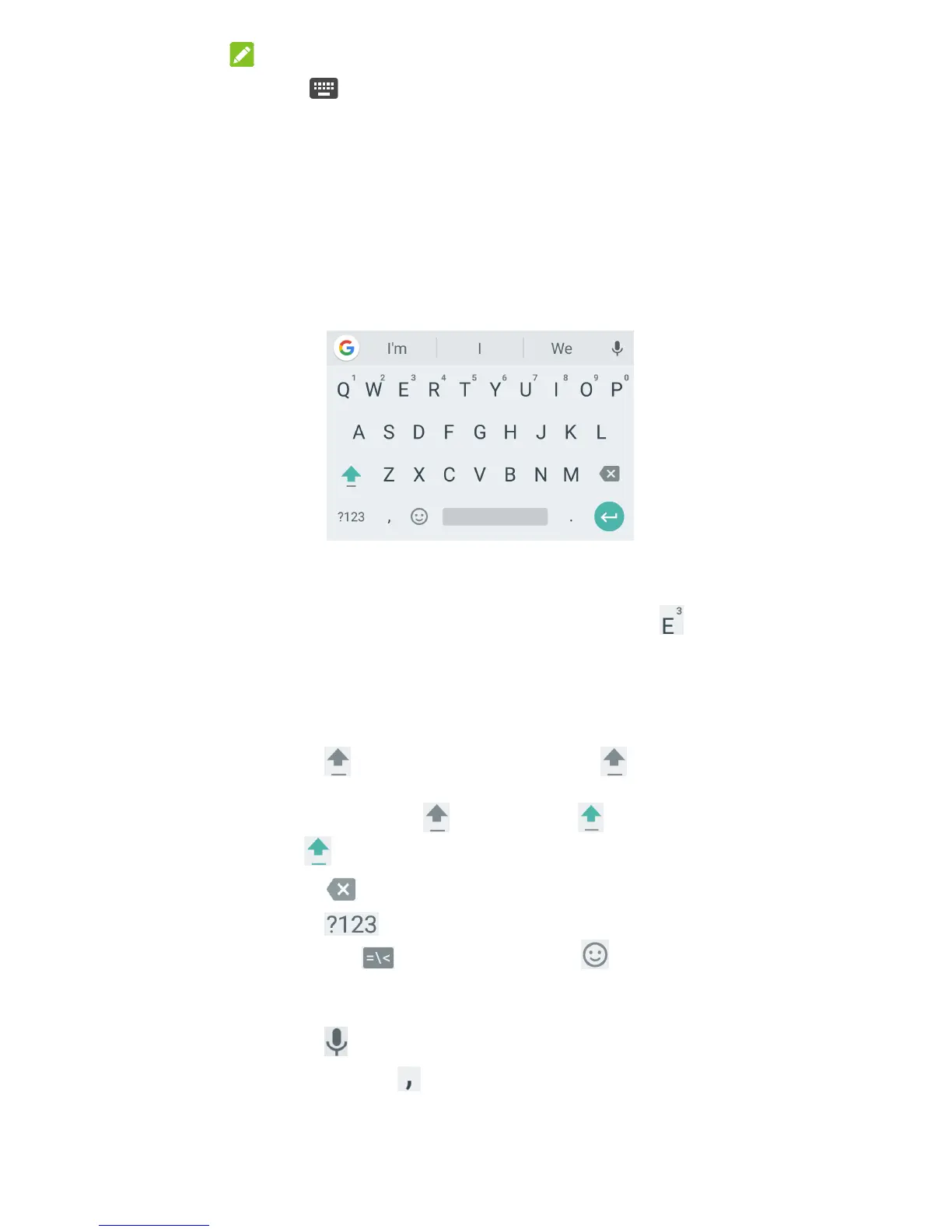
Gboard
Gboard provides a layout similar to a desktop computer
keyboard. When screen auto-rotation is enabled, turn the
phone sideways and the keyboard will change from portrait to
landscape. The landscape keyboard is not supported in all
applications.
Touch the alphabetic keys to enter letters. Touch and hold
some specific keys to enter associated accented letters or
numbers. For example, to enter È, touch and hold
and
the available accented letters and number 3 appear. Then
slide to choose È.
As you enter a word, candidates appear above the keyboard.
Touch to select the correct one.
Touch
to use uppercase. Double-tap to lock
uppercase. This key also changes to indicate the current
case you are using:
for lowercase, for uppercase,
and
when locked in uppercase.
Touch
to delete the text before the cursor.
Touch
to select numbers and symbols. You can
then touch
to find more or touch to enter
miniature icons, such as expressions, horoscopes, and
animals.
Touch
to use Google voice typing.
Touch and hold
to change the input language or set
up Gboard.



 To Next Page