30
Touch and hold
and then slide right to change the
keyboard layout for one-hand input.
Touch
to access more options.
NOTE:
The keyboard layout may change in different apps.
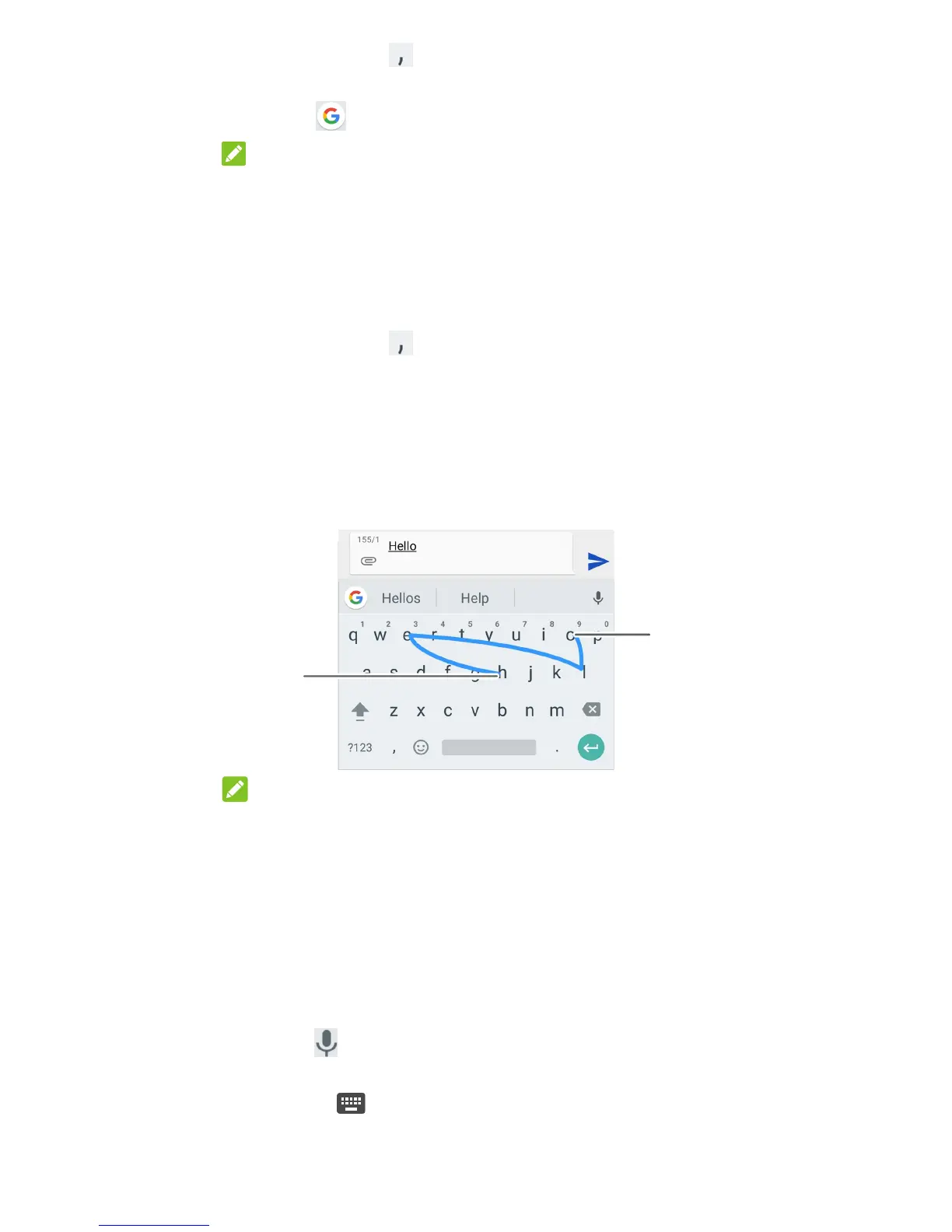
Glide Typing
Gboard supports the glide typing feature. You can use this
feature to input a word by sliding through the letters.
To enable and use glide typing:
1. Touch and hold
on Gboard and then touch Gboard
keyboard settings.
2. Touch Glide typing and then touch Enable glide typing if
this feature is turned off.
3. Move your finger from letter to letter on the keyboard to
trace a word without lifting the finger until you reach the
end of the word.
NOTES:
Touch when you want to. If you want to enter a single letter,
go ahead and touch.
Lift your finger at the end of the word. A space is added
automatically when you begin to input the next word.
Google voice typing
Google voice typing uses the Google voice recognition service
to convert speech to text.
1. Touch
to access the voice typing feature when you are
using Gboard.
Or touch
at the bottom right and select Google voice
typing.
End of
the word
Start of
the word



 To Next Page