37
1. Touch and hold a shortcut on the home screen and drag
it quickly over another shortcut.
2. Release the shortcut. A new folder will be created and
both shortcuts are added into the folder.
3. To add more shortcuts into the folder, touch and hold
each shortcut and drag it over the folder before releasing
it.
NOTE:
Touch the folder and then touch the name field to rename
the folder.
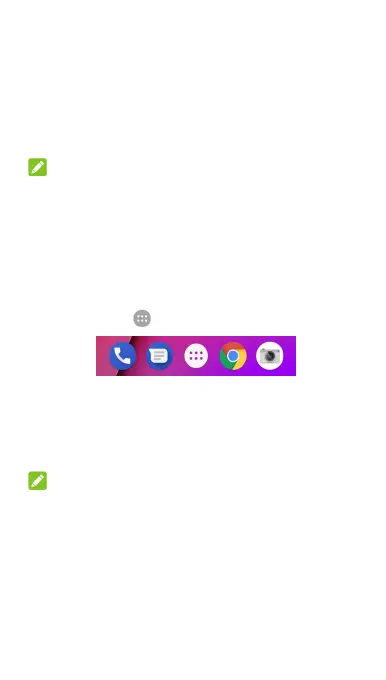
Rearranging the favourites tray
The home screen includes a customisable Favourites tray at
the bottom visible from all home screens. You can keep at
most five items in the Favourites tray. Drag shortcuts or folders
including the icon
in or out of the tray to rearrange it.
Using app shortcuts
The app shortcuts feature allows you to quickly access
common app functions from the home screen and the app
list screen.
NOTE:
Not all apps support the app shortcuts feature.
1. Touch and hold an app icon on the home screen or the
app list screen.
2. From the displayed menu, touch the function you want
to use in the app.



 To Next Page