Please remember that the ability to use a back up Vodem connection is
subject to 3G coverage in your area. Vodem is not included and needs to be
purchased seperately. Connecting to the internet with a vodem will incur data
charges as per the pricing on vodafone.co.nz. Voice services are not supported.
3. LCD screen
The LCD screen on the Vodafone Station is like the Start button on your
computer. It provides you with quick and easy access to the device.
To navigate through the LCD menu, use the arrow keys and OK button
on the right hand side of the screen.
3.1 Menu screens
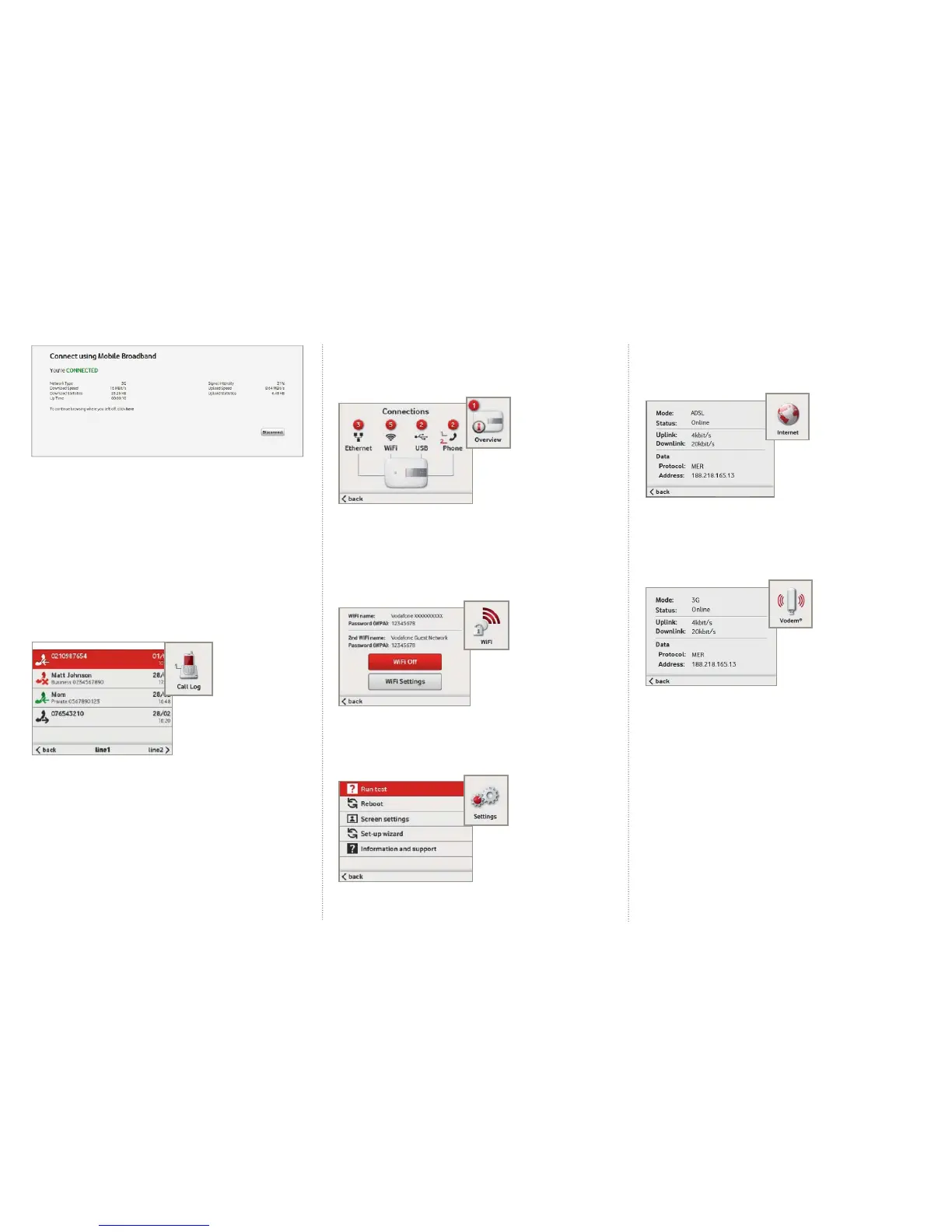
Call Log menu*
The Call Log screen allows you to view the call history for the phones
connected to your Vodafone Station.
From here you’ll be able to see incoming (green) calls, missed (red) calls and
calls you’ve made (black). Then by highlighting a call and pressing the OK
button you can call that number.
If you have a second line, you will be able to access the call log for your second
line by using the right hand arrow to move between your call logs.
You can also add your favourite numbers to an address book on the device
through the web portal at http://vodafone.station OR 192.168.1.1
Overview menu
The Overview screen allows you to quickly see what devices you have
connected to your Vodafone Station. The number in the red circle in the icon
indicates how many devices are connected.
WiFi menu
The WiFi screen allows you to manage your WiFi network. From here you’ll
be able to quickly view your WiFi username and password, turn your WiFi
connection on and off and access your WiFi Settings.
Settings menu
The Settings screen allows you to run a diagnostic test, reboot or fi nd out where
to go for support if you experience any problems.
Internet menu
The normal Internet icon shows that your Internet connection is enabled and
is working properly. Pressing OK when the icon is highlighted lets you see the
state of the connection.
Vodem® menu
The Vodem® icon shows you the state of your Vodafone 3G connection if
you are connecting via a Vodem® USB stick. Pressing OK when the icon is
highlighted lets you see the state of the connection.


 To Next Page
 Loading...