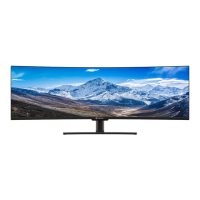
This document describes the VXD-040WUHD-P monitor, a 40-inch display designed for various applications, including gaming and general use. It supports a high resolution of 5120x2160 pixels with a refresh rate of 75Hz, providing a sharp and smooth visual experience. The monitor utilizes an IPS panel, known for its wide viewing angles of 178°/178° (CR>10) and accurate color reproduction, boasting 1.07 billion colors. Its 21:9 aspect ratio offers an expansive widescreen view, suitable for multitasking or immersive gaming.
Key Technical Specifications:
- Model: VXD-040WUHD-P
- Screen Size: 40 inches
- Aspect Ratio: 21:9
- Backlight: LED
- Brightness: 300 cd/m²
- Panel Type: IPS
- Resolution: 5120x2160
- Refresh Rate: 75Hz
- Response Time: 14ms
- Viewing Angle: 178°/178° (CR>10)
- Contrast Ratio: 1000:1
- VESA Mounting: 100x100mm
- Colors: 1.07 Billion
- HDR: HDR10
- Power Consumption: Typical 53W
- Power Type: DC 24V, 6.25A
- Speakers: 2x3W
Connectivity:
The monitor offers a comprehensive range of input and output options to connect to various devices:
- HDMI Port (1.4 compatible): Used to connect compatible devices.
- Display Port (1.2 compatible): Used to connect compatible devices.
- USB-C: Supports data transmission, external charging, and image display.
- USB-B: Used for connecting compatible USB-B devices.
- USB-A (x2): Used for connecting compatible USB-A devices.
- Audio Out Port: For connecting headphones or external speakers.
- DC24V: Power input.
Usage Features:
The VXD-040WUHD-P monitor is designed with user convenience in mind, offering a variety of features accessible through its On-Screen Display (OSD) menu and physical control buttons.
Control Panel:
The monitor features a joystick-style control button located on the bottom-right of the display for easy navigation of the OSD menu.
- POWER/ENTER: Press and hold for 3 seconds to power off.
- LEFT/RIGHT: Volume control shortcut button.
- UP: Aspect Ratio zoom shortcut button.
- DOWN: Cross Aiming Shortcut Button (During Gaming).
Initial Setup:
- Connect the monitor to a power outlet.
- Press the POWER button to turn on the monitor (indicator will be blue).
- Connect the relevant cable to the corresponding input on the monitor; the source will be automatically detected.
- To change between inputs, press the "Source" button to enter the source menu, then use the navigation buttons to select between Auto Selec, Type-C, DP, and HDMI.
- Input Source: Allows switching between Type-C, DP, and HDMI inputs.
- Brightness/Contrast:
- Brightness: Adjusts display brightness from 0 to 100.
- Contrast: Adjusts display contrast from 0 to 100.
- DCR (Dynamic Contrast Ratio): Turns the feature On or Off.
- Color Setting:
- Gamma: Adjusts display Gamma Value (2.0, 2.2, 2.4).
- Picture Mode: Selects pre-set modes like Standard, Photo, Movie, Game, FPS, RTS.
- Color Temperature: Adjusts color temperature (Normal, Warm, Cool, User).
- Hue: Adjusts display Hue value from 0 to 100.
- Saturation: Adjusts display Saturation value from 0 to 100.
- Low Blue Light: Adjusts the blue light level from 0 to 100.
- Picture Quality Setting:
- Sharpness: Adjusts display Sharpness from 0 to 100.
- Response Time: Turns the Response Time feature On or Off.
- Noise Reduction: Selects Noise Reduction Value (Low, Middle, High, Off).
- Super Resolution: Selects Super Resolution Value (Low, Middle, High, Off).
- Dynamic Luminance Control: Turns the Dynamic Luminance Control feature On or Off.
- Display:
- Aspect Ratio: Changes the image aspect ratio (Wide Screen, 4:3, 21:9, Auto).
- Audio:
- Mute: Turns the audio source On or Off.
- Volume: Adjusts audio source volume from 0 to 100.
- Multi-Window:
- Multi-Window: Turns the Multi-Window feature On or Off.
- Sub Win2 Input: Allows selecting the input for the second window.
- PIP Size: Adjusts Picture-in-Picture (PIP) size.
- PIP Position: Adjusts PIP position (e.g., BottomRight).
- Swap: Exchanges the main and sub-window displays.
- OSD (On-Screen Display) Settings:
- Language: Changes the OSD menu display language.
- OSD H-Position: Changes the horizontal position of the OSD menu.
- OSD V-Position: Changes the vertical position of the OSD menu.
- OSD Transparency: Changes the transparency value of the OSD menu from 0 to 100.
- OSD Timer Out: Changes how long the OSD menu stays on before automatically exiting.
- Menu Rotation: Rotates the OSD menu.
- Other:
- FreeSync (Adaptive Sync) Mode: Turns FreeSync On or Off (AMD FreeSync is supported).
- HDR: Turns HDR On or Off (requires HDMI 2.0 input; HDR10 is supported).
- MPRT: Turns MPRT (Moving Picture Response Time) On or Off.
- Flicker Free: Turns Flicker Free On or Off (supported).
- Firmware Update: Updates the monitor firmware using the USB port.
- Reset: Restores factory default settings.
Maintenance Features & Safety Information:
The manual emphasizes several safety and maintenance guidelines to ensure the longevity and safe operation of the monitor.
- General Safety:
- Read and follow all instructions and warnings.
- Keep the unit in a well-ventilated environment, ensuring at least 5cm (2") clearance around it if placed in a cabinet.
- Do not block ventilation slots.
- Do not use near water or in humid environments.
- Clean only with a dry cloth; avoid solvents or petroleum-based fluids.
- Do not install near heat sources.
- Protect the power cord from being walked on or trapped.
- Unplug during lightning storms or long periods of disuse.
- Do not remove safety covers; there are no user-serviceable parts inside.
- Refer all servicing to qualified personnel.
- Power Supply:
- Only connect to a mains power supply as rated on the back of the equipment.
- Do not overload the power supply socket with too many electronic components.
- Hold by the plug, not the wires, when removing from a socket.
- The wall plug socket is a disconnection device and should remain readily accessible.
- Handling:
- Use only manufacturer-specified attachments/accessories.
- Use caution when moving the monitor with a cart, stand, tripod, bracket, or table to avoid tipping.
- Do not place heavy items on cables.
- Do not tap or shake the screen to avoid damaging internal components.
- Warning Indicators:
- A lightning bolt symbol indicates dangerous voltage inside the product.
- An exclamation mark symbol alerts users to important instructions.
- A "DO NOT OPEN" warning indicates that the cover should not be removed to reduce the risk of electric shock.
- Audio Warning:
- A symbol depicting an ear with sound waves warns that prolonged listening at full volume may damage the user's hearing.
The monitor supports AMD FreeSync and G-Sync, enhancing the gaming experience by synchronizing the display's refresh rate with the graphics card's frame rate, reducing screen tearing and stuttering. The inclusion of HDR10 support further improves image quality by providing a wider range of colors and contrast. The built-in 2x3W speakers offer basic audio output, but the audio out port allows for connection to external speakers or headphones for a more robust sound experience.

 Need help?

 To Next Page
 General