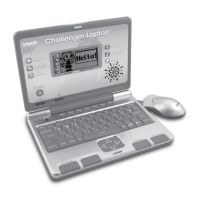
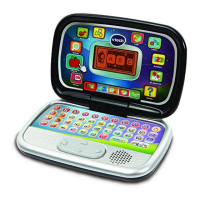
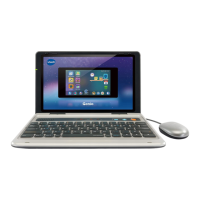
The VTech® Challenger Laptop™ is an electronic learning computer designed to provide children with a comprehensive and engaging learning experience. It serves as a launch pad into a world of educational fun, covering a wide range of subjects and skills through interactive games and activities.
Function Description:
The Challenger Laptop™ introduces children to language basics, including letters and vocabulary words, and also incorporates French language learning through graphics-enhanced games. It helps children develop basic math skills, sharpen logic, and foster musical and artistic creativity. Beyond core subjects, the laptop includes cool features like tools for storing personal information, vivid animations, fun sound effects, snappy melodies, and a realistic keyboard and mouse to enhance the learning process. The device offers 40 different activities spread across six main categories: Language Lab (French), Word Zone, Maths Mania, Game Time, Creative Studio, and My Tools.
Important Technical Specifications:
- Power Source: Operates on 3 "AA" size batteries (UM-3/LR6) or a VTech® 9V adaptor (sold separately). Rechargeable batteries are not recommended.
- Adaptor: Compatible with VTech® adaptors or any standard AC/DC 9V 300mA centre-positive adaptor that complies with EN61558.
- Display: LCD screen with adjustable contrast.
- Audio: Built-in speaker with adjustable volume.
- Input: Full alphanumeric keyboard that doubles as a music keyboard, real mouse, cursor pad, choice keys, and dedicated function keys.
- Screen Savers: Features 3 selectable screen savers that activate after a few minutes of inactivity.
- Auto Power Off: Automatically shuts off after several minutes without input to preserve battery power.
Usage Features:
- On/Off Key: Powers the unit on and off.
- Contrast Switch: Adjusts the image on the screen for higher or lower contrast.
- Volume Switch: Controls the audio output, allowing users to increase or decrease the volume.
- Level Selection: A dedicated "Level" key allows users to change the difficulty of activities between three levels (Level one, two, and three). Level one is the default setting for new activities.
- Player Mode: A "Player" key switches between One Player and Two Player modes for specific activities like Word Train, Talk Show, Typing Fun, Mouse's Lunch, Subtract It, Show Time, Costume Ball, Hide and Seek, Animal Shadows, and Carrot Patch.
- Mouse Usage: The real mouse allows users to move the cursor and click to make selections. It requires a clean, flat surface for optimal performance.
- Activity Selection: Activities can be selected by pressing "Enter" at the chosen activity, using the cursor pad, clicking the mouse button, or typing the activity number. Category keys also allow direct jumps to the first activity within a category.
- AI Feature: If a question is answered incorrectly in the first round, it will be asked again in subsequent rounds (up to 3 times) in most activities to aid memory.
- Answer Provision: The correct answer is provided after a certain number of tries in most activities, though not in all (e.g., Earful of Numbers, Picture Fun, Chat Room, Alphabet Apple, Number Bubbles, Typing Fun, Firefly Count, Carrot Patch, and Creative Studio/My Tools activities).
- Short Break Mode: After 5 consecutive rounds of play, the unit displays a dancing animation with music.
- Function Keys:
- Demo Key: Shows a short demonstration of the product.
- Progress Report Key: Reviews the accuracy of answers in most activities.
- Category Keys: Jump to the first activity of a specific category (Language Lab, Word Zone, Maths Mania, Game Time, Creative Studio, My Tools).
- Esc Key: Exits the current activity and returns to the previous screen.
- Matchbook Key: Directly enters the Matchbook activity.
- Choice Keys: Used to answer questions in Matchbook and some other activities.
- Repeat Key: Repeats the current question or instruction.
- Help Key: Provides assistance in most activities.
- Answer Key: Displays the correct answer in most activities.
- Delete Key: Deletes input.
- Fun Key: Triggers random funny cartoons.
- Background Music Key: Toggles background music on/off.
- Screensaver Key: Cycles through the available screen saver options.
- Player 1/Player 2 Keys: Used to input answers for different players in Two Player mode.
- Letter Keys: Input answers in letter-related activities.
- Number Keys: Input numbers in related activities.
- Musical Note Keys: Input melodies in the Melody Maker activity.
- Instrument Keys: Change the main instrument in music-related activities.
- Tempo Key: Changes the melody tempo in music-related activities.
Maintenance Features:
- Cleaning: The laptop should be kept clean by wiping it with a slightly damp cloth. Solvents or abrasives should not be used.
- Storage: Keep the unit out of direct sunlight and away from direct heat sources. Batteries should be removed if the unit will not be used for an extended period.
- Handling: Avoid dropping the unit. Do not attempt to dismantle it. Keep it away from water.
- Mouse Cleaning: To clean the mouse, open the cover on the bottom with a screwdriver, remove the ball, clean the ball and mouse with a dry cloth, then reassemble.
- Troubleshooting:
- No Power: Check if the On/Off button is on and if the unit is plugged in. If using batteries, ensure they are correctly aligned.
- Screen Freezing/Weak Sound: Turn the unit OFF for 15 seconds, then turn it ON. If using an adaptor, unplug it for 15 seconds before plugging it back in and turning it ON. If the problem persists, it may indicate low battery or faulty adaptor wiring; replace batteries or use a different adaptor.
- Adaptor Care: Regularly examine the adaptor for damage to the cord, plug, transformer, or other parts. Do not use a damaged adaptor. The adaptor is not a toy and should only be used under adult supervision. Do not clean a plugged-in toy with liquid, use more than one adaptor, or leave it plugged in for extended periods.

 Need help?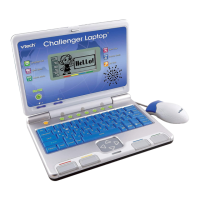

 To Next Page
 General