EasyManua.ls Logo

VTech RM5752 - User Manual

VTech RM5752
2 pages
Print Icon
To Next Page IconTo Next Page
Loading...
Overview
What’s in the box
RM5752
RM5752-2
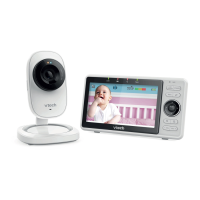
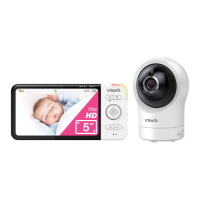
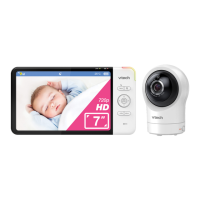
Wi-Fi Full HD Video Monitor
Go to www.vtechphones.com
to register your product for
enhanced warranty support and
the latest VTech product news.
BC
Installation guide
What does HD Video Monitor do?
VTech Wi-Fi HD Video Monitor allows you to stay close to your baby when you are on the move
or away.
This monitor is Wi-Fi enabled, which uses your home wireless network to stream live video and
audio through the HD camera unit and 5-inch touch screen parent unit. It allows you to maintain
a constant connection to your baby.
You can also monitor from your smartphone and mobile tablet.
VTech Wi-Fi HD Video Monitor uses MyVTech Baby app to let you instantly see and hear what’s
happening with your baby from anywhere in the world.
The app can be downloaded from the App Store or the Google Play
TM
Store, directly from your
smartphone or mobile tablet.
Congratulations
on purchasing your new VTech product. Before using this HD video monitor, please read
Important safety instructions.
For support, shopping, and everything new at VTech, visit our website at
www.vtechphones.com. In Canada, visit www.vtechcanada.com.
How the system works
1
Connect and charge the battery
Protect your privacy and
online security
Frequency Camera unit: 2412 - 2462 MHz
Channels 11
LCD 5’’ Color LCD
(IPS 480x272 pixels)
Nominal effective range Maximum power allowed by FCC and IC. Actual operating range may
vary according to environmental conditions at the time of use.
Power requirement 1. Parent unit power adapter:
Output: 5V DC 1.2A
2. Parent unit: 3.7V Li-polymer battery is built-in.
Camera unit power adapter:
Output: 5V DC 1500mA
Google Play and the Google Play logo are trademarks of Google LLC.
App Store is a trademark of Apple Inc., registered in the U.S. and other countries.
Specifications are subject to change without notice.
© 2018 VTech Communications, Inc.
All rights reserved. 12/18. RM5752_IG_V1.0
Document order number: 91-011404-010-100
Technical specifications
Connect and charge the parent unit battery
Install the parent unit battery
The parent unit runs on rechargeable battery or AC power. To continuously
monitor your baby, keep the parent unit connected to AC power. With the
battery alone, the parent unit can cordlessly run for a short only.
Use only the battery supplied with this product.
If the parent unit will not be used for a long time, disconnect and remove the
battery to prevent possible leakage.
Replace the battery
To replace the battery, press down on the battery compartment cover and
pull it out, then follow the steps above to install the battery.
x 2
x 2
Requirements
Make sure your system includes the following components, and they meet the minimum
requirement.
Network Wi-Fi
Wi-Fi router 2.4GHz IEEE 802.11 b/g/n
Internet connection At least 1.0 Mbps upload bandwidth per camera
micro SD card Support Class 4 or higher, with storage capacity up to 32GB
Parent unit Connect up to 4 camera units
MyVTech Baby mobile app Connect up to 10 camera units
Installation guide Important safety
instructions
Quick start guide
Your HD video monitor package contains the following items. Save your sales receipt and
original packaging in the event warranty service is necessary.
The Wi-Fi router (not included) provides Internet
connectivity to your HD video monitor system.
It serves as a communicating channel between
your camera unit and parent unit, allowing you
to monitor and/or control your camera unit
wherever you are.
VTech cares about your privacy and peace of mind. That’s why we’ve
put together a list of industry-recommended best practices to help
keep your wireless connection private and your devices protected
when online. We recommend you carefully review and consider
complying with the following tips.
Ensure your wireless connection is secure.
Before installing a device, ensure your router’s wireless signal is
encrypted by selecting the “WPA2-PSK with AES” setting in your
router’s wireless security menu.
Change default settings.
Change your wireless router’s default wireless network name
(SSID) to something unique.
Change default passwords to unique, strong passwords. A strong
password:
- Is at least 10 characters long.
- Is complex.
- Does not contain dictionary words or personal information.
- Contains a mix of uppercase letters, lowercase letters, special
characters and numbers.
Keep your devices up to date.
Download security patches from manufacturers as soon as they
become available. This will ensure you always have the latest
security updates.
If the feature is available, enable automatic updates for future
releases.
Disable Universal Plug and Play (UPnP) on your router.
UPnP enabled on a router can limit the effectiveness of your
firewall by allowing other network devices to open inbound
ports without any intervention or approval from you. A virus or
other malware program could use this function to compromise
security for the entire network.
For more information on wireless connections and protecting your
data, please review the following resources from industry experts:
1. Federal Communications Commission: Wireless Connections and
Bluetooth Security Tips –
www.fcc.gov/consumers/guides/how-protect-yourself-online.
2. U.S. Department of Homeland Security: Before You Connect a
New Computer to the Internet –
www.us-cert.gov/ncas/tips/ST15-003.
3. Federal Trade Commission: Using IP Cameras Safely
https://www.consumer.ftc.gov/articles/0382-using-ip-cameras-
safely.
4. Wi-Fi Alliance: Discover Wi-Fi Security –
http://www.wi-fi.org/discover-wi-fi/security.
Connect the baby monitor
Use only the power adapters supplied with this product.
Make sure the parent unit and the camera unit are not connected to the switch
controlled electric outlets.
Connect the power adapters in a vertical or floor mount position only. The adapters’
prongs are not designed to hold the weight of the parent unit and the camera
unit, so do not connect them to any ceiling, under-the-table, or cabinet outlets.
Otherwise, the adapters may not properly connect to the outlets.
Make sure the parent unit, the camera unit and the power adapter cords are out of
reach of children.
Connect the camera unit
To maintain compliance with the FCC’s RF exposure guidelines, place the camera
unit at least 20cm from nearby persons.
1. Connect the power adapter to the camera unit and a power supply.
2. Slide the ON/OFF switch leftward to power on your camera.
To turn off the HD camera, slide the ON/OFF switch to OFF.
B
B
AC
ad
a
p
t
e
r
f
o
r
ca
mera
Camera unit overview
11
12
13
14
15
16
17
7
2
3
4
5
1
6
10
9
8
1 LED indicators
Flash orange and blue alternately when the
camera unit is in pairing mode.
Orange is steady on when the camera unit is
connecting to the Internet.
Orange and blue are steady on when the
camera unit is idle.
Flash orange and blue slowly during video
streaming.
Flash orange and blue quickly and alternately
when the camera unit is updating its firmware.
You can turn off the camera unit’s LEDs if
you find them too bright. Read the LED
online indicator section under Camera
settings in your parent unit’s app manual
for instructions.
2 Camera lens
3 Infrared LEDs
Allow you to see clearly in a dark surrounding.
4 Light sensor
5 Microphone
6 PAIR button
Press and hold for 3 seconds to enter pairing
mode.
Press and hold for 20 seconds to reset the
camera settings to factory default.
7 Speaker
Caution
For hearing protection, do not stand close
to the HD camera when the camera’s alarm goes
off. The loud alarm may damage your hearing.
8 Power jack
9 Wall mount holes for upright mounting
10 Temperature sensor
11 Wall mount holes for lateral mounting
12
ON/OFF switch
Parent unit overview
1 LED light indicators
2 LCD display
3 Antenna
4 Microphone
5 LCD ON/OFF
6 Speaker
7 VIEW
Press to select monitoring mode if there
are two or more camera units.
1
6
12
2
4
8
9
10
11
5
3
7
1
6
12
2
4
8
9
10
11
5
3
7
1
6
12
2
4
8
9
10
11
5
3
7
11
12
13
14
15
16
17
7
2
3
4
5
1
6
10
9
8
8 CAM
Press to switch to another camera if
there are two or more camera units.
9 Arrow keys
While in a menu, press to return to the
main menu or idle screen.
, , or
While viewing images in Single CAM
or Patrol mode, press and hold to
pan the baby unit camera leftward,
upward, rightward or downward.
While viewing zoomed image, press
and hold to move the zoomed image
leftward, upward, rightward or
downward.
While in Split mode, press to move
the selection box leftward, upward,
rightward or downward.
10
MENU/SELECT
Press to enter the menu.
While in a menu, press to choose an
item, or save a setting.
11
Zoom
12 TALK
13 + / VOL / -
Press to increase or decrease the
speaker volume.
14 Power jack
15 Speaker
16 Battery compartment cover
17 Stand
1
2
3
Press down on the battery
compartment cover to pull it out.
Make sure the label THIS SIDE
UP is facing up while inserting
the battery.

Question and Answer IconNeed help?

Do you have a question about the VTech RM5752 and is the answer not in the manual?

Summary

Whats In The Box

Overview of VTech HD Video Monitor

Camera Unit Components

Detailed identification of the camera unit's buttons, sensors, and indicators.

Parent Unit Components

Detailed identification of the parent unit's display, buttons, and indicators.

How the System Works

Protect Your Privacy and Online Security

Connect and Charge the Battery

Connect Camera and Parent Units

Connect power adapters to camera and parent units for operation and charging.

Install and Replace Parent Unit Battery

Instructions for installing and replacing the parent unit's rechargeable battery.

Test and Position the HD Video Monitor

Test Sound Level

Adjusting the volume for clear audio monitoring from the camera unit.

Position Camera Unit

Guidance on optimal placement of the camera unit for best viewing.

Pair New Camera Unit

Mount the Camera Unit (Optional)

General Product Care

Cleaning

Recommendations for cleaning the monitor components.

Storage

Guidelines for storing the monitor when not in use.

Frequently Asked Questions

Limited Warranty

Overview

This document describes the VTech Wi-Fi Full HD Video Monitor, a system designed to help you stay connected to your baby, whether you're on the move or away. The monitor is Wi-Fi enabled, utilizing your home wireless network to stream live video and audio from the HD camera unit to a 5-inch touch screen parent unit. Additionally, you can monitor from your smartphone or mobile tablet using the MyVTech Baby app, available on the App Store or Google Play™ Store.

Function Description

The VTech Wi-Fi Full HD Video Monitor system provides continuous monitoring of your baby through live video and audio. The camera unit captures video and audio, which are then transmitted via your home Wi-Fi network to the parent unit or your mobile device. This allows for real-time observation and interaction with your baby from virtually anywhere. The system supports up to four camera units, allowing you to monitor multiple rooms or angles.

Usage Features

Camera Unit:

  • LED Indicators: The camera unit features LED indicators that provide visual feedback on its status. These LEDs flash orange and blue alternately when in pairing mode, show a steady orange when connecting to the Internet, and display a steady orange and blue when idle. They also flash slowly during video streaming and quickly/alternately during firmware updates. You have the option to turn off these LEDs if they are too bright, a setting accessible through the parent unit's app manual under "Camera settings."
  • Camera Lens: The primary component for capturing video.
  • Infrared LEDs: These LEDs enable clear visibility in dark surroundings, ensuring you can monitor your baby even in low-light conditions.
  • Light Sensor: Automatically adjusts the camera's settings based on ambient light.
  • Microphone: Captures audio from the baby's room.
  • PAIR Button: Used to initiate pairing mode (press and hold for 3 seconds) or to reset camera settings to factory default (press and hold for 20 seconds).
  • Speaker: Allows for two-way communication and plays sounds from the camera unit. A caution is provided regarding the loud alarm sound from the camera, advising against standing too close to protect hearing.
  • Power Jack: For connecting the power adapter.
  • Wall Mount Holes: Designed for both upright and lateral mounting of the camera unit.
  • Temperature Sensor: Monitors the ambient temperature in the baby's room.
  • ON/OFF Switch: To power the camera unit on or off.

Parent Unit:

  • LED Light Indicators: Provide status updates for the parent unit.
  • LCD Display: The 5-inch touch screen for viewing video and accessing menus.
  • Antenna: For wireless communication with the camera unit and your home Wi-Fi network.
  • Microphone: For two-way communication with the baby.
  • LCD ON/OFF: Controls the display.
  • Speaker: Outputs audio from the baby's room and allows for two-way communication.
  • VIEW Button: Used to select monitoring mode if multiple camera units are connected.
  • CAM Button: Switches between different camera units when two or more are connected.
  • Arrow Keys: Navigate menus, return to the main menu or idle screen, and control pan/tilt/zoom functions of the camera. In Single CAM or Patrol mode, pressing and holding allows panning the camera. In zoomed image mode, pressing and holding moves the zoomed image. In Split mode, pressing moves the selection box.
  • MENU/SELECT Button: Enters the menu, selects items, or saves settings.
  • Zoom Button: Activates the zoom function.
  • TALK Button: Initiates two-way communication with the baby unit.
  • +/VOL- Buttons: Adjusts the speaker volume.
  • Power Jack: For connecting the power adapter.
  • Battery Compartment Cover: Houses the rechargeable battery.
  • Stand: Supports the parent unit for upright viewing.

Setup and Installation:

  • Battery Installation: The parent unit operates on a rechargeable battery or AC power. For continuous monitoring, it's recommended to keep the parent unit connected to AC power. The battery allows for cordless operation for a short period. Instructions are provided for installing and replacing the battery, emphasizing the correct orientation ("THIS SIDE UP").
  • Camera Unit Placement: The camera unit should be placed at least 20cm from nearby persons to maintain FCC RF exposure guidelines. It should be positioned out of reach of children.
  • Parent Unit Placement: The parent unit should be placed at least 1 meter (3 feet) away from the baby unit and no more than 3 meters (10 feet) away. It should also be placed out of reach of children.
  • Wi-Fi Router Connection: The system relies on a Wi-Fi router for internet connectivity, acting as a communication channel between the camera unit and the parent unit or mobile app.
  • Mounting Options: The camera unit can be mounted on a wall using the provided wall mount holes. Instructions detail how to mark holes and secure the unit.

Security and Privacy:

VTech emphasizes the importance of privacy and online security. Recommendations include:

  • Secure Wireless Connection: Ensure your router's wireless signal is encrypted using "WPA2-PSK with AES."
  • Change Default Settings: Modify your router's default wireless network name (SSID) and passwords to unique, strong combinations (at least 10 characters, complex, not containing personal information).
  • Keep Devices Up to Date: Download security patches and enable automatic updates.
  • Disable UPnP: Turn off Universal Plug and Play on your router to prevent it from compromising firewall effectiveness.
  • Additional Resources: References to FCC, U.S. Department of Homeland Security, Federal Trade Commission, and Wi-Fi Alliance for further security information.

Troubleshooting:

A comprehensive FAQ section addresses common issues, such as:

  • No Link: Solutions include moving the parent unit closer to the camera unit, reducing interference, and resetting the camera unit.
  • Screen Off: Explains how to turn the LCD screen on/off and why it might turn off automatically to save power.
  • Camera Unit Not Responding: Suggests checking the power connection and resetting the camera unit.
  • Why is my screen in black and white? Explains that the camera unit uses infrared LEDs for night vision, which results in a black and white display in low-light conditions.
  • Why does my camera unit show offline? Provides steps to troubleshoot offline camera units, including checking power, Wi-Fi signal, and resetting the unit.

Maintenance Features

General Product Care:

  • Cleaning: Use a soft, non-abrasive cloth to clean the product. Avoid using cleaning sprays or liquid cleaners.
  • Water Exposure: Do not immerse the product in water.
  • Temperature: Do not expose the product to extreme cold, heat, or direct sunlight.
  • Storage: If the product will not be used for an extended period, store it in a cool, dry place.
  • Battery Care: If the parent unit will not be used for a long time, disconnect and remove the battery to prevent possible leakage.

Limited Warranty:

VTech provides a limited warranty for its products. The warranty covers defects in material and workmanship under normal use and service for one year from the date of purchase. For products purchased in Canada, the warranty period is also one year.

What the Limited Warranty Does Not Cover:

  • Products subjected to misuse, accident, shipping or other physical damage, improper installation, abnormal operation or handling, neglect, inundation, fire, water or other liquid intrusion.
  • Products damaged due to repair, alteration or modification by anyone other than an authorized service representative of VTech.
  • Products to the extent that the problem experienced is caused by signal conditions, network reliability or cable or antenna systems.
  • Products to the extent that the problem is caused by use with non-VTech accessories.
  • Products whose warranty/quality stickers, product serial number plates or electronic serial numbers have been removed, altered or rendered illegible.
  • Products purchased, used, serviced, or shipped for repair from outside the United States or Canada, or used for commercial or institutional purposes.
  • Products returned without a valid proof of purchase.
  • Charges for installation or setup, adjustment of customer controls, and installation or repair of systems outside the unit.

What VTech Will Do During the Warranty Period:

VTech will repair or replace, at its option, any product that is defective in materials or workmanship. If VTech repairs the product, it may use new or refurbished replacement parts. If VTech chooses to replace the product, it may replace it with a new or refurbished product of the same or similar design. VTech will retain defective parts, modules, or equipment. Repair or replacement of the product is VTech's exclusive remedy. VTech will return the repaired or replacement products to you in working condition. You should expect the repair or replacement to take approximately 30 days.

How to Get Warranty Service:

To obtain warranty service, visit www.vtechphones.com or call 1 (800) 595-9511 (in the U.S.) or 1 (800) 267-7377 (in Canada). You will be required to provide a sales receipt or proof of purchase.

VTech RM5752 Specifications

General IconGeneral
CameraYes
Night VisionYes
Two-way CommunicationYes
Range1, 000 feet
Temperature SensorYes
Sound ActivationYes
Power Source (child unit)AC adapter
Out-of-Range IndicatorYes
Low Battery IndicatorYes
TypeDigital
LullabiesYes
FeaturesZoom, Pan, Tilt
Battery LifeUp to 12 hours

Related product manuals